Build a wallpaper step by step
One PowerBGInfo wallpaper built from an empty canvas, a change at a time, then connected to your own data sources with time limits and fallbacks.
Build one yourself
One wallpaper in eight steps. Each step shows only the lines it changes, next to the wallpaper the whole script renders at that point. Every background is generated: there is no stock image underneath, only a gradient, glows and a pattern that ChartForgeX paints at the screen's size.
Start with an empty canvas
New-BGInfoBackground sets the size and paints one colour. Without it, PowerBGInfo draws on -FilePath or on the wallpaper that is already set, and never on its own earlier output.
PowerShell01-canvas.ps111 lines param([string] $OutputDirectory = "$env:TEMP\PowerBGInfo") $backdrop = @{ Width = 1920 Height = 1080 Color = '#0B1222' } New-BGInfo -Target File { New-BGInfoBackground @backdrop } -ConfigurationDirectory $OutputDirectory -OutputFileName 'wallpaper.png'01-canvas.png1920 x 1080 
Generate the background in layers
Three keys on the same hashtable add one layer each. The backdrop is painted at the size you ask for, so it is never a stretched photo.
Gradient. Two colours blend across the canvas.
PowerShell02-gradient.ps1+1 −1 Gradient = '#0B3B46', '#050A14'02-gradient.png1920 x 1080 
Whole script after this step 11 lines
PowerShell02-gradient.ps1 param([string] $OutputDirectory = "$env:TEMP\PowerBGInfo") $backdrop = @{ Width = 1920 Height = 1080 Gradient = '#0B3B46', '#050A14' } New-BGInfo -Target File { New-BGInfoBackground @backdrop } -ConfigurationDirectory $OutputDirectory -OutputFileName 'wallpaper.png'Glows. Soft radial light at relative positions, so it lands in the same place at every resolution.
PowerShell03-glows.ps1+4 −0 Glow = @( New-BGInfoBackgroundGlow -X 0.85 -Y 0.1 -Radius 0.6 -Color '#2DD4BF40' New-BGInfoBackgroundGlow -X 0.05 -Y 0.95 -Radius 0.5 -Color '#3B82F633' )03-glows.png1920 x 1080 
Whole script after this step 15 lines
PowerShell03-glows.ps1 param([string] $OutputDirectory = "$env:TEMP\PowerBGInfo") $backdrop = @{ Width = 1920 Height = 1080 Gradient = '#0B3B46', '#050A14' Glow = @( New-BGInfoBackgroundGlow -X 0.85 -Y 0.1 -Radius 0.6 -Color '#2DD4BF40' New-BGInfoBackgroundGlow -X 0.05 -Y 0.95 -Radius 0.5 -Color '#3B82F633' ) } New-BGInfo -Target File { New-BGInfoBackground @backdrop } -ConfigurationDirectory $OutputDirectory -OutputFileName 'wallpaper.png'Pattern. A grid on top. Dots work the same way.
PowerShell04-pattern.ps1+2 −0 Pattern = 'Grid' PatternSpacing = 6404-pattern.png1920 x 1080 
Whole script after this step 17 lines
PowerShell04-pattern.ps1 param([string] $OutputDirectory = "$env:TEMP\PowerBGInfo") $backdrop = @{ Width = 1920 Height = 1080 Gradient = '#0B3B46', '#050A14' Glow = @( New-BGInfoBackgroundGlow -X 0.85 -Y 0.1 -Radius 0.6 -Color '#2DD4BF40' New-BGInfoBackgroundGlow -X 0.05 -Y 0.95 -Radius 0.5 -Color '#3B82F633' ) Pattern = 'Grid' PatternSpacing = 64 } New-BGInfo -Target File { New-BGInfoBackground @backdrop } -ConfigurationDirectory $OutputDirectory -OutputFileName 'wallpaper.png'Name the machine
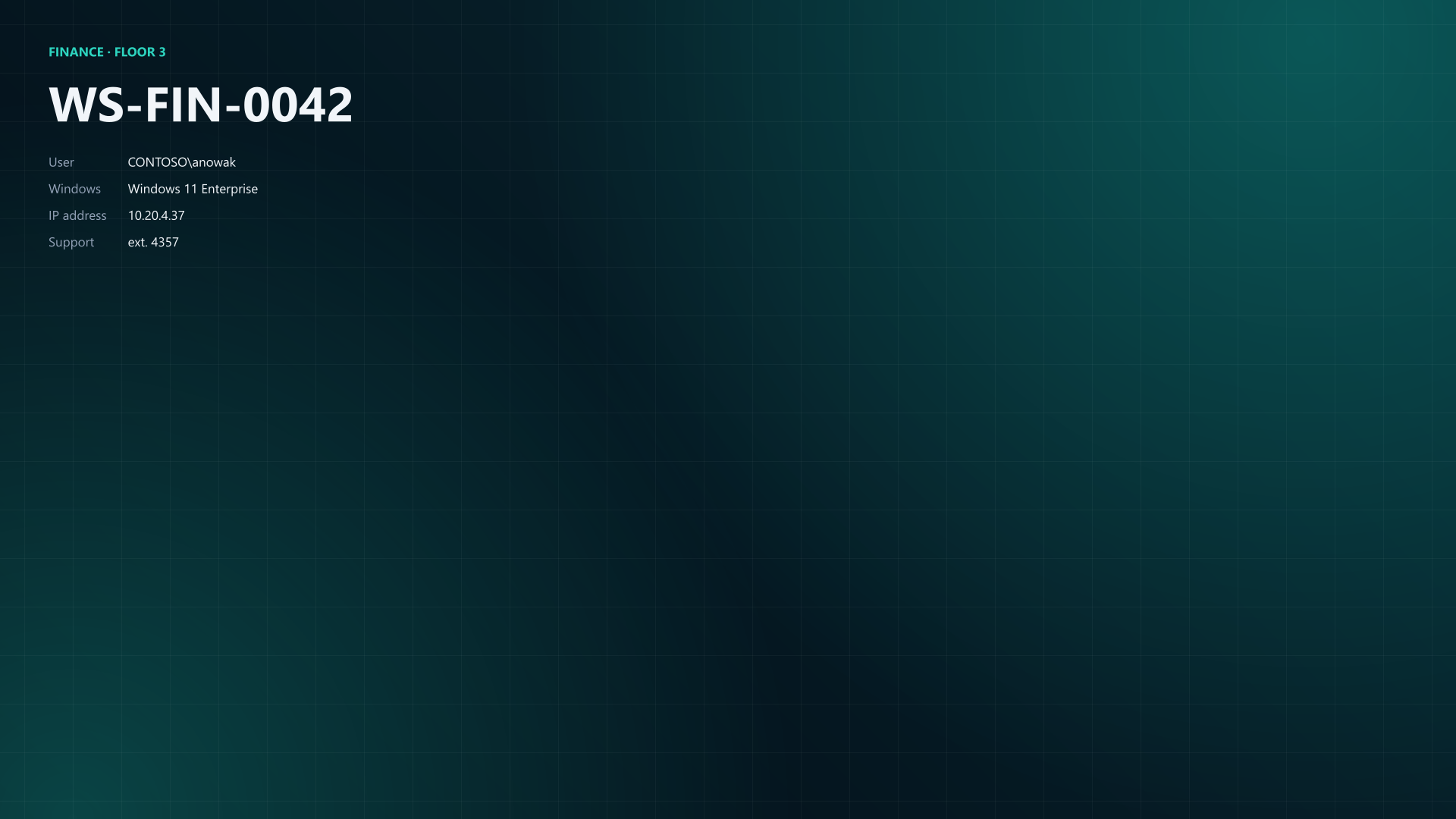
Labels and name and value pairs form the text block in the top-left corner. -BuiltinValue HostName, OSName or IPv4Address read the machine the script runs on; this page uses fixed values so anyone can reproduce the render.
PowerShell05-details.ps1+8 −1 New-BGInfoLabel -Name 'FINANCE · FLOOR 3' -Color '#2DD4BF' -FontWeight 700 New-BGInfoLabel -Name 'WS-FIN-0042' -Color White -FontSize 64 -Bold New-BGInfoValue -Name 'User' -Value 'CONTOSO\anowak' New-BGInfoValue -Name 'Windows' -Value 'Windows 11 Enterprise' New-BGInfoValue -Name 'IP address' -Value '10.20.4.37' New-BGInfoValue -Name 'Support' -Value 'ext. 4357' } -Color '#94A3B8' -ValueColor White -FontSize 18 -SpaceX 64 -SpaceY 56 ` -ConfigurationDirectory $OutputDirectory -OutputFileName 'wallpaper.png'05-details.png1920 x 1080 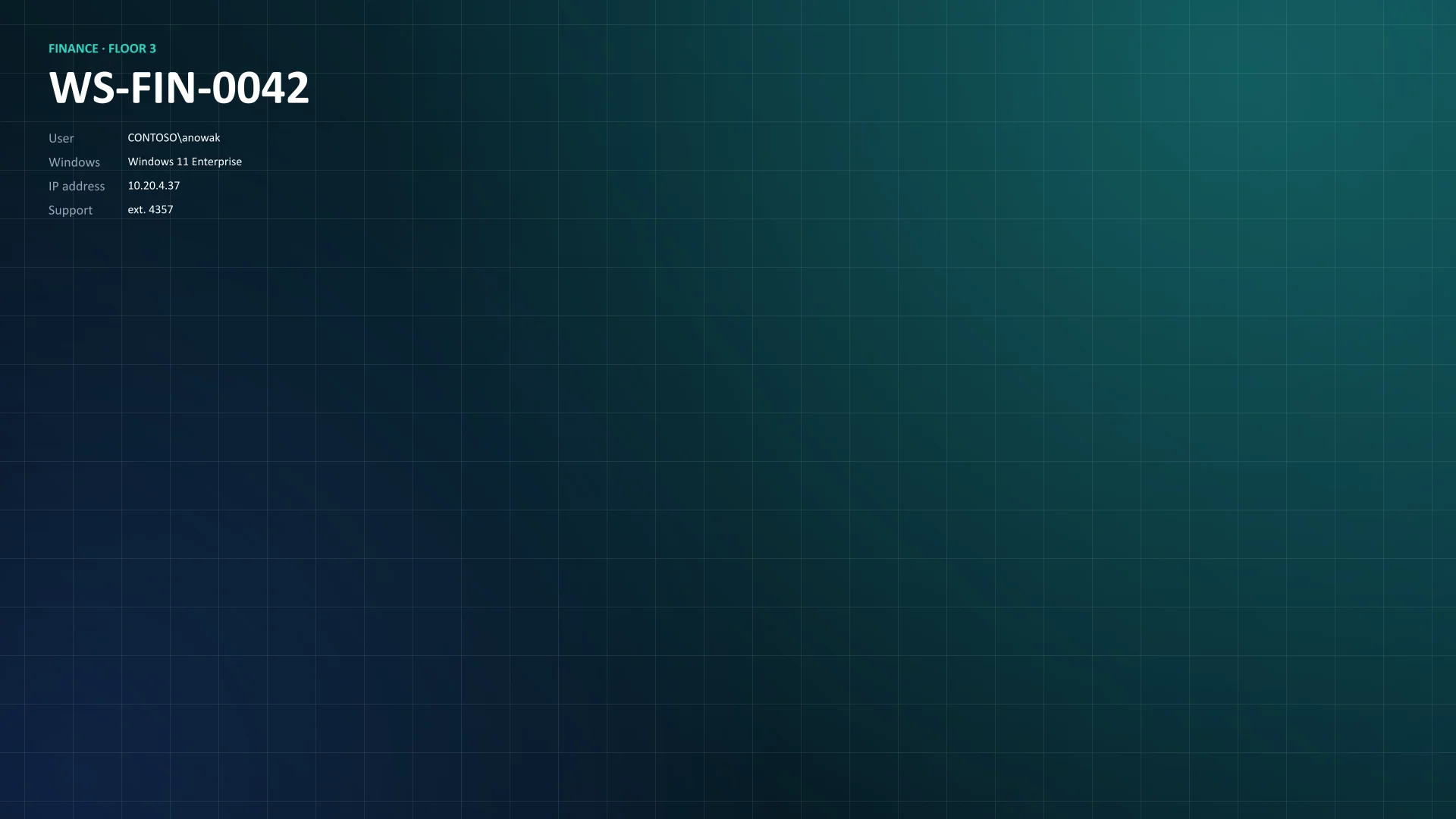
Whole script after this step 25 lines
PowerShell05-details.ps1 param([string] $OutputDirectory = "$env:TEMP\PowerBGInfo") $backdrop = @{ Width = 1920 Height = 1080 Gradient = '#0B3B46', '#050A14' Glow = @( New-BGInfoBackgroundGlow -X 0.85 -Y 0.1 -Radius 0.6 -Color '#2DD4BF40' New-BGInfoBackgroundGlow -X 0.05 -Y 0.95 -Radius 0.5 -Color '#3B82F633' ) Pattern = 'Grid' PatternSpacing = 64 } New-BGInfo -Target File { New-BGInfoBackground @backdrop New-BGInfoLabel -Name 'FINANCE · FLOOR 3' -Color '#2DD4BF' -FontWeight 700 New-BGInfoLabel -Name 'WS-FIN-0042' -Color White -FontSize 64 -Bold New-BGInfoValue -Name 'User' -Value 'CONTOSO\anowak' New-BGInfoValue -Name 'Windows' -Value 'Windows 11 Enterprise' New-BGInfoValue -Name 'IP address' -Value '10.20.4.37' New-BGInfoValue -Name 'Support' -Value 'ext. 4357' } -Color '#94A3B8' -ValueColor White -FontSize 18 -SpaceX 64 -SpaceY 56 ` -ConfigurationDirectory $OutputDirectory -OutputFileName 'wallpaper.png'Pick a theme preset
-Theme Aurora gives the text, the panels and the backdrop one look, so the hand-picked colours and the background layers go. Parameters you set still win, and -ThemeMode Light gives the light pair.
PowerShell06-theme.ps1+4 −12 New-BGInfo -Theme Aurora -ThemeMode Dark -Target File { New-BGInfoLabel -Name 'FINANCE · FLOOR 3' -Accent -FontWeight 700 New-BGInfoLabel -Name 'WS-FIN-0042' -FontSize 64 -Bold } -ConfigurationDirectory $OutputDirectory -OutputFileName 'wallpaper.png'06-theme.png1920 x 1080 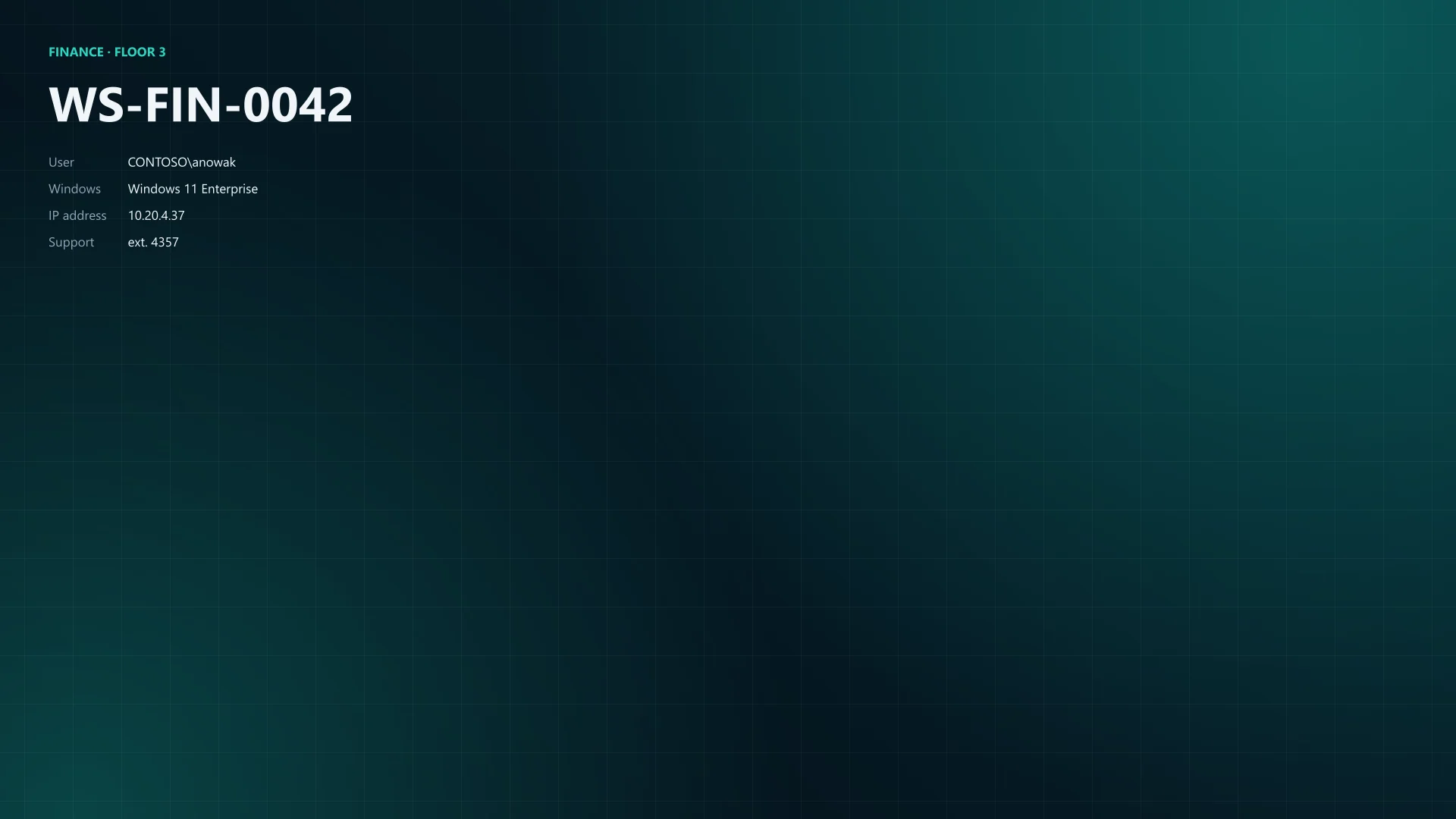
Whole script after this step 17 lines
PowerShell06-theme.ps1 param([string] $OutputDirectory = "$env:TEMP\PowerBGInfo") $backdrop = @{ Width = 1920 Height = 1080 } New-BGInfo -Theme Aurora -ThemeMode Dark -Target File { New-BGInfoBackground @backdrop New-BGInfoLabel -Name 'FINANCE · FLOOR 3' -Accent -FontWeight 700 New-BGInfoLabel -Name 'WS-FIN-0042' -FontSize 64 -Bold New-BGInfoValue -Name 'User' -Value 'CONTOSO\anowak' New-BGInfoValue -Name 'Windows' -Value 'Windows 11 Enterprise' New-BGInfoValue -Name 'IP address' -Value '10.20.4.37' New-BGInfoValue -Name 'Support' -Value 'ext. 4357' } -ConfigurationDirectory $OutputDirectory -OutputFileName 'wallpaper.png'Add the first chart
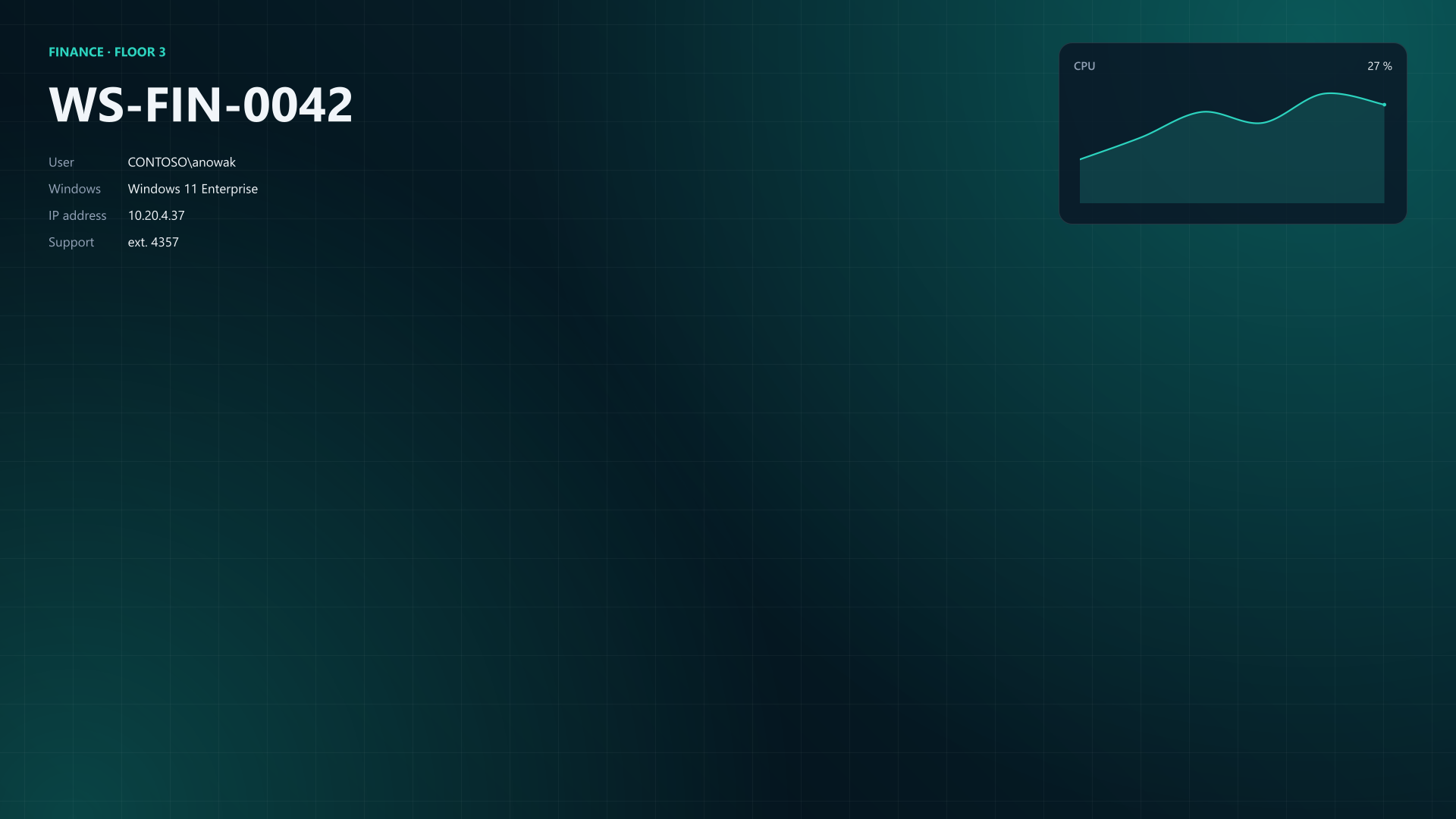
A chart panel placed by anchor and offsets, the way PowerBGInfo has always placed them. It picks up the theme's panel, type and series colour without a single colour parameter.
PowerShell07-chart.ps1+3 −0 New-BGInfoChart -Title 'CPU' -Kind Area -Values 12, 18, 25, 22, 30, 27 ` -ValueSuffix ' %' -NoHistory ` -Anchor TopRight -OffsetX 64 -OffsetY 56 -Width 460 -Height 24007-chart.png1920 x 1080 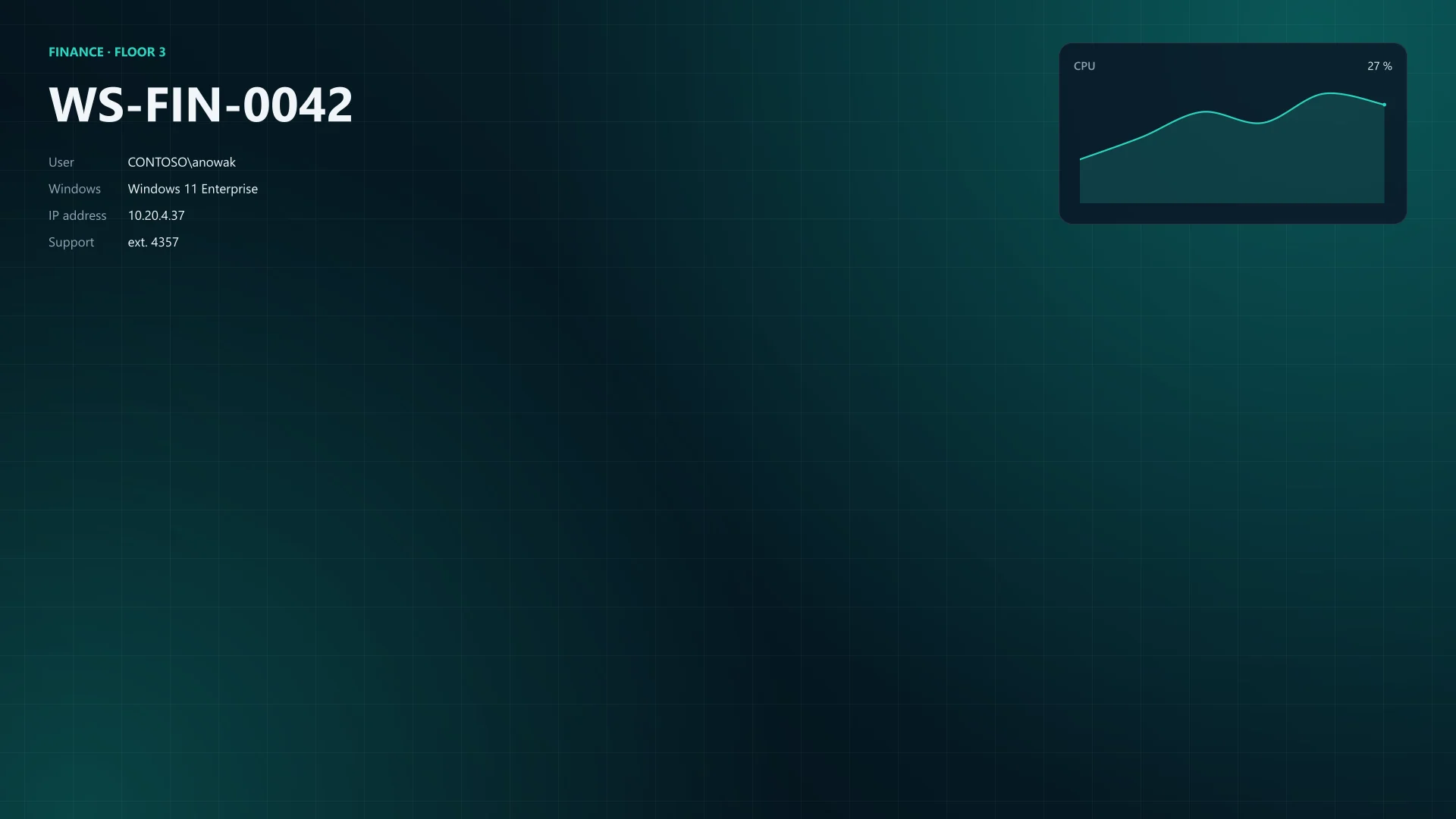
Whole script after this step 21 lines
PowerShell07-chart.ps1 param([string] $OutputDirectory = "$env:TEMP\PowerBGInfo") $backdrop = @{ Width = 1920 Height = 1080 } New-BGInfo -Theme Aurora -ThemeMode Dark -Target File { New-BGInfoBackground @backdrop New-BGInfoLabel -Name 'FINANCE · FLOOR 3' -Accent -FontWeight 700 New-BGInfoLabel -Name 'WS-FIN-0042' -FontSize 64 -Bold New-BGInfoValue -Name 'User' -Value 'CONTOSO\anowak' New-BGInfoValue -Name 'Windows' -Value 'Windows 11 Enterprise' New-BGInfoValue -Name 'IP address' -Value '10.20.4.37' New-BGInfoValue -Name 'Support' -Value 'ext. 4357' New-BGInfoChart -Title 'CPU' -Kind Area -Values 12, 18, 25, 22, 30, 27 ` -ValueSuffix ' %' -NoHistory ` -Anchor TopRight -OffsetX 64 -OffsetY 56 -Width 460 -Height 240 } -ConfigurationDirectory $OutputDirectory -OutputFileName 'wallpaper.png'Let regions do the layout
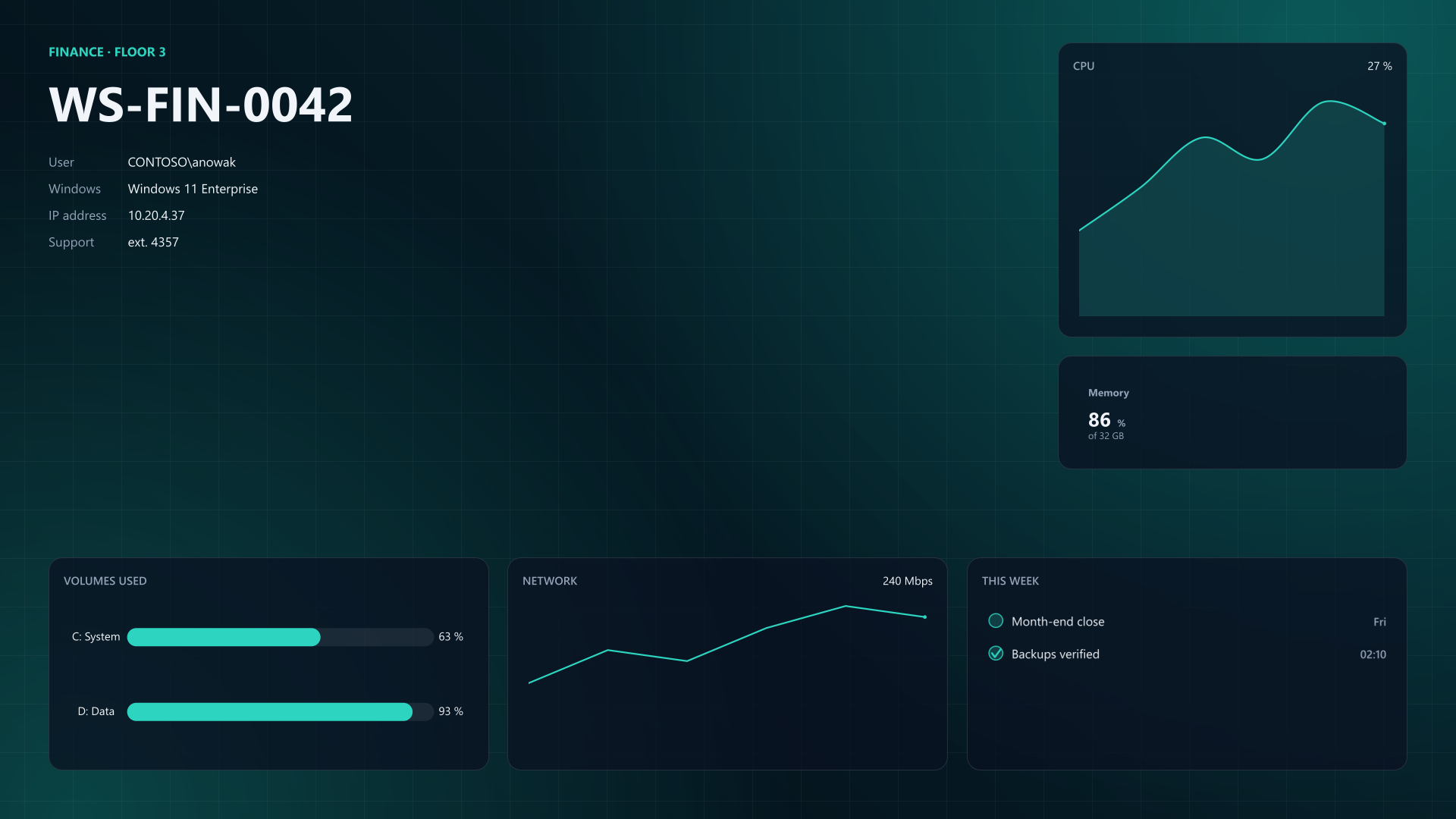
-Region Right stacks panels in a column and -Region Bottom shares a band. Nobody computes widths, the taskbar stays clear, and the layout follows the screen size; the region renders further down show it at ultrawide and portrait sizes.
PowerShell08-regions.ps1+13 −1 -Region Right New-BGInfoMetric -Region Right -Label 'Memory' -Value 86 -Unit '%' ` -Caption 'of 32 GB' -Height 150 New-BGInfoChart -Region Bottom -Title 'Volumes used' -Kind ProgressBar ` -Values 63, 93 -Labels 'C: System', 'D: Data' -Maximum 100 ` -ValueSuffix ' %' -NoProgressHandles -ShowLatestValue:$false ` -NoHistory New-BGInfoChart -Region Bottom -Title 'Network' -Kind Line ` -Values 120, 180, 160, 220, 260, 240 -ValueSuffix ' Mbps' -NoHistory New-BGInfoList -Region Bottom -Title 'This week' -Item @( @{ Text = 'Month-end close'; Checked = $false; Value = 'Fri' } @{ Text = 'Backups verified'; Checked = $true; Value = '02:10' } )08-regions.png1920 x 1080 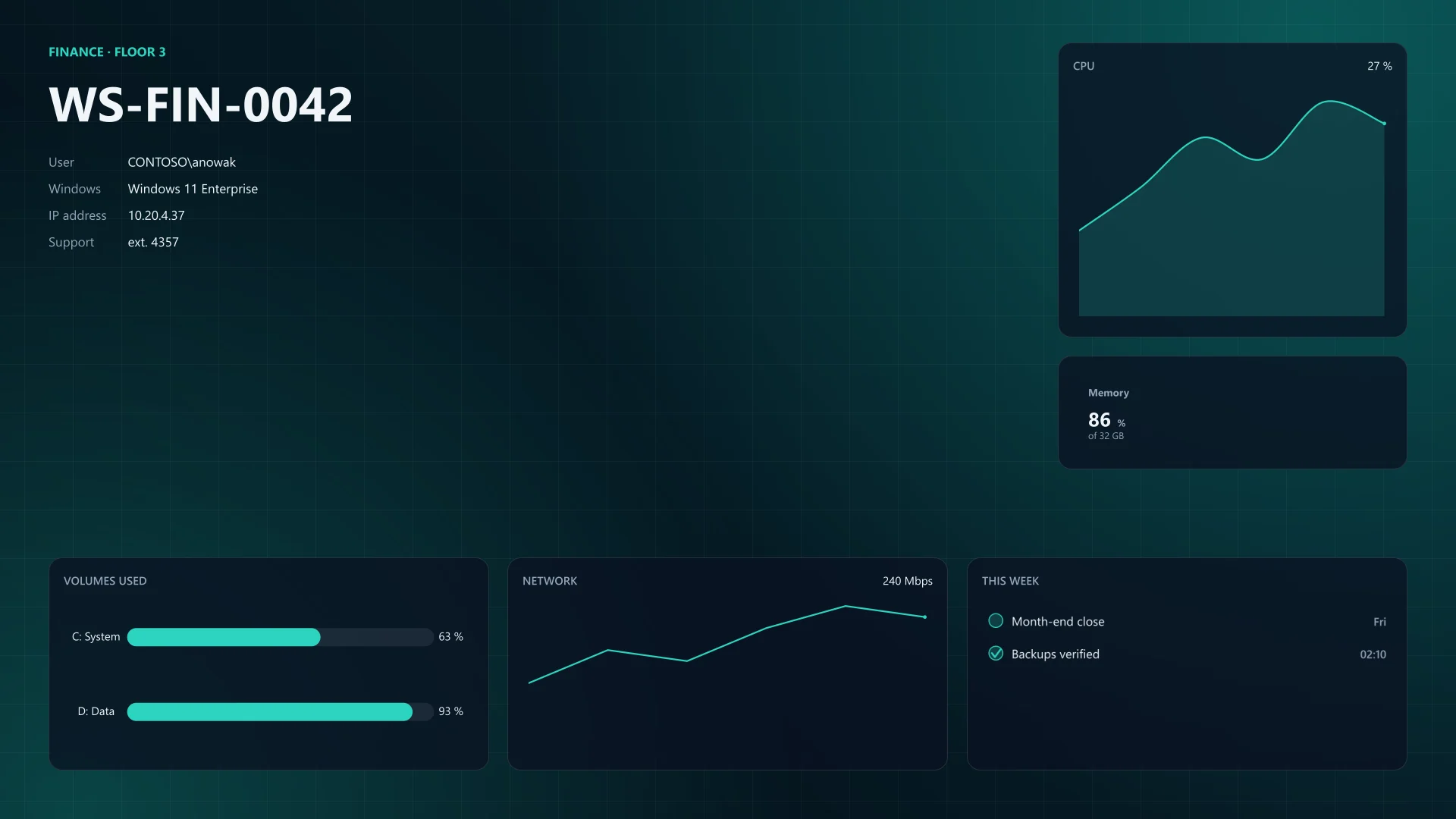
Whole script after this step 34 lines
PowerShell08-regions.ps1 param([string] $OutputDirectory = "$env:TEMP\PowerBGInfo") $backdrop = @{ Width = 1920 Height = 1080 } New-BGInfo -Theme Aurora -ThemeMode Dark -Target File { New-BGInfoBackground @backdrop New-BGInfoLabel -Name 'FINANCE · FLOOR 3' -Accent -FontWeight 700 New-BGInfoLabel -Name 'WS-FIN-0042' -FontSize 64 -Bold New-BGInfoValue -Name 'User' -Value 'CONTOSO\anowak' New-BGInfoValue -Name 'Windows' -Value 'Windows 11 Enterprise' New-BGInfoValue -Name 'IP address' -Value '10.20.4.37' New-BGInfoValue -Name 'Support' -Value 'ext. 4357' New-BGInfoChart -Title 'CPU' -Kind Area -Values 12, 18, 25, 22, 30, 27 ` -ValueSuffix ' %' -NoHistory ` -Region Right New-BGInfoMetric -Region Right -Label 'Memory' -Value 86 -Unit '%' ` -Caption 'of 32 GB' -Height 150 New-BGInfoChart -Region Bottom -Title 'Volumes used' -Kind ProgressBar ` -Values 63, 93 -Labels 'C: System', 'D: Data' -Maximum 100 ` -ValueSuffix ' %' -NoProgressHandles -ShowLatestValue:$false ` -NoHistory New-BGInfoChart -Region Bottom -Title 'Network' -Kind Line ` -Values 120, 180, 160, 220, 260, 240 -ValueSuffix ' Mbps' -NoHistory New-BGInfoList -Region Bottom -Title 'This week' -Item @( @{ Text = 'Month-end close'; Checked = $false; Value = 'Fri' } @{ Text = 'Backups verified'; Checked = $true; Value = '02:10' } ) } -ConfigurationDirectory $OutputDirectory -OutputFileName 'wallpaper.png'Add thresholds
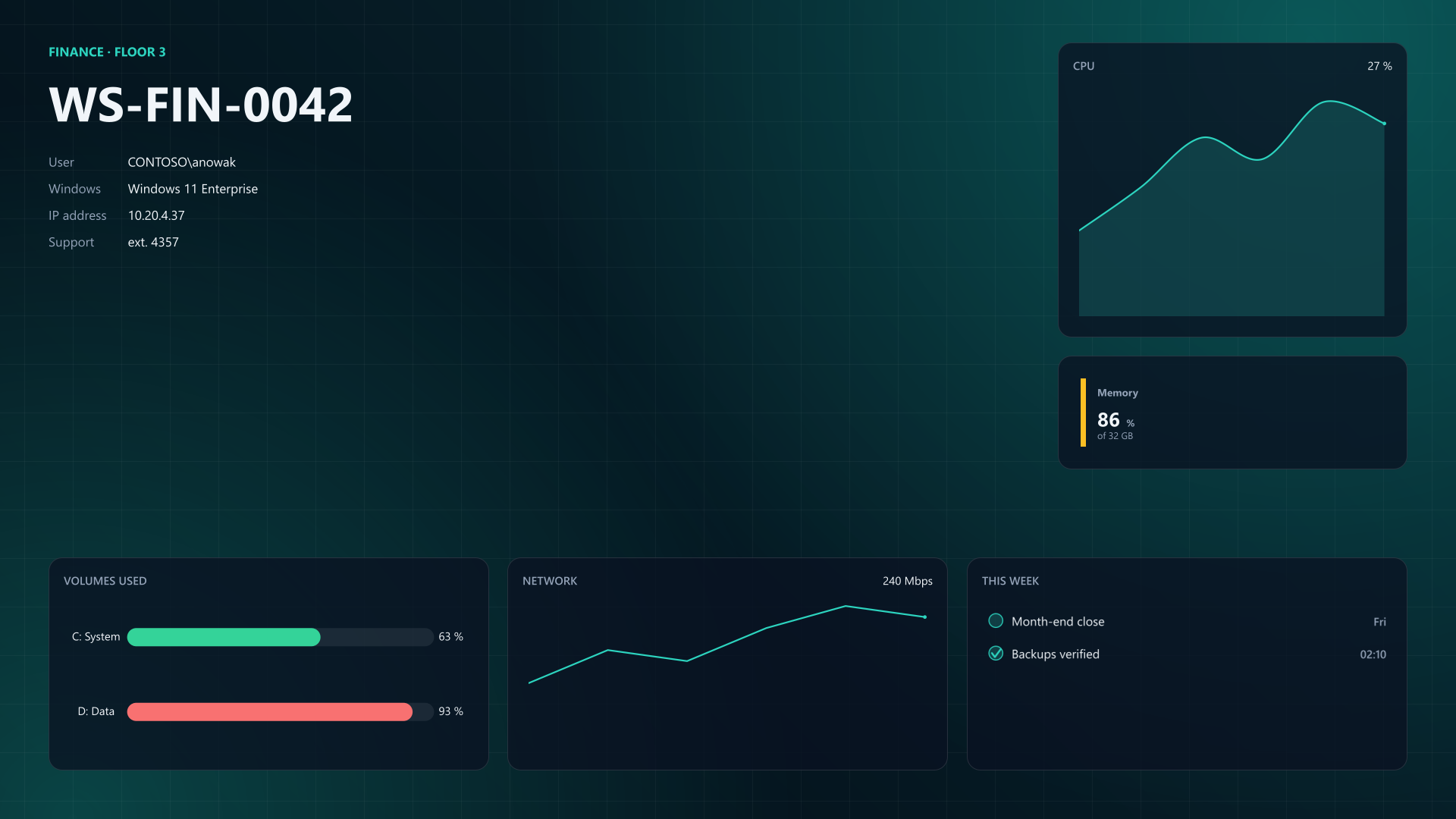
Warning and critical thresholds turn the memory card amber and the D: bar red by themselves, using the theme's status colours.
PowerShell09-thresholds.ps1+3 −2 -Caption 'of 32 GB' -Height 150 ` -WarningThreshold 80 -CriticalThreshold 90 -NoHistory -WarningThreshold 80 -CriticalThreshold 9009-thresholds.png1920 x 1080 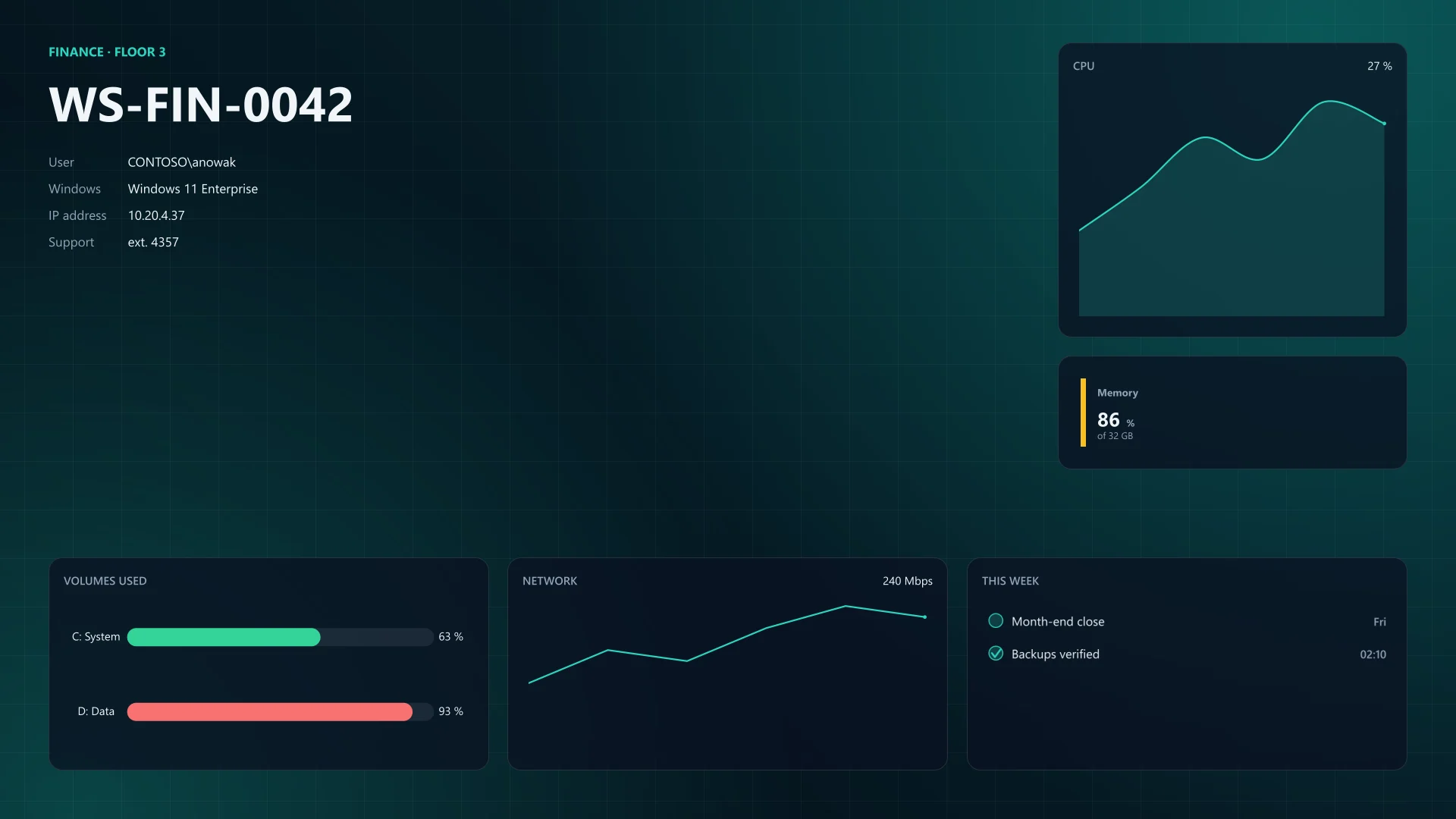
Whole script after this step 35 lines
PowerShell09-thresholds.ps1 param([string] $OutputDirectory = "$env:TEMP\PowerBGInfo") $backdrop = @{ Width = 1920 Height = 1080 } New-BGInfo -Theme Aurora -ThemeMode Dark -Target File { New-BGInfoBackground @backdrop New-BGInfoLabel -Name 'FINANCE · FLOOR 3' -Accent -FontWeight 700 New-BGInfoLabel -Name 'WS-FIN-0042' -FontSize 64 -Bold New-BGInfoValue -Name 'User' -Value 'CONTOSO\anowak' New-BGInfoValue -Name 'Windows' -Value 'Windows 11 Enterprise' New-BGInfoValue -Name 'IP address' -Value '10.20.4.37' New-BGInfoValue -Name 'Support' -Value 'ext. 4357' New-BGInfoChart -Title 'CPU' -Kind Area -Values 12, 18, 25, 22, 30, 27 ` -ValueSuffix ' %' -NoHistory ` -Region Right New-BGInfoMetric -Region Right -Label 'Memory' -Value 86 -Unit '%' ` -Caption 'of 32 GB' -Height 150 ` -WarningThreshold 80 -CriticalThreshold 90 New-BGInfoChart -Region Bottom -Title 'Volumes used' -Kind ProgressBar ` -Values 63, 93 -Labels 'C: System', 'D: Data' -Maximum 100 ` -ValueSuffix ' %' -NoProgressHandles -ShowLatestValue:$false ` -NoHistory -WarningThreshold 80 -CriticalThreshold 90 New-BGInfoChart -Region Bottom -Title 'Network' -Kind Line ` -Values 120, 180, 160, 220, 260, 240 -ValueSuffix ' Mbps' -NoHistory New-BGInfoList -Region Bottom -Title 'This week' -Item @( @{ Text = 'Month-end close'; Checked = $false; Value = 'Fri' } @{ Text = 'Backups verified'; Checked = $true; Value = '02:10' } ) } -ConfigurationDirectory $OutputDirectory -OutputFileName 'wallpaper.png'Bring your own data
The values move into one function, Invoke-BGInfoDataSource runs it with a time limit and a fallback, and the drawing code only reads $data. The wallpaper looks the same; now it is yours.
PowerShell10-data.ps1+49 −14 #region Data: your logic goes here function Get-MyWallpaperData { # Sample values. Each comment names a live source for the same value. [pscustomobject] @{ Team = 'FINANCE · FLOOR 3' Name = 'WS-FIN-0042' # $env:COMPUTERNAME User = 'CONTOSO\anowak' # Win32_ComputerSystem.UserName Windows = 'Windows 11 Enterprise' # Win32_OperatingSystem.Caption IPv4 = '10.20.4.37' # Get-NetIPAddress Cpu = 12, 18, 25, 22, 30, 27 # Get-Counter, or your monitoring Memory = 86 # Win32_OperatingSystem, % in use # Get-Volume | Where-Object DriveLetter, % used per volume Volumes = [ordered] @{ 'C: System' = 63; 'D: Data' = 93 } Network = 120, 180, 160, 220, 260, 240 Tasks = @( @{ Text = 'Month-end close'; Checked = $false; Value = 'Fri' } @{ Text = 'Backups verified'; Checked = $true; Value = '02:10' } ) } } # What the wallpaper shows when the source fails or runs out of time. $fallback = [pscustomobject] @{ Team = 'STATUS UNAVAILABLE'; Name = $env:COMPUTERNAME User = 'unknown'; Windows = 'unknown'; IPv4 = 'unknown' Cpu = @(0); Memory = 0; Volumes = @{ 'C:' = 0 }; Network = @(0) Tasks = @(@{ Text = 'Status unknown'; Checked = $false }) } $source = @{ Name = 'Wallpaper data' TimeoutSeconds = 10 ScriptBlock = ${function:Get-MyWallpaperData} Default = $fallback } $data = Invoke-BGInfoDataSource @source #endregion #region Presentation: reads only $data New-BGInfoLabel -Name $data.Team -Accent -FontWeight 700 New-BGInfoLabel -Name $data.Name -FontSize 64 -Bold New-BGInfoValue -Name 'User' -Value $data.User New-BGInfoValue -Name 'Windows' -Value $data.Windows New-BGInfoValue -Name 'IP address' -Value $data.IPv4 New-BGInfoChart -Title 'CPU' -Kind Area -Values $data.Cpu ` New-BGInfoMetric -Region Right -Label 'Memory' -Unit '%' ` -Value $data.Memory -Caption 'of 32 GB' -Height 150 ` -Values @($data.Volumes.Values) -Labels @($data.Volumes.Keys) ` -Maximum 100 ` -Values $data.Network -ValueSuffix ' Mbps' -NoHistory New-BGInfoList -Region Bottom -Title 'This week' -Item $data.Tasks #endregion10-data.png1920 x 1080 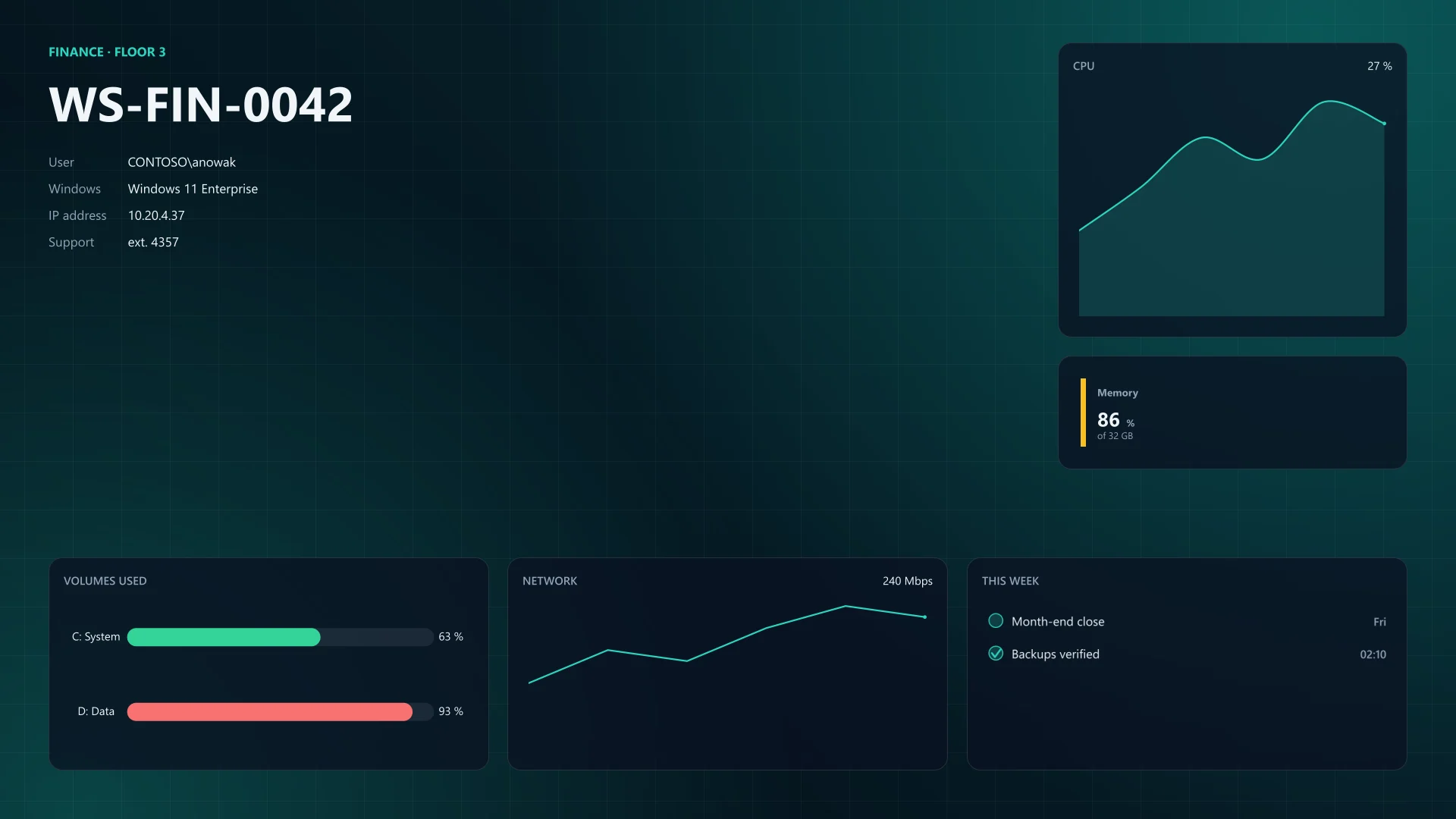
Whole script after this step 72 lines
PowerShell10-data.ps1 param([string] $OutputDirectory = "$env:TEMP\PowerBGInfo") #region Data: your logic goes here function Get-MyWallpaperData { # Sample values. Each comment names a live source for the same value. [pscustomobject] @{ Team = 'FINANCE · FLOOR 3' Name = 'WS-FIN-0042' # $env:COMPUTERNAME User = 'CONTOSO\anowak' # Win32_ComputerSystem.UserName Windows = 'Windows 11 Enterprise' # Win32_OperatingSystem.Caption IPv4 = '10.20.4.37' # Get-NetIPAddress Cpu = 12, 18, 25, 22, 30, 27 # Get-Counter, or your monitoring Memory = 86 # Win32_OperatingSystem, % in use # Get-Volume | Where-Object DriveLetter, % used per volume Volumes = [ordered] @{ 'C: System' = 63; 'D: Data' = 93 } Network = 120, 180, 160, 220, 260, 240 Tasks = @( @{ Text = 'Month-end close'; Checked = $false; Value = 'Fri' } @{ Text = 'Backups verified'; Checked = $true; Value = '02:10' } ) } } # What the wallpaper shows when the source fails or runs out of time. $fallback = [pscustomobject] @{ Team = 'STATUS UNAVAILABLE'; Name = $env:COMPUTERNAME User = 'unknown'; Windows = 'unknown'; IPv4 = 'unknown' Cpu = @(0); Memory = 0; Volumes = @{ 'C:' = 0 }; Network = @(0) Tasks = @(@{ Text = 'Status unknown'; Checked = $false }) } $source = @{ Name = 'Wallpaper data' TimeoutSeconds = 10 ScriptBlock = ${function:Get-MyWallpaperData} Default = $fallback } $data = Invoke-BGInfoDataSource @source #endregion #region Presentation: reads only $data $backdrop = @{ Width = 1920 Height = 1080 } New-BGInfo -Theme Aurora -ThemeMode Dark -Target File { New-BGInfoBackground @backdrop New-BGInfoLabel -Name $data.Team -Accent -FontWeight 700 New-BGInfoLabel -Name $data.Name -FontSize 64 -Bold New-BGInfoValue -Name 'User' -Value $data.User New-BGInfoValue -Name 'Windows' -Value $data.Windows New-BGInfoValue -Name 'IP address' -Value $data.IPv4 New-BGInfoValue -Name 'Support' -Value 'ext. 4357' New-BGInfoChart -Title 'CPU' -Kind Area -Values $data.Cpu ` -ValueSuffix ' %' -NoHistory ` -Region Right New-BGInfoMetric -Region Right -Label 'Memory' -Unit '%' ` -Value $data.Memory -Caption 'of 32 GB' -Height 150 ` -WarningThreshold 80 -CriticalThreshold 90 New-BGInfoChart -Region Bottom -Title 'Volumes used' -Kind ProgressBar ` -Values @($data.Volumes.Values) -Labels @($data.Volumes.Keys) ` -Maximum 100 ` -ValueSuffix ' %' -NoProgressHandles -ShowLatestValue:$false ` -NoHistory -WarningThreshold 80 -CriticalThreshold 90 New-BGInfoChart -Region Bottom -Title 'Network' -Kind Line ` -Values $data.Network -ValueSuffix ' Mbps' -NoHistory New-BGInfoList -Region Bottom -Title 'This week' -Item $data.Tasks } -ConfigurationDirectory $OutputDirectory -OutputFileName 'wallpaper.png' #endregion





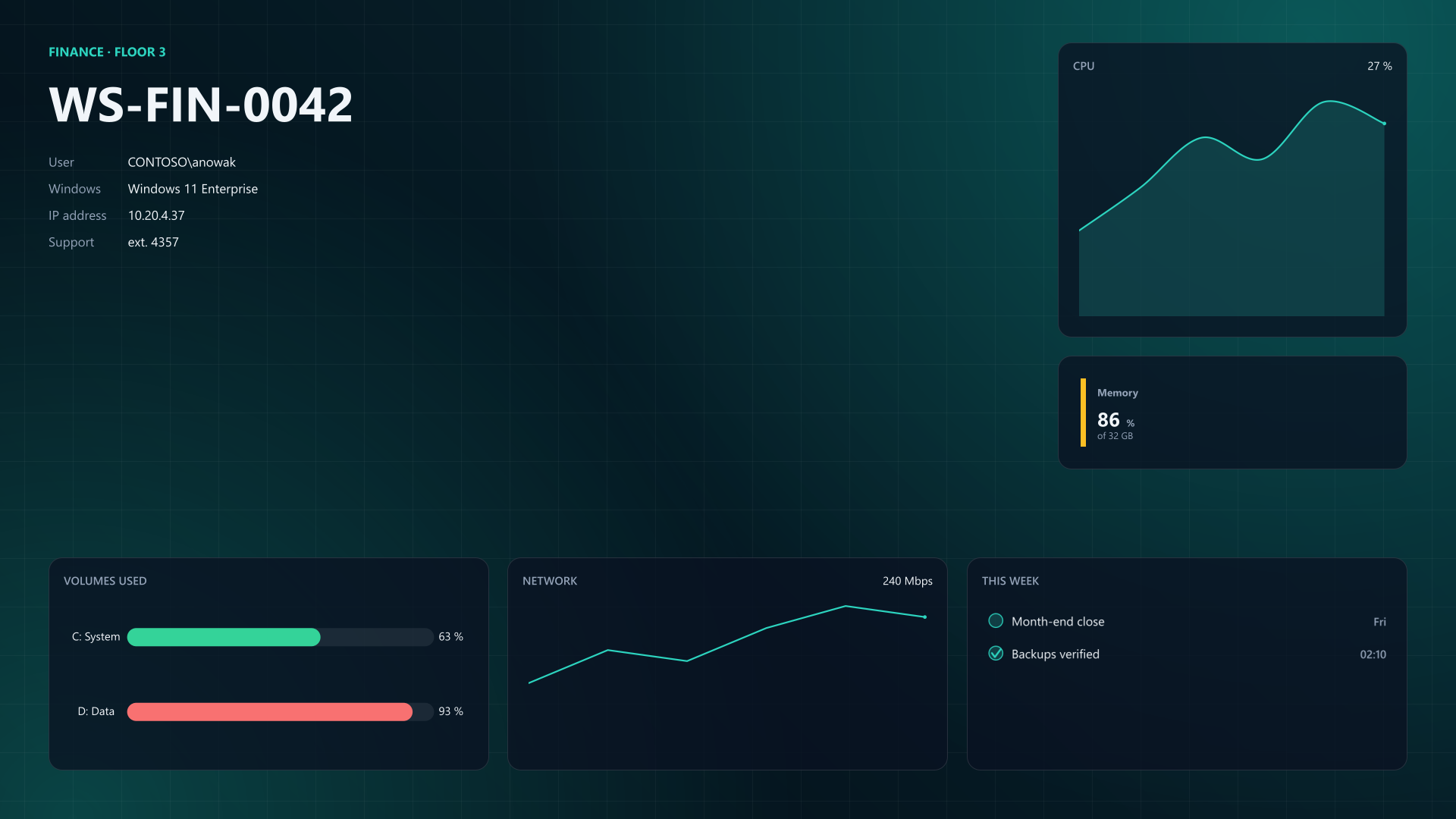
The steps are scripts in this site's repository, rendered with -Target File by PowerBGInfo built from source commit 2f6f22d.
Your logic, your data
Collecting the values is the part only you can write, so PowerBGInfo keeps it apart from the drawing. Every example has the same two regions: a data block that returns plain values, and a presentation block that only reads them.
The data block
One function returns one object. This is where your sources go: replace the sample values, keep the property names, and the layout keeps working. A comment beside each value names a live source for it.
#region Data: your logic goes here
function Get-MyWallpaperData {
    # Sample values. Each comment names a live source for the same value.
    [pscustomobject] @{
        Team = 'FINANCE · FLOOR 3'
        Name = 'WS-FIN-0042'                # $env:COMPUTERNAME
        User = 'CONTOSO\anowak'             # Win32_ComputerSystem.UserName
        Windows = 'Windows 11 Enterprise'   # Win32_OperatingSystem.Caption
        IPv4 = '10.20.4.37'                 # Get-NetIPAddress
        Cpu = 12, 18, 25, 22, 30, 27        # Get-Counter, or your monitoring
        Memory = 86                         # Win32_OperatingSystem, % in use
        # Get-Volume | Where-Object DriveLetter, % used per volume
        Volumes = [ordered] @{ 'C: System' = 63; 'D: Data' = 93 }
        Network = 120, 180, 160, 220, 260, 240
        Tasks = @(
            @{ Text = 'Month-end close'; Checked = $false; Value = 'Fri' }
            @{ Text = 'Backups verified'; Checked = $true; Value = '02:10' }
        )
    }
}

# What the wallpaper shows when the source fails or runs out of time.
$fallback = [pscustomobject] @{
    Team = 'STATUS UNAVAILABLE'; Name = $env:COMPUTERNAME
    User = 'unknown'; Windows = 'unknown'; IPv4 = 'unknown'
    Cpu = @(0); Memory = 0; Volumes = @{ 'C:' = 0 }; Network = @(0)
    Tasks = @(@{ Text = 'Status unknown'; Checked = $false })
}
$source = @{
    Name = 'Wallpaper data'
    TimeoutSeconds = 10
    ScriptBlock = ${function:Get-MyWallpaperData}
    Default = $fallback
}
$data = Invoke-BGInfoDataSource @source
#endregion
Typical sources
Each snippet is a body for that function. Combine them as you need; the wallpaper only sees the object they return.
Operating system, memory, uptime and fixed disks from Get-CimInstance. Read-only, and no module to install.
function Get-MyWallpaperData {
    $os = Get-CimInstance -ClassName Win32_OperatingSystem
    $disks = Get-CimInstance -ClassName Win32_LogicalDisk `
        -Filter 'DriveType = 3'
    $uptime = (Get-Date) - $os.LastBootUpTime
    $free = $os.FreePhysicalMemory / $os.TotalVisibleMemorySize

    $volumes = [ordered] @{}
    foreach ($disk in $disks) {
        $used = 1 - $disk.FreeSpace / $disk.Size
        $volumes[$disk.DeviceID] = [int] (100 * $used)
    }
    [pscustomobject] @{
        Windows = $os.Caption
        Uptime = '{0} days {1} h' -f $uptime.Days, $uptime.Hours
        Memory = [int] (100 * (1 - $free))
        Volumes = $volumes
    }
}
The Windows release and build, and values your build or asset process wrote under its own key.
function Get-MyWallpaperData {
    $key = 'HKLM:\SOFTWARE\Microsoft\Windows NT\CurrentVersion'
    $windows = Get-ItemProperty -Path $key
    # Your own values, written by the build or the asset process.
    $asset = Get-ItemProperty -Path 'HKLM:\SOFTWARE\Contoso\Asset' `
        -ErrorAction SilentlyContinue

    [pscustomobject] @{
        Release = $windows.DisplayVersion
        Build = '{0}.{1}' -f $windows.CurrentBuild, $windows.UBR
        Team = if ($asset) { $asset.Department } else { 'unassigned' }
        AssetTag = if ($asset) { $asset.Tag } else { 'unknown' }
    }
}
The signed-in user's department and title, and the computer's description and owner, from the ActiveDirectory module.
function Get-MyWallpaperData {
    # Needs the RSAT ActiveDirectory module and a domain controller in reach.
    Import-Module ActiveDirectory -ErrorAction Stop
    $user = Get-ADUser -Identity $env:USERNAME -Properties Department, Title
    $computer = Get-ADComputer -Identity $env:COMPUTERNAME `
        -Properties Description, ManagedBy

    [pscustomobject] @{
        User = $user.Name
        Team = '{0} · {1}' -f $user.Department, $user.Title
        Role = $computer.Description
        Owner = if ($computer.ManagedBy) {
            (Get-ADObject -Identity $computer.ManagedBy).Name
        } else { 'not set' }
    }
}
A CMDB or ticketing API through Invoke-RestMethod. The function runs in its own runspace, so it gets the computer name through -ArgumentList.
function Get-MyWallpaperData {
    param([string] $ComputerName)
    $uri = "https://cmdb.contoso.com/api/devices/$ComputerName"
    $device = Invoke-RestMethod -Uri $uri -UseDefaultCredentials -TimeoutSec 5

    [pscustomobject] @{
        Owner = $device.owner
        Team = $device.costCenter
        Tickets = $device.openTickets
    }
}

# The function runs in its own runspace: pass in what it needs.
$source = @{
    Name = 'CMDB'
    TimeoutSeconds = 10
    ScriptBlock = ${function:Get-MyWallpaperData}
    ArgumentList = $env:COMPUTERNAME
    Default = $fallback
}
$data = Invoke-BGInfoDataSource @source
JSON and CSV files that a monitoring tool already exports, read with ConvertFrom-Json and Import-Csv.
function Get-MyWallpaperData {
    # The monitoring tool exports one JSON and one CSV file per machine.
    $share = '\\mon01.contoso.com\exports'
    $status = Get-Content -Path "$share\$env:COMPUTERNAME.json" -Raw |
        ConvertFrom-Json
    $checks = Import-Csv -Path "$share\$env:COMPUTERNAME-checks.csv"

    [pscustomobject] @{
        Cpu = $status.cpu.history         # numbers, oldest first
        Memory = $status.memory.percent
        Tasks = foreach ($check in $checks) {
            @{ Text = $check.Name; Checked = $check.State -eq 'OK' }
        }
    }
}
A slow source never blocks logon
Invoke-BGInfoDataSource runs your function in its own runspace with a time limit. When the function throws, returns nothing or runs out of time, it writes a warning and returns the fallback you gave it, so the wallpaper always renders and sign-in never waits on a broken CMDB.
- Keep -TimeoutSeconds small, 5 to 15 seconds. A timed-out runspace is stopped in the background and the call returns at the limit.
- The function cannot see your script's variables. Pass what it needs with -ArgumentList and read it with param().
- Give each slow source its own call, so one failure only replaces its own values.
When the source does not answer. The same script with a source that hangs. Invoke-BGInfoDataSource stops waiting after ten seconds, writes a warning and returns the fallback, and the wallpaper still renders.
# A source that never answers: a CMDB that is down, a share that hangs.
Start-Sleep -Seconds 60
[pscustomobject] @{ Team = 'too late' }
WARNING: Wallpaper data did not finish within 10 s; using the default value.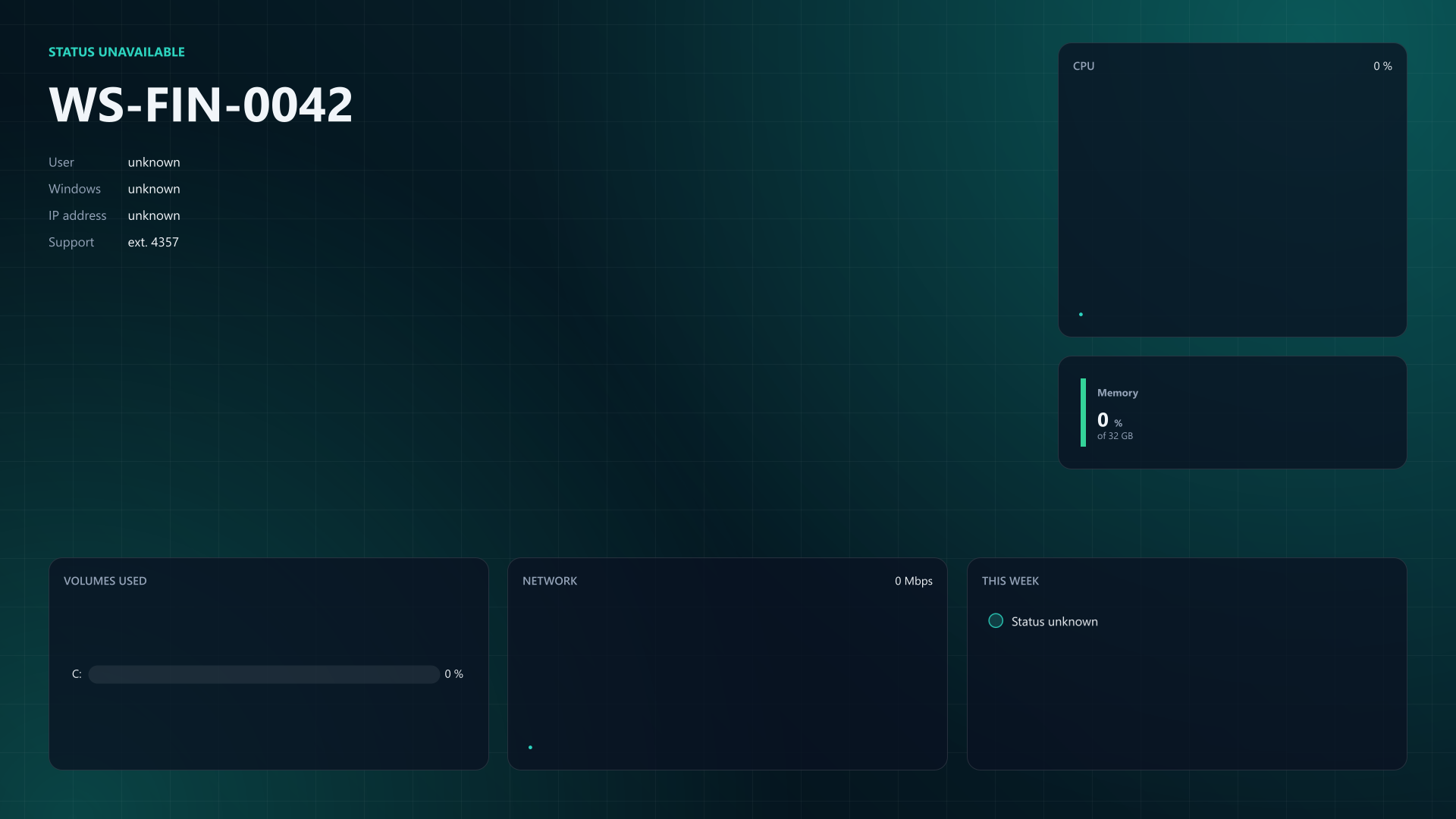
Swap a built-in helper
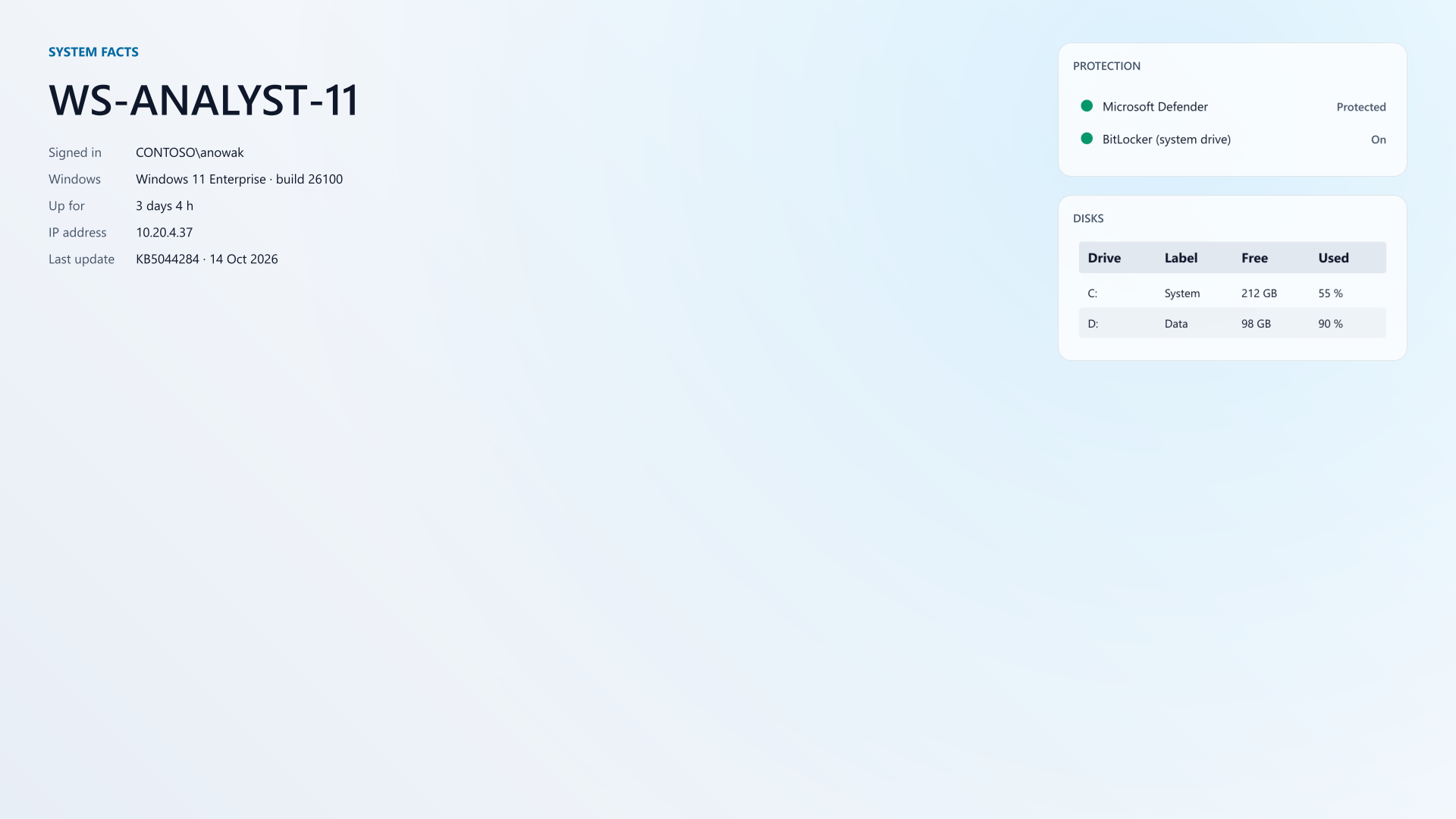
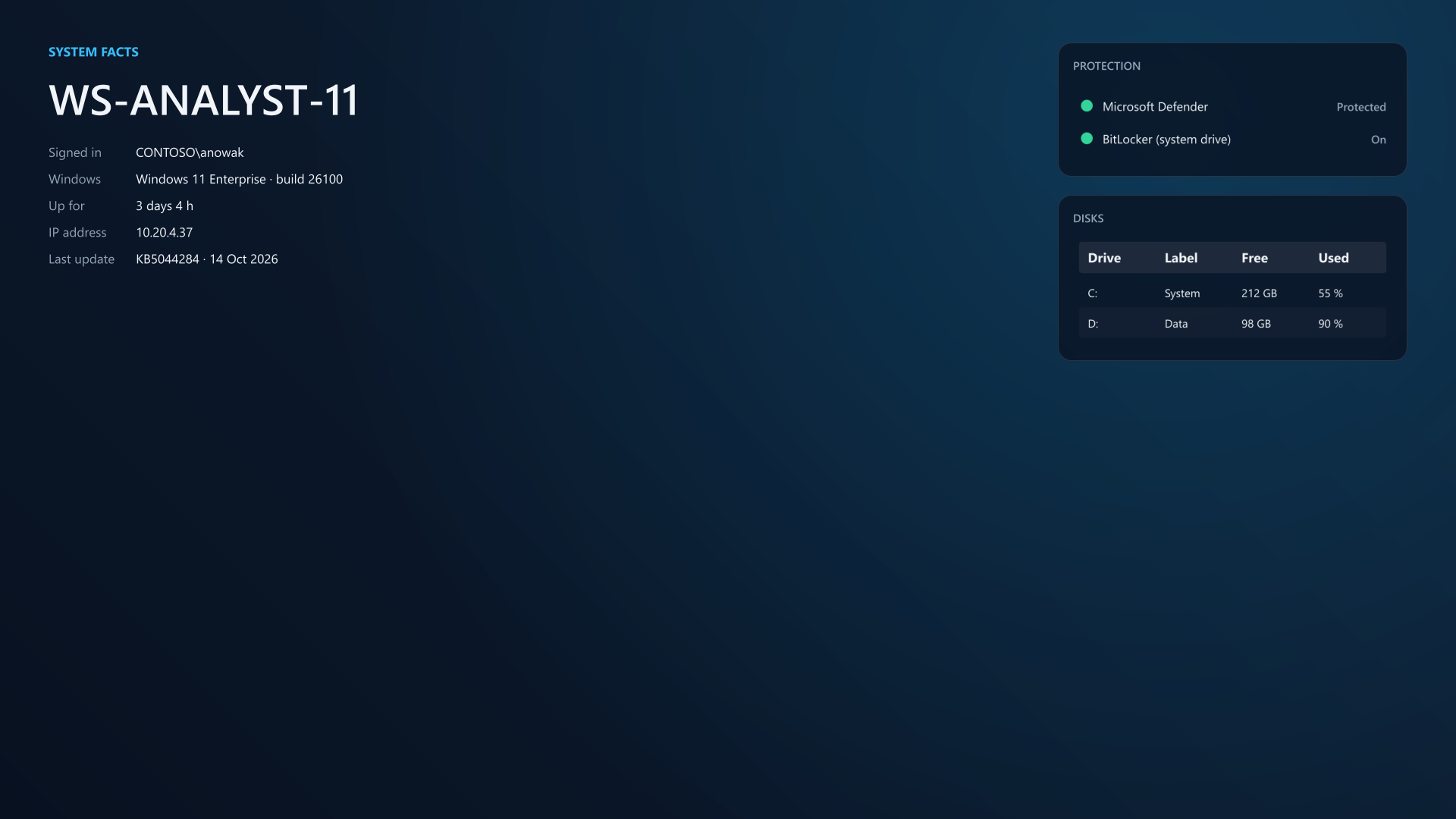
Get-BGInfoSystemInfo returns uptime, OS and build, IPv4, fixed disks, the last update, Defender and BitLocker state and the console user as one plain object, and every probe in it is read-only. A function of your own that returns the same property names replaces it; the system facts example does exactly that with sample values.
The same facts are built-in tokens for New-BGInfoValue -BuiltinValue:
# The built-in helper: read-only, each probe limited to five seconds.
$facts = Get-BGInfoSystemInfo

# Your own function with the same property names drops in for it.
function Get-MySystemInfo {
    $os = Get-CimInstance -ClassName Win32_OperatingSystem
    $uptime = (Get-Date) - $os.LastBootUpTime
    $volumes = Get-Volume | Where-Object { $_.DriveLetter -and $_.Size }

    [pscustomobject] @{
        ComputerName = $env:COMPUTERNAME
        OSName = $os.Caption
        UptimeText = '{0} days {1} h' -f $uptime.Days, $uptime.Hours
        Disks = foreach ($volume in $volumes) {
            [pscustomobject] @{
                Drive = "$($volume.DriveLetter):"
                FreeGB = [Math]::Round($volume.SizeRemaining / 1GB, 1)
                UsedPercent = [Math]::Round(
                    100 * (1 - $volume.SizeRemaining / $volume.Size), 1)
            }
        }
    }
}
$facts = Get-MySystemInfo

# The presentation code reads the same names either way.
$facts.Disks | New-BGInfoTable -Region Right -Title 'Disks' `
    -Property Drive, FreeGB, UsedPercent