Wallpaper gallery
Twelve PowerBGInfo wallpapers in light and dark, each with the script that drew it, plus the charts, tables, diagrams and themes they are built from.
Twelve wallpapers, each with one job
Each script answers one question for the person in front of the screen, and each renders in light and dark at any resolution. A theme preset gives each its look and regions place the panels. Every script starts with a data block of fixed samples, so anyone can reproduce the renders, and a comment beside each value names the command that supplies it on a real machine. Three are shown in full here, with the New-BGInfo call that draws each one and the data block it reads.
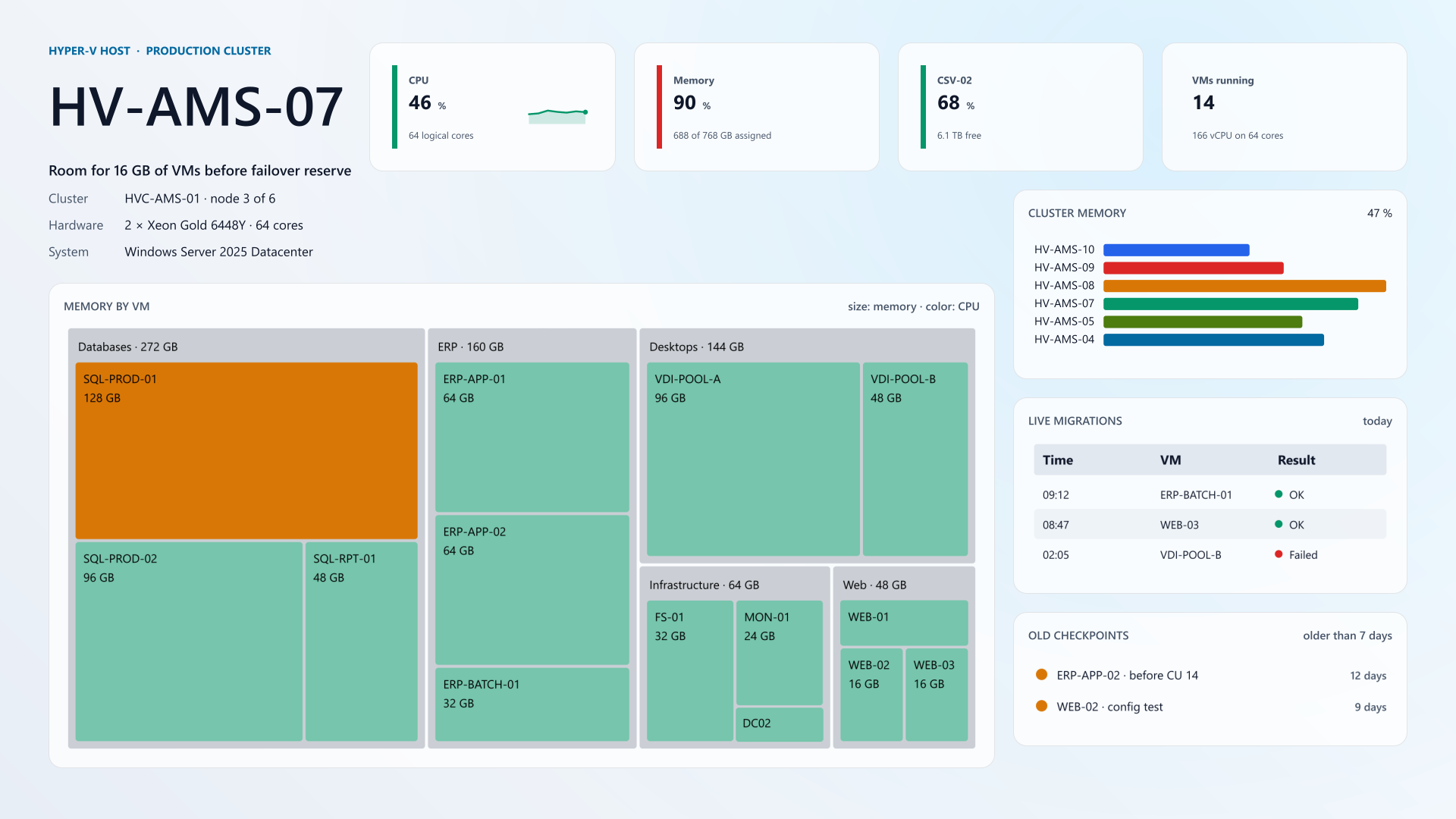
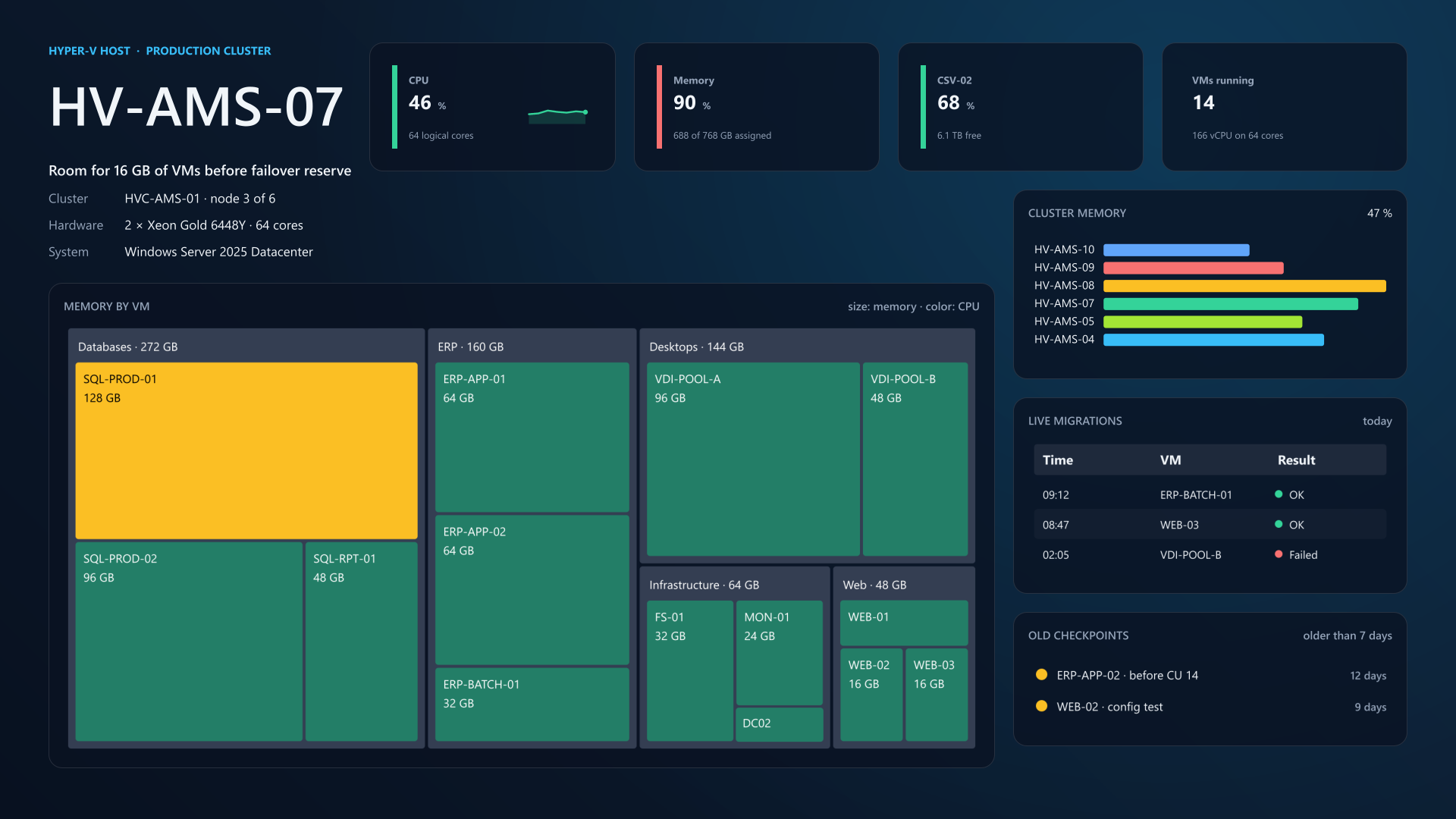
Hyper-V host
Room for another VM, and which VMs use the host.
New-BGInfo -Theme $look -Target File {
    New-BGInfoBackground -Width $Width -Height $Height -Pattern Grid `
        -PatternSpacing ([int](56 * $scale))
    # A wider right column for the tables; the treemap may fill the center.
    New-BGInfoLayout -ColumnWidth ([int](520 * $scale)) `
        -MaximumPanelHeight ([int](640 * $scale))

    New-BGInfoLabel -Name 'HYPER-V HOST  ·  PRODUCTION CLUSTER' -Accent `
        -FontSize ([int](15 * $scale)) -FontWeight 700
    New-BGInfoLabel -Name $hv.Name -FontSize ([int](72 * $scale)) `
        -FontWeight 600
    New-BGInfoLabel -Name "Room for $free GB of VMs before failover reserve" `
        -FontSize ([int](19 * $scale)) -FontWeight 600
    New-BGInfoValue -Name 'Cluster' -Value $hv.Cluster
    New-BGInfoValue -Name 'Hardware' -Value $hv.Hardware
    New-BGInfoValue -Name 'System' -Value $hv.Version

    # Top band: four host metrics beside the text. Above 80 % memory or
    # 75 % storage the card turns amber; above 90 % it turns red.
    $card = @{ Region = 'Top'; Height = [int](170 * $scale) }
    New-BGInfoMetric @card -Label 'CPU' -Value $hv.Cpu[-1] -Unit '%' `
        -Caption '64 logical cores' -History $hv.Cpu -HistoryMaximum 100 `
        -WarningThreshold 70 -CriticalThreshold 85
    New-BGInfoMetric @card -Label 'Memory' -Value $memory -Unit '%' `
        -Caption "$($hv.MemoryGB) of $($hv.TotalGB) GB assigned" `
        -WarningThreshold 80 -CriticalThreshold 90
    New-BGInfoMetric @card -Label $hv.Storage.Name -Unit '%' `
        -Value $hv.Storage.UsedPercent `
        -Caption "$($hv.Storage.FreeTB) TB free" `
        -WarningThreshold 75 -CriticalThreshold 90
    New-BGInfoMetric @card -Label 'VMs running' -Value $running `
        -Caption "$vcpu vCPU on 64 cores"

    # Center: where the memory goes, grouped by workload. The color is the
    # VM's CPU: amber from 60 %, red from 85 %.
    $hv.Vms | New-BGInfoTreemap -Region Center -Title 'Memory by VM' `
        -Note 'size: memory · color: CPU' -ValueProperty MemoryGB `
        -GroupProperty Workload -ValueSuffix ' GB' -ColorProperty Cpu `
        -WarningThreshold 60 -CriticalThreshold 85

    # Right column: where else VMs could go, today's live migrations and
    # the checkpoints left behind.
    New-BGInfoChart -Region Right -Id 'nodes' -Title 'Cluster memory' `
        -Kind ProgressBar -Values @($hv.Nodes.Values) `
        -Labels @($hv.Nodes.Keys) -Maximum 100 -ValueSuffix ' %' `
        -NoProgressHandles -ShowLatestValue:$false -NoHistory `
        -WarningThreshold 80 -CriticalThreshold 90 `
        -Height ([int](250 * $scale))
    $hv.Moves | New-BGInfoTable -Region Right -Title 'Live migrations' `
        -Note 'today' -Property Time, VM, Result -StatusColumn Result
    New-BGInfoList -Region Right -Title 'Old checkpoints' `
        -Note 'older than 7 days' -Item $hv.Checkpoints
} -ConfigurationDirectory $OutputDirectory `
    -OutputFileName "hyperv-host-$($Theme.ToLower()).png"
#endregion
#region Data: your logic goes here
function Get-HyperVHostData {
    # Get-VM returns these properties (MemoryAssigned, ProcessorCount and
    # CPUUsage); the workload tag comes from the VM notes or your CMDB.
    # The sample keeps them as CSV to stay short.
    $vms = @'
Name,Workload,vCPU,MemoryGB,Cpu
SQL-PROD-01,Databases,16,128,71
SQL-PROD-02,Databases,16,96,34
SQL-RPT-01,Databases,8,48,12
ERP-APP-01,ERP,12,64,38
ERP-APP-02,ERP,12,64,29
ERP-BATCH-01,ERP,8,32,55
VDI-POOL-A,Desktops,48,96,41
VDI-POOL-B,Desktops,24,48,18
WEB-01,Web,4,16,22
WEB-02,Web,4,16,19
WEB-03,Web,4,16,9
FS-01,Infrastructure,4,32,6
MON-01,Infrastructure,4,24,14
DC02,Infrastructure,2,8,3
'@ | ConvertFrom-Csv | ForEach-Object {
        [pscustomobject] @{
            Name = $_.Name; Workload = $_.Workload; vCPU = [int] $_.vCPU
            MemoryGB = [int] $_.MemoryGB; Cpu = [int] $_.Cpu; State = 'Running'
        }
    }

    [pscustomobject] @{
        Name     = 'HV-AMS-07'
        # Get-Cluster and Get-ClusterNode
        Cluster  = 'HVC-AMS-01 · node 3 of 6'
        Hardware = '2 × Xeon Gold 6448Y · 64 cores'
        Version  = 'Windows Server 2025 Datacenter'
        # Get-Counter '\Hyper-V Hypervisor Logical Processor(_Total)\
        #     % Total Run Time' sampled every 5 minutes
        Cpu      = @(38, 41, 52, 47, 44, 49, 46)
        # (Get-VMHost).MemoryCapacity and the sum of MemoryAssigned
        MemoryGB = [int] ($vms | Measure-Object -Property MemoryGB -Sum).Sum
        # The cluster keeps one node's worth of memory free for failover.
        ReserveGB = 64
        TotalGB  = 768
        # Get-ClusterSharedVolume | Select-Object -ExpandProperty
        #     SharedVolumeInfo | Select-Object -ExpandProperty Partition
        Storage  = @{ Name = 'CSV-02'; UsedPercent = 68; FreeTB = 6.1 }
        Vms      = $vms
        # Get-ClusterGroup | Where-Object OwnerNode -NE $env:COMPUTERNAME,
        # or the Failover Clustering event log, event 5143 and 1641
        Moves    = @(
            [pscustomobject] @{ Time = '09:12'; VM = 'ERP-BATCH-01'
                Move = 'from HV-AMS-04'; Result = 'OK' }
            [pscustomobject] @{ Time = '08:47'; VM = 'WEB-03'
                Move = 'from HV-AMS-02'; Result = 'OK' }
            [pscustomobject] @{ Time = '02:05'; VM = 'VDI-POOL-B'
                Move = 'to HV-AMS-05'; Result = 'Failed' }
        )
        # Memory assigned on every node: Get-ClusterNode | ForEach-Object {
        #     Get-VM -ComputerName $_.Name | Measure-Object MemoryAssigned }
        Nodes       = [ordered] @{
            'HV-AMS-04' = 71; 'HV-AMS-05' = 64; 'HV-AMS-07' = 82
            'HV-AMS-08' = 91; 'HV-AMS-09' = 58; 'HV-AMS-10' = 47
        }
        # Get-VM | Get-VMSnapshot | Where-Object CreationTime -LT
        #     (Get-Date).AddDays(-7)
        Checkpoints = @(
            @{ Text = 'ERP-APP-02 · before CU 14'; Status = 'Warning'
                Value = '12 days' }
            @{ Text = 'WEB-02 · config test'; Status = 'Warning'
                Value = '9 days' }
        )
    }
}

$fallback = [pscustomobject] @{
    Name = $env:COMPUTERNAME; Cluster = 'unknown'; Hardware = 'unknown'
    Version = 'unknown'; Cpu = @(0); MemoryGB = 0; TotalGB = 1; ReserveGB = 0
    Storage = @{ Name = 'CSV'; UsedPercent = 0; FreeTB = 0 }
    Vms = @([pscustomobject] @{ Name = 'unknown'; Workload = ''
            vCPU = 0; MemoryGB = 1; Cpu = 0; State = 'Unknown' })
    Moves = @(); Checkpoints = @(); Nodes = [ordered] @{ 'unknown' = 0 }
}
$source = @{
    Name           = 'Hyper-V host'
    TimeoutSeconds = 20
    ScriptBlock    = ${function:Get-HyperVHostData}
    Default        = $fallback
}
$hv = Invoke-BGInfoDataSource @source
#endregion
Full script 170 lines
<#
    Hyper-V host. The question for the administrator at this console: does
    this host have room for another VM, and which VMs are using it?

    The data block returns plain values; the presentation block only reads
    them. Comments name the command or source that supplies each value.
#>
param(
    [ValidateSet('Light', 'Dark')]
    [string] $Theme = 'Dark',
    [int] $Width = 1920,
    [int] $Height = 1080,
    [string] $OutputDirectory = (Join-Path $PSScriptRoot 'Output')
)

Import-Module (Join-Path $PSScriptRoot '..\PowerBGInfo.psd1') -Force

#region Data: your logic goes here
function Get-HyperVHostData {
    # Get-VM returns these properties (MemoryAssigned, ProcessorCount and
    # CPUUsage); the workload tag comes from the VM notes or your CMDB.
    # The sample keeps them as CSV to stay short.
    $vms = @'
Name,Workload,vCPU,MemoryGB,Cpu
SQL-PROD-01,Databases,16,128,71
SQL-PROD-02,Databases,16,96,34
SQL-RPT-01,Databases,8,48,12
ERP-APP-01,ERP,12,64,38
ERP-APP-02,ERP,12,64,29
ERP-BATCH-01,ERP,8,32,55
VDI-POOL-A,Desktops,48,96,41
VDI-POOL-B,Desktops,24,48,18
WEB-01,Web,4,16,22
WEB-02,Web,4,16,19
WEB-03,Web,4,16,9
FS-01,Infrastructure,4,32,6
MON-01,Infrastructure,4,24,14
DC02,Infrastructure,2,8,3
'@ | ConvertFrom-Csv | ForEach-Object {
        [pscustomobject] @{
            Name = $_.Name; Workload = $_.Workload; vCPU = [int] $_.vCPU
            MemoryGB = [int] $_.MemoryGB; Cpu = [int] $_.Cpu; State = 'Running'
        }
    }

    [pscustomobject] @{
        Name     = 'HV-AMS-07'
        # Get-Cluster and Get-ClusterNode
        Cluster  = 'HVC-AMS-01 · node 3 of 6'
        Hardware = '2 × Xeon Gold 6448Y · 64 cores'
        Version  = 'Windows Server 2025 Datacenter'
        # Get-Counter '\Hyper-V Hypervisor Logical Processor(_Total)\
        #     % Total Run Time' sampled every 5 minutes
        Cpu      = @(38, 41, 52, 47, 44, 49, 46)
        # (Get-VMHost).MemoryCapacity and the sum of MemoryAssigned
        MemoryGB = [int] ($vms | Measure-Object -Property MemoryGB -Sum).Sum
        # The cluster keeps one node's worth of memory free for failover.
        ReserveGB = 64
        TotalGB  = 768
        # Get-ClusterSharedVolume | Select-Object -ExpandProperty
        #     SharedVolumeInfo | Select-Object -ExpandProperty Partition
        Storage  = @{ Name = 'CSV-02'; UsedPercent = 68; FreeTB = 6.1 }
        Vms      = $vms
        # Get-ClusterGroup | Where-Object OwnerNode -NE $env:COMPUTERNAME,
        # or the Failover Clustering event log, event 5143 and 1641
        Moves    = @(
            [pscustomobject] @{ Time = '09:12'; VM = 'ERP-BATCH-01'
                Move = 'from HV-AMS-04'; Result = 'OK' }
            [pscustomobject] @{ Time = '08:47'; VM = 'WEB-03'
                Move = 'from HV-AMS-02'; Result = 'OK' }
            [pscustomobject] @{ Time = '02:05'; VM = 'VDI-POOL-B'
                Move = 'to HV-AMS-05'; Result = 'Failed' }
        )
        # Memory assigned on every node: Get-ClusterNode | ForEach-Object {
        #     Get-VM -ComputerName $_.Name | Measure-Object MemoryAssigned }
        Nodes       = [ordered] @{
            'HV-AMS-04' = 71; 'HV-AMS-05' = 64; 'HV-AMS-07' = 82
            'HV-AMS-08' = 91; 'HV-AMS-09' = 58; 'HV-AMS-10' = 47
        }
        # Get-VM | Get-VMSnapshot | Where-Object CreationTime -LT
        #     (Get-Date).AddDays(-7)
        Checkpoints = @(
            @{ Text = 'ERP-APP-02 · before CU 14'; Status = 'Warning'
                Value = '12 days' }
            @{ Text = 'WEB-02 · config test'; Status = 'Warning'
                Value = '9 days' }
        )
    }
}

$fallback = [pscustomobject] @{
    Name = $env:COMPUTERNAME; Cluster = 'unknown'; Hardware = 'unknown'
    Version = 'unknown'; Cpu = @(0); MemoryGB = 0; TotalGB = 1; ReserveGB = 0
    Storage = @{ Name = 'CSV'; UsedPercent = 0; FreeTB = 0 }
    Vms = @([pscustomobject] @{ Name = 'unknown'; Workload = ''
            vCPU = 0; MemoryGB = 1; Cpu = 0; State = 'Unknown' })
    Moves = @(); Checkpoints = @(); Nodes = [ordered] @{ 'unknown' = 0 }
}
$source = @{
    Name           = 'Hyper-V host'
    TimeoutSeconds = 20
    ScriptBlock    = ${function:Get-HyperVHostData}
    Default        = $fallback
}
$hv = Invoke-BGInfoDataSource @source
#endregion

#region Presentation: reads only $hv
$scale = [Math]::Round($Height / 1080, 2)
$look = New-BGInfoTheme Corporate -Mode $Theme -Scale $scale
$memory = [Math]::Round(100 * $hv.MemoryGB / $hv.TotalGB)
$running = @($hv.Vms | Where-Object State -EQ 'Running').Count
$vcpu = ($hv.Vms | Measure-Object vCPU -Sum).Sum
$free = $hv.TotalGB - $hv.MemoryGB - $hv.ReserveGB

New-BGInfo -Theme $look -Target File {
    New-BGInfoBackground -Width $Width -Height $Height -Pattern Grid `
        -PatternSpacing ([int](56 * $scale))
    # A wider right column for the tables; the treemap may fill the center.
    New-BGInfoLayout -ColumnWidth ([int](520 * $scale)) `
        -MaximumPanelHeight ([int](640 * $scale))

    New-BGInfoLabel -Name 'HYPER-V HOST  ·  PRODUCTION CLUSTER' -Accent `
        -FontSize ([int](15 * $scale)) -FontWeight 700
    New-BGInfoLabel -Name $hv.Name -FontSize ([int](72 * $scale)) `
        -FontWeight 600
    New-BGInfoLabel -Name "Room for $free GB of VMs before failover reserve" `
        -FontSize ([int](19 * $scale)) -FontWeight 600
    New-BGInfoValue -Name 'Cluster' -Value $hv.Cluster
    New-BGInfoValue -Name 'Hardware' -Value $hv.Hardware
    New-BGInfoValue -Name 'System' -Value $hv.Version

    # Top band: four host metrics beside the text. Above 80 % memory or
    # 75 % storage the card turns amber; above 90 % it turns red.
    $card = @{ Region = 'Top'; Height = [int](170 * $scale) }
    New-BGInfoMetric @card -Label 'CPU' -Value $hv.Cpu[-1] -Unit '%' `
        -Caption '64 logical cores' -History $hv.Cpu -HistoryMaximum 100 `
        -WarningThreshold 70 -CriticalThreshold 85
    New-BGInfoMetric @card -Label 'Memory' -Value $memory -Unit '%' `
        -Caption "$($hv.MemoryGB) of $($hv.TotalGB) GB assigned" `
        -WarningThreshold 80 -CriticalThreshold 90
    New-BGInfoMetric @card -Label $hv.Storage.Name -Unit '%' `
        -Value $hv.Storage.UsedPercent `
        -Caption "$($hv.Storage.FreeTB) TB free" `
        -WarningThreshold 75 -CriticalThreshold 90
    New-BGInfoMetric @card -Label 'VMs running' -Value $running `
        -Caption "$vcpu vCPU on 64 cores"

    # Center: where the memory goes, grouped by workload. The color is the
    # VM's CPU: amber from 60 %, red from 85 %.
    $hv.Vms | New-BGInfoTreemap -Region Center -Title 'Memory by VM' `
        -Note 'size: memory · color: CPU' -ValueProperty MemoryGB `
        -GroupProperty Workload -ValueSuffix ' GB' -ColorProperty Cpu `
        -WarningThreshold 60 -CriticalThreshold 85

    # Right column: where else VMs could go, today's live migrations and
    # the checkpoints left behind.
    New-BGInfoChart -Region Right -Id 'nodes' -Title 'Cluster memory' `
        -Kind ProgressBar -Values @($hv.Nodes.Values) `
        -Labels @($hv.Nodes.Keys) -Maximum 100 -ValueSuffix ' %' `
        -NoProgressHandles -ShowLatestValue:$false -NoHistory `
        -WarningThreshold 80 -CriticalThreshold 90 `
        -Height ([int](250 * $scale))
    $hv.Moves | New-BGInfoTable -Region Right -Title 'Live migrations' `
        -Note 'today' -Property Time, VM, Result -StatusColumn Result
    New-BGInfoList -Region Right -Title 'Old checkpoints' `
        -Note 'older than 7 days' -Item $hv.Checkpoints
} -ConfigurationDirectory $OutputDirectory `
    -OutputFileName "hyperv-host-$($Theme.ToLower()).png"
#endregion
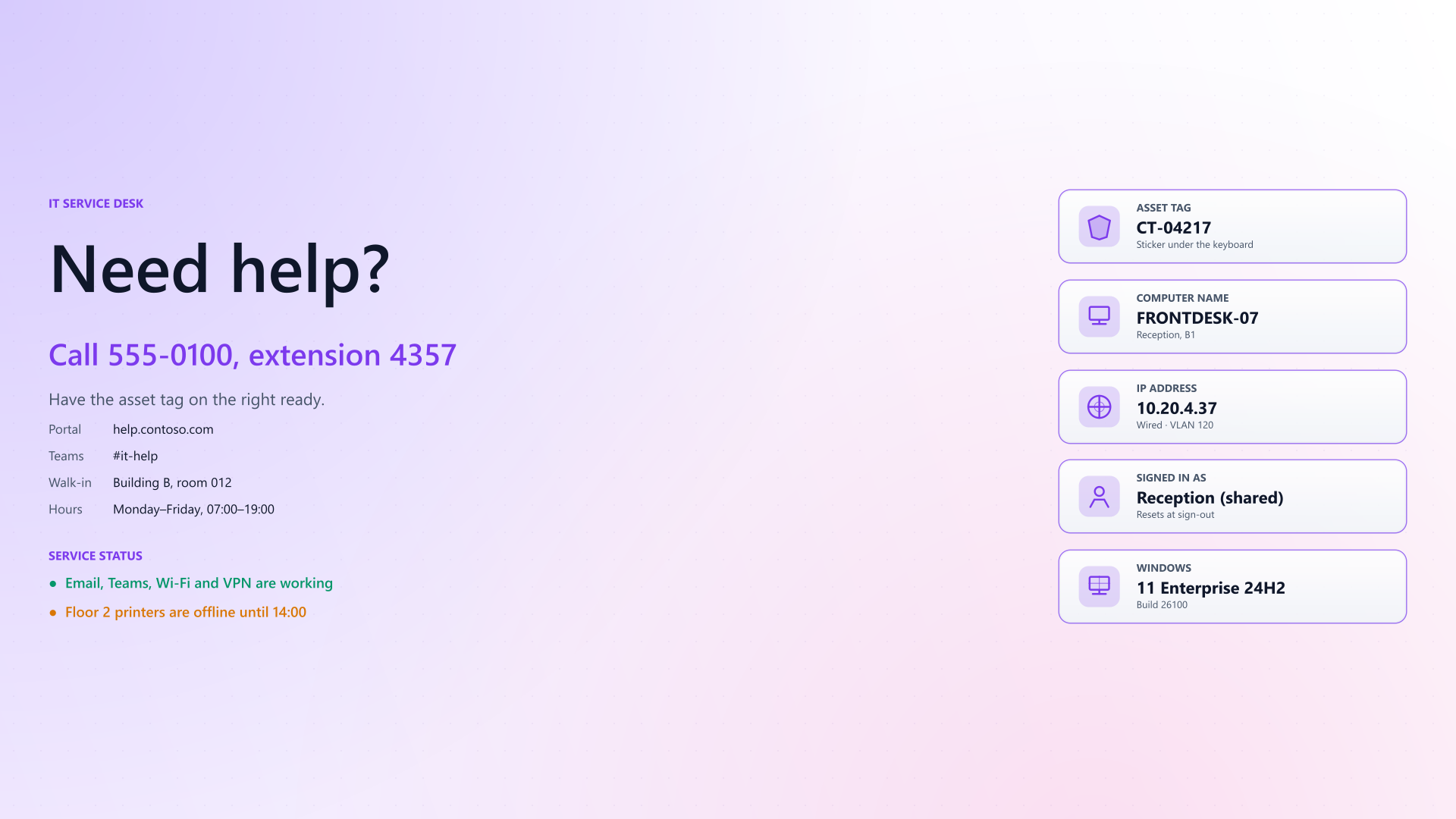
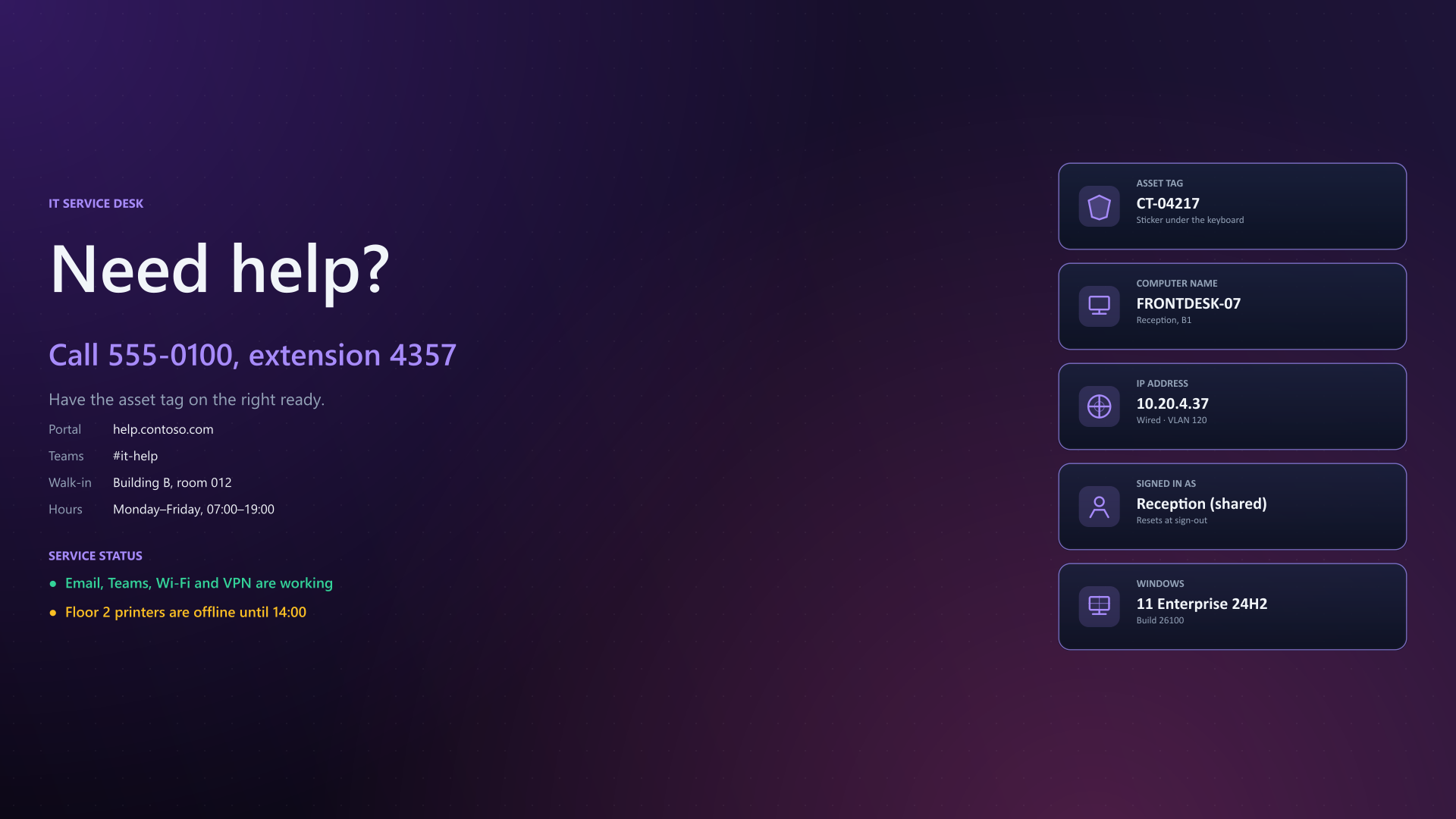
Help desk
How to get help, plus the details support asks for.
New-BGInfo -Theme $look -TextPosition MiddleLeft -Target File {
    New-BGInfoBackground -Width $Width -Height $Height
    # The tile column sits vertically centered beside the centered text.
    New-BGInfoLayout -ColumnAlignment Center

    New-BGInfoLabel -Name 'IT SERVICE DESK' -Accent `
        -FontSize ([int](16 * $scale)) -FontWeight 700
    New-BGInfoLabel -Name 'Need help?' -FontSize ([int](88 * $scale)) `
        -FontWeight 600
    New-BGInfoLabel -Name 'Call 555-0100, extension 4357' -Accent `
        -FontSize ([int](40 * $scale)) -FontWeight 600
    New-BGInfoLabel -Name 'Have the asset tag on the right ready.' -Muted `
        -FontSize ([int](22 * $scale))
    New-BGInfoValue -Name 'Portal' -Value 'help.contoso.com'
    New-BGInfoValue -Name 'Teams' -Value '#it-help'
    New-BGInfoValue -Name 'Walk-in' -Value 'Building B, room 012'
    New-BGInfoValue -Name 'Hours' -Value 'Monday–Friday, 07:00–19:00'

    New-BGInfoLabel -Name ' ' -FontSize ([int](12 * $scale))
    New-BGInfoLabel -Name 'SERVICE STATUS' -Accent `
        -FontSize ([int](16 * $scale)) -FontWeight 700
    foreach ($service in $facts.Services) {
        New-BGInfoLabel -Name "●  $($service.Text)" -Status $service.Status `
            -FontSize ([int](19 * $scale)) -FontWeight 600
    }

    New-BGInfoVisualCanvas -Region Right -Tile $tiles
} -ConfigurationDirectory $OutputDirectory `
    -OutputFileName "helpdesk-$($Theme.ToLower()).png"
#endregion
#region Data: your logic goes here
function Get-HelpDeskFacts {
    [pscustomobject] @{
        # (Get-CimInstance Win32_SystemEnclosure).SMBIOSAssetTag
        AssetTag     = 'CT-04217'
        ComputerName = 'FRONTDESK-07'
        Location     = 'Reception, B1'
        # (Get-NetIPConfiguration |
        #     Where-Object IPv4DefaultGateway).IPv4Address.IPAddress
        IPAddress    = '10.20.4.37'
        Network      = 'Wired · VLAN 120'
        SignedInAs   = 'Reception (shared)'
        # (Get-CimInstance Win32_OperatingSystem).Caption and .BuildNumber
        Windows      = '11 Enterprise 24H2'
        Build        = '26100'
        # Your monitoring or status-page API
        Services     = @(
            @{ Text = 'Email, Teams, Wi-Fi and VPN are working'; Status = 'Ok' }
            @{
                Text   = 'Floor 2 printers are offline until 14:00'
                Status = 'Warning'
            }
        )
    }
}

$fallback = [pscustomobject] @{
    AssetTag = 'unknown'; ComputerName = $env:COMPUTERNAME
    Location = 'unknown'; IPAddress = 'unknown'; Network = ''
    SignedInAs = 'unknown'; Windows = 'unknown'; Build = ''
    Services = @(@{ Text = 'Service status is unavailable'; Status = 'Info' })
}
$source = @{
    Name           = 'Help-desk facts'
    TimeoutSeconds = 10
    ScriptBlock    = ${function:Get-HelpDeskFacts}
    Default        = $fallback
}
$facts = Invoke-BGInfoDataSource @source
#endregion
Full script 107 lines
<#
    Help-desk wallpaper for shared or front-desk PCs. It tells people how
    to get help and shows the details the service desk asks for first.

    The data block returns plain values; the presentation block only reads
    them. Sample values keep the render reproducible, and each one notes the
    command that supplies it on a real machine.
#>
param(
    [ValidateSet('Light', 'Dark')]
    [string] $Theme = 'Light',
    [int] $Width = 1920,
    [int] $Height = 1080,
    [string] $OutputDirectory = (Join-Path $PSScriptRoot 'Output')
)

Import-Module (Join-Path $PSScriptRoot '..\PowerBGInfo.psd1') -Force

#region Data: your logic goes here
function Get-HelpDeskFacts {
    [pscustomobject] @{
        # (Get-CimInstance Win32_SystemEnclosure).SMBIOSAssetTag
        AssetTag     = 'CT-04217'
        ComputerName = 'FRONTDESK-07'
        Location     = 'Reception, B1'
        # (Get-NetIPConfiguration |
        #     Where-Object IPv4DefaultGateway).IPv4Address.IPAddress
        IPAddress    = '10.20.4.37'
        Network      = 'Wired · VLAN 120'
        SignedInAs   = 'Reception (shared)'
        # (Get-CimInstance Win32_OperatingSystem).Caption and .BuildNumber
        Windows      = '11 Enterprise 24H2'
        Build        = '26100'
        # Your monitoring or status-page API
        Services     = @(
            @{ Text = 'Email, Teams, Wi-Fi and VPN are working'; Status = 'Ok' }
            @{
                Text   = 'Floor 2 printers are offline until 14:00'
                Status = 'Warning'
            }
        )
    }
}

$fallback = [pscustomobject] @{
    AssetTag = 'unknown'; ComputerName = $env:COMPUTERNAME
    Location = 'unknown'; IPAddress = 'unknown'; Network = ''
    SignedInAs = 'unknown'; Windows = 'unknown'; Build = ''
    Services = @(@{ Text = 'Service status is unavailable'; Status = 'Info' })
}
$source = @{
    Name           = 'Help-desk facts'
    TimeoutSeconds = 10
    ScriptBlock    = ${function:Get-HelpDeskFacts}
    Default        = $fallback
}
$facts = Invoke-BGInfoDataSource @source
#endregion

#region Presentation: reads only $facts
$scale = [Math]::Round($Height / 1080, 2)
$tile = @{ SurfaceStyle = 'Glass' }
$tiles = @(
    New-BGInfoVisualCanvasTile @tile -IconKind Shield -Label 'ASSET TAG' `
        -Value $facts.AssetTag -Detail 'Sticker under the keyboard'
    New-BGInfoVisualCanvasTile @tile -IconKind Computer `
        -Label 'COMPUTER NAME' -Value $facts.ComputerName `
        -Detail $facts.Location
    New-BGInfoVisualCanvasTile @tile -IconKind Network -Label 'IP ADDRESS' `
        -Value $facts.IPAddress -Detail $facts.Network
    New-BGInfoVisualCanvasTile @tile -IconKind User -Label 'SIGNED IN AS' `
        -Value $facts.SignedInAs -Detail 'Resets at sign-out'
    New-BGInfoVisualCanvasTile @tile -IconKind OperatingSystem `
        -Label 'WINDOWS' -Value $facts.Windows -Detail "Build $($facts.Build)"
)

$look = New-BGInfoTheme Orchid -Mode $Theme -Scale $scale
New-BGInfo -Theme $look -TextPosition MiddleLeft -Target File {
    New-BGInfoBackground -Width $Width -Height $Height
    # The tile column sits vertically centered beside the centered text.
    New-BGInfoLayout -ColumnAlignment Center

    New-BGInfoLabel -Name 'IT SERVICE DESK' -Accent `
        -FontSize ([int](16 * $scale)) -FontWeight 700
    New-BGInfoLabel -Name 'Need help?' -FontSize ([int](88 * $scale)) `
        -FontWeight 600
    New-BGInfoLabel -Name 'Call 555-0100, extension 4357' -Accent `
        -FontSize ([int](40 * $scale)) -FontWeight 600
    New-BGInfoLabel -Name 'Have the asset tag on the right ready.' -Muted `
        -FontSize ([int](22 * $scale))
    New-BGInfoValue -Name 'Portal' -Value 'help.contoso.com'
    New-BGInfoValue -Name 'Teams' -Value '#it-help'
    New-BGInfoValue -Name 'Walk-in' -Value 'Building B, room 012'
    New-BGInfoValue -Name 'Hours' -Value 'Monday–Friday, 07:00–19:00'

    New-BGInfoLabel -Name ' ' -FontSize ([int](12 * $scale))
    New-BGInfoLabel -Name 'SERVICE STATUS' -Accent `
        -FontSize ([int](16 * $scale)) -FontWeight 700
    foreach ($service in $facts.Services) {
        New-BGInfoLabel -Name "●  $($service.Text)" -Status $service.Status `
            -FontSize ([int](19 * $scale)) -FontWeight 600
    }

    New-BGInfoVisualCanvas -Region Right -Tile $tiles
} -ConfigurationDirectory $OutputDirectory `
    -OutputFileName "helpdesk-$($Theme.ToLower()).png"
#endregion
Meeting room
Which room, is it free, and how to share a screen.
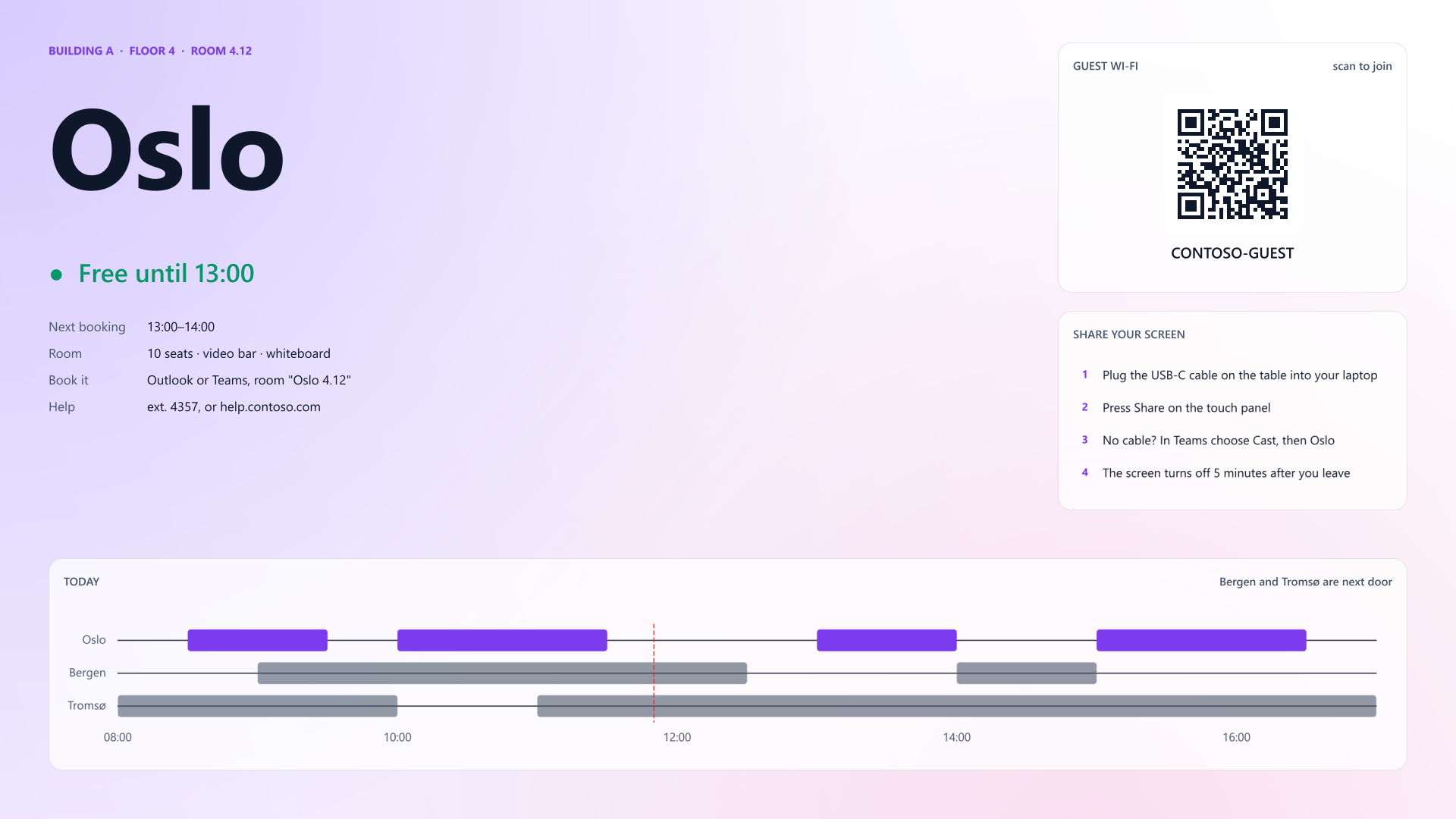
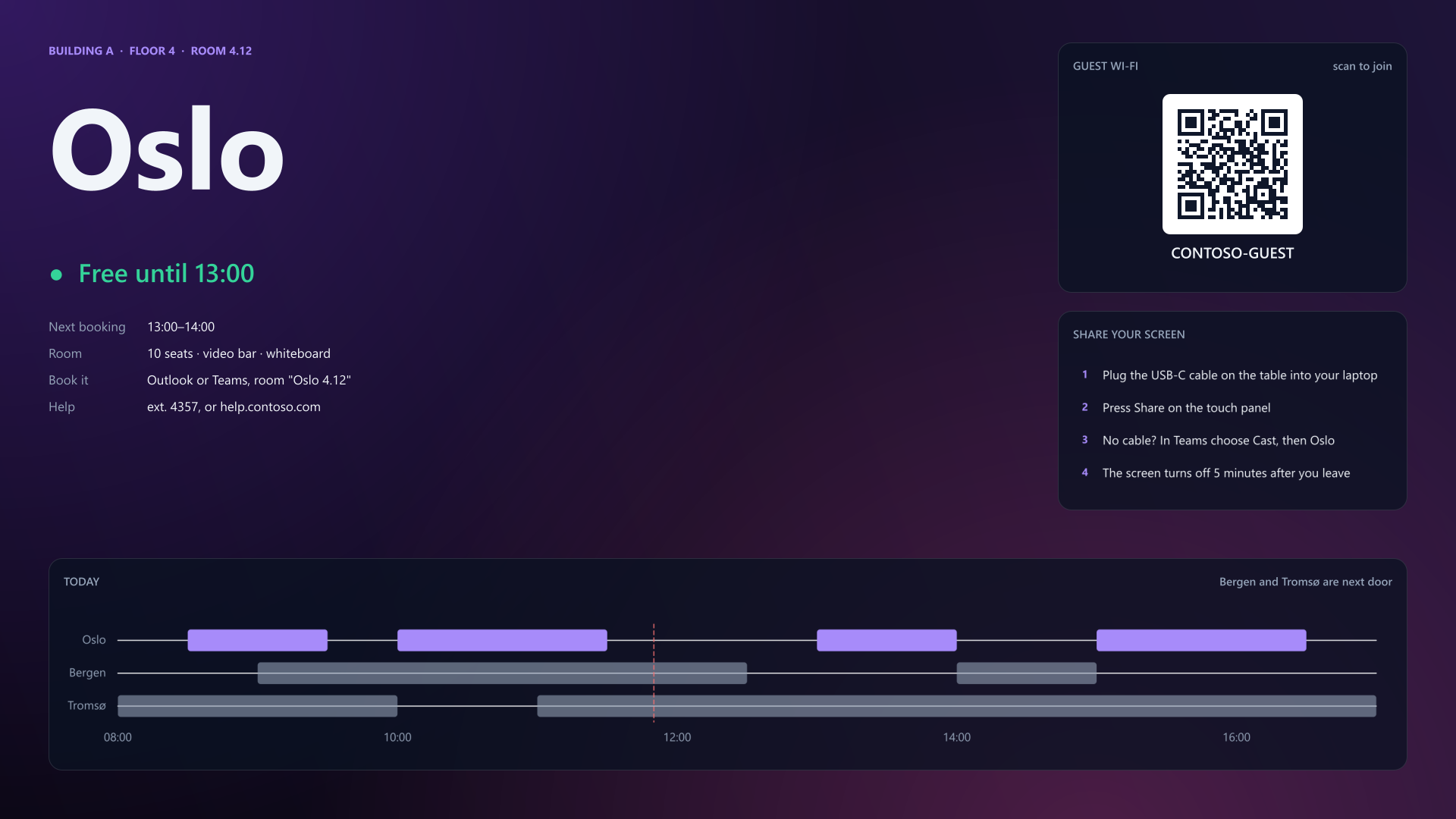
New-BGInfo -Theme $look -Target File {
    New-BGInfoBackground -Width $Width -Height $Height -Pattern None

    New-BGInfoLabel -Name $room.Where -Accent -FontSize ([int](15 * $scale)) `
        -FontWeight 700
    New-BGInfoLabel -Name $room.Room -FontSize ([int](150 * $scale)) `
        -FontWeight 700
    New-BGInfoLabel -Name "●  $($status.Text)" -Status $status.Status `
        -FontSize ([int](34 * $scale)) -FontWeight 600
    New-BGInfoLabel -Name ' ' -FontSize ([int](8 * $scale))
    New-BGInfoValue -Name 'Next booking' -Value $after
    New-BGInfoValue -Name 'Room' -Value $room.Seats
    New-BGInfoValue -Name 'Book it' -Value $room.Book
    New-BGInfoValue -Name 'Help' -Value 'ext. 4357, or help.contoso.com'

    # Right column: guest Wi-Fi on the phone, then how to share a screen.
    New-BGInfoQRCode -Region Right -Text $room.Wifi.Text -Title 'Guest Wi-Fi' `
        -Caption $room.Wifi.Ssid -Note 'scan to join' `
        -Height ([int](330 * $scale))
    New-BGInfoList -Region Right -Title 'Share your screen' -Marker Number `
        -Item $room.Steps

    # Bottom band: today in this room and the two next to it.
    New-BGInfoTimeline -Region Bottom -Title 'Today' -NoLegend `
        -Note 'Bergen and Tromsø are next door' `
        -Item $day -Now $room.Now -Height ([int](280 * $scale))
} -ConfigurationDirectory $OutputDirectory `
    -OutputFileName "meeting-room-$($Theme.ToLower()).png"
#endregion
#region Data: your logic goes here
function Get-MeetingRoomData {
    $today = Get-Date '2026-10-16'
    # Microsoft Graph: GET /users/{room}/calendarView for today, for this
    # room and its neighbours. One row per booking.
    function Booking($room, $from, $to) {
        $kind = if ($room -eq 'Oslo') { 'This room' } else { 'Nearby rooms' }
        [pscustomobject] @{
            Lane = $room; Category = $kind
            Start = $today.Add([timespan] $from)
            End = $today.Add([timespan] $to)
        }
    }
    [pscustomobject] @{
        Available = $true
        Room     = 'Oslo'
        Where    = 'BUILDING A  ·  FLOOR 4  ·  ROOM 4.12'
        Seats    = '10 seats · video bar · whiteboard'
        Book     = 'Outlook or Teams, room "Oslo 4.12"'
        Now      = $today.AddHours(11).AddMinutes(50)
        Bookings = @(
            Booking 'Oslo' '08:30' '09:30'
            Booking 'Oslo' '10:00' '11:30'
            Booking 'Oslo' '13:00' '14:00'
            Booking 'Oslo' '15:00' '16:30'
            Booking 'Bergen' '09:00' '12:30'
            Booking 'Bergen' '14:00' '15:00'
            Booking 'Tromsø' '08:00' '10:00'
            Booking 'Tromsø' '11:00' '17:00'
        )
        # The guest network: WIFI:T:<WPA|nopass>;S:<SSID>;P:<key>;;
        Wifi     = @{
            Ssid = 'CONTOSO-GUEST'
            Text = 'WIFI:T:nopass;S:CONTOSO-GUEST;;'
        }
        Steps    = @(
            'Plug the USB-C cable on the table into your laptop'
            'Press Share on the touch panel'
            'No cable? In Teams choose Cast, then Oslo'
            'The screen turns off 5 minutes after you leave'
        )
    }
}

$fallback = [pscustomobject] @{
    Available = $false
    Room = $env:COMPUTERNAME; Where = 'MEETING ROOM'; Seats = ''
    Book = 'Outlook or Teams'; Now = Get-Date; Bookings = @()
    Wifi = @{ Ssid = 'CONTOSO-GUEST'; Text = 'WIFI:T:nopass;S:CONTOSO-GUEST;;' }
    Steps = @('Call the service desk on ext. 4357')
}
$source = @{
    Name           = 'Meeting room data'
    TimeoutSeconds = 10
    ScriptBlock    = ${function:Get-MeetingRoomData}
    Default        = $fallback
}
$room = Invoke-BGInfoDataSource @source
#endregion
Full script 138 lines
<#
    Meeting room PC. The question for someone walking in: which room is
    this, is it free, and how do I get my laptop on the screen?

    The data block returns plain values; the presentation block only reads
    them. Comments name the command or source that supplies each value.
#>
param(
    [ValidateSet('Light', 'Dark')]
    [string] $Theme = 'Dark',
    [int] $Width = 1920,
    [int] $Height = 1080,
    [string] $OutputDirectory = (Join-Path $PSScriptRoot 'Output')
)

Import-Module (Join-Path $PSScriptRoot '..\PowerBGInfo.psd1') -Force

#region Data: your logic goes here
function Get-MeetingRoomData {
    $today = Get-Date '2026-10-16'
    # Microsoft Graph: GET /users/{room}/calendarView for today, for this
    # room and its neighbours. One row per booking.
    function Booking($room, $from, $to) {
        $kind = if ($room -eq 'Oslo') { 'This room' } else { 'Nearby rooms' }
        [pscustomobject] @{
            Lane = $room; Category = $kind
            Start = $today.Add([timespan] $from)
            End = $today.Add([timespan] $to)
        }
    }
    [pscustomobject] @{
        Available = $true
        Room     = 'Oslo'
        Where    = 'BUILDING A  ·  FLOOR 4  ·  ROOM 4.12'
        Seats    = '10 seats · video bar · whiteboard'
        Book     = 'Outlook or Teams, room "Oslo 4.12"'
        Now      = $today.AddHours(11).AddMinutes(50)
        Bookings = @(
            Booking 'Oslo' '08:30' '09:30'
            Booking 'Oslo' '10:00' '11:30'
            Booking 'Oslo' '13:00' '14:00'
            Booking 'Oslo' '15:00' '16:30'
            Booking 'Bergen' '09:00' '12:30'
            Booking 'Bergen' '14:00' '15:00'
            Booking 'Tromsø' '08:00' '10:00'
            Booking 'Tromsø' '11:00' '17:00'
        )
        # The guest network: WIFI:T:<WPA|nopass>;S:<SSID>;P:<key>;;
        Wifi     = @{
            Ssid = 'CONTOSO-GUEST'
            Text = 'WIFI:T:nopass;S:CONTOSO-GUEST;;'
        }
        Steps    = @(
            'Plug the USB-C cable on the table into your laptop'
            'Press Share on the touch panel'
            'No cable? In Teams choose Cast, then Oslo'
            'The screen turns off 5 minutes after you leave'
        )
    }
}

$fallback = [pscustomobject] @{
    Available = $false
    Room = $env:COMPUTERNAME; Where = 'MEETING ROOM'; Seats = ''
    Book = 'Outlook or Teams'; Now = Get-Date; Bookings = @()
    Wifi = @{ Ssid = 'CONTOSO-GUEST'; Text = 'WIFI:T:nopass;S:CONTOSO-GUEST;;' }
    Steps = @('Call the service desk on ext. 4357')
}
$source = @{
    Name           = 'Meeting room data'
    TimeoutSeconds = 10
    ScriptBlock    = ${function:Get-MeetingRoomData}
    Default        = $fallback
}
$room = Invoke-BGInfoDataSource @source
#endregion

#region Presentation: reads only $room
$scale = [Math]::Round($Height / 1080, 2)
$look = New-BGInfoTheme Orchid -Mode $Theme -Scale $scale
$here = @($room.Bookings | Where-Object Lane -EQ $room.Room)
$current = $here |
    Where-Object { $_.Start -le $room.Now -and $_.End -gt $room.Now }
$next = $here | Where-Object Start -GT $room.Now | Sort-Object Start |
    Select-Object -First 1
$status = if (-not $room.Available) {
    @{ Text = 'Availability unavailable'; Status = 'Info' }
} elseif ($current) {
    @{
        Text   = "In use until $($current.End.ToString('HH:mm'))"
        Status = 'Warning'
    }
} elseif ($next) {
    @{ Text = "Free until $($next.Start.ToString('HH:mm'))"; Status = 'Ok' }
} else {
    @{ Text = 'Free for the rest of the day'; Status = 'Ok' }
}
$after = if (-not $room.Available) { 'unavailable' } elseif ($next) {
    "$($next.Start.ToString('HH:mm'))–$($next.End.ToString('HH:mm'))"
} else { 'none today' }
# This room takes the accent; the rooms next door stay quiet.
$quiet = $look.Muted.WithAlpha(150).ToHexRgba()
$day = $room.Bookings | Select-Object *, @{
    Name = 'Color'
    Expression = {
        if ($_.Lane -eq $room.Room) { $look.Accent.ToHex() } else { $quiet }
    }
}

New-BGInfo -Theme $look -Target File {
    New-BGInfoBackground -Width $Width -Height $Height -Pattern None

    New-BGInfoLabel -Name $room.Where -Accent -FontSize ([int](15 * $scale)) `
        -FontWeight 700
    New-BGInfoLabel -Name $room.Room -FontSize ([int](150 * $scale)) `
        -FontWeight 700
    New-BGInfoLabel -Name "●  $($status.Text)" -Status $status.Status `
        -FontSize ([int](34 * $scale)) -FontWeight 600
    New-BGInfoLabel -Name ' ' -FontSize ([int](8 * $scale))
    New-BGInfoValue -Name 'Next booking' -Value $after
    New-BGInfoValue -Name 'Room' -Value $room.Seats
    New-BGInfoValue -Name 'Book it' -Value $room.Book
    New-BGInfoValue -Name 'Help' -Value 'ext. 4357, or help.contoso.com'

    # Right column: guest Wi-Fi on the phone, then how to share a screen.
    New-BGInfoQRCode -Region Right -Text $room.Wifi.Text -Title 'Guest Wi-Fi' `
        -Caption $room.Wifi.Ssid -Note 'scan to join' `
        -Height ([int](330 * $scale))
    New-BGInfoList -Region Right -Title 'Share your screen' -Marker Number `
        -Item $room.Steps

    # Bottom band: today in this room and the two next to it.
    New-BGInfoTimeline -Region Bottom -Title 'Today' -NoLegend `
        -Note 'Bergen and Tromsø are next door' `
        -Item $day -Now $room.Now -Height ([int](280 * $scale))
} -ConfigurationDirectory $OutputDirectory `
    -OutputFileName "meeting-room-$($Theme.ToLower()).png"
#endregion
More wallpapers
Filter by who the screen is for. Each card opens the wallpaper in the page theme with the same Presentation and Data tabs, and links to the full-size PNG and the script on GitHub.
Any screen
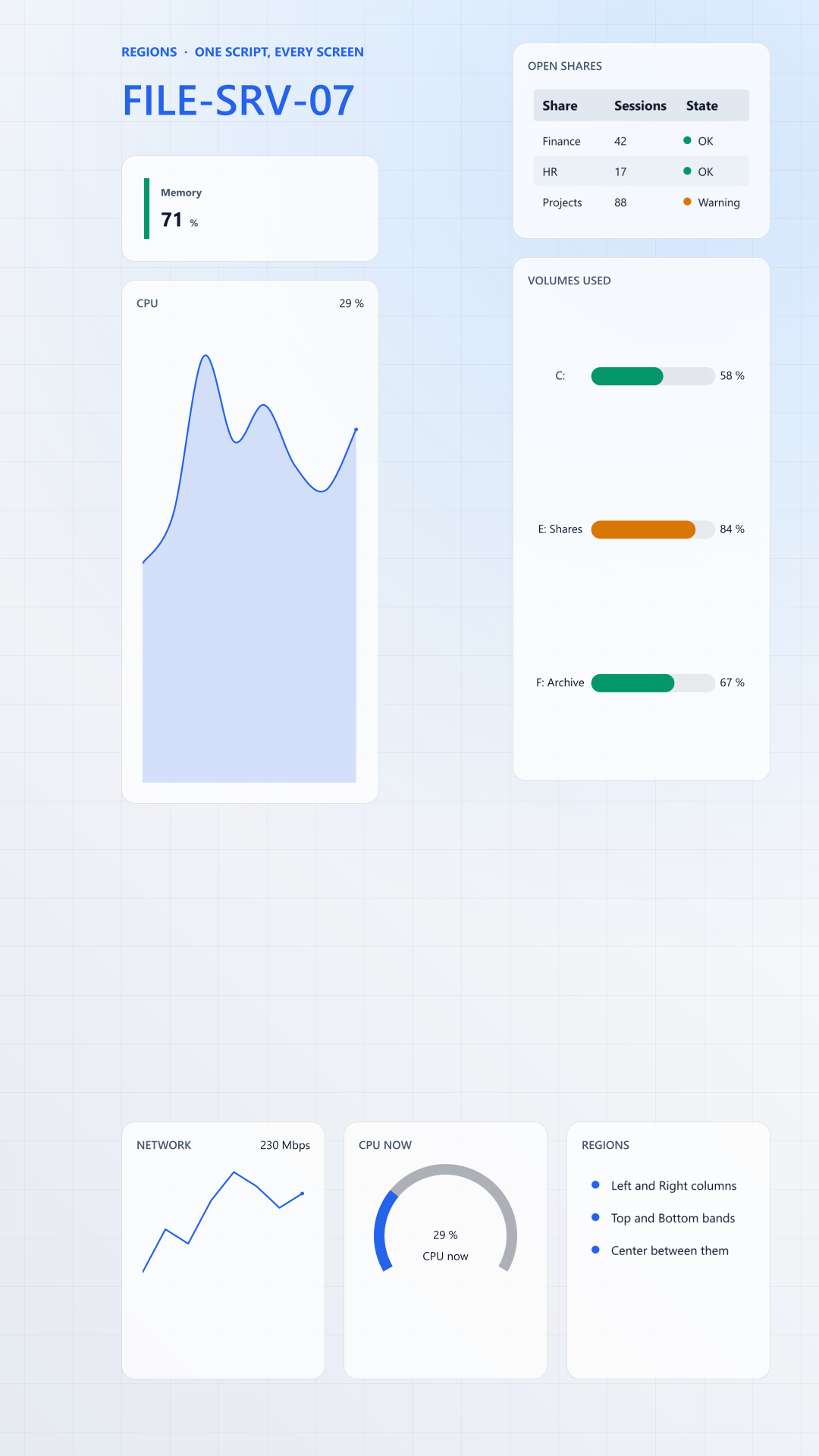
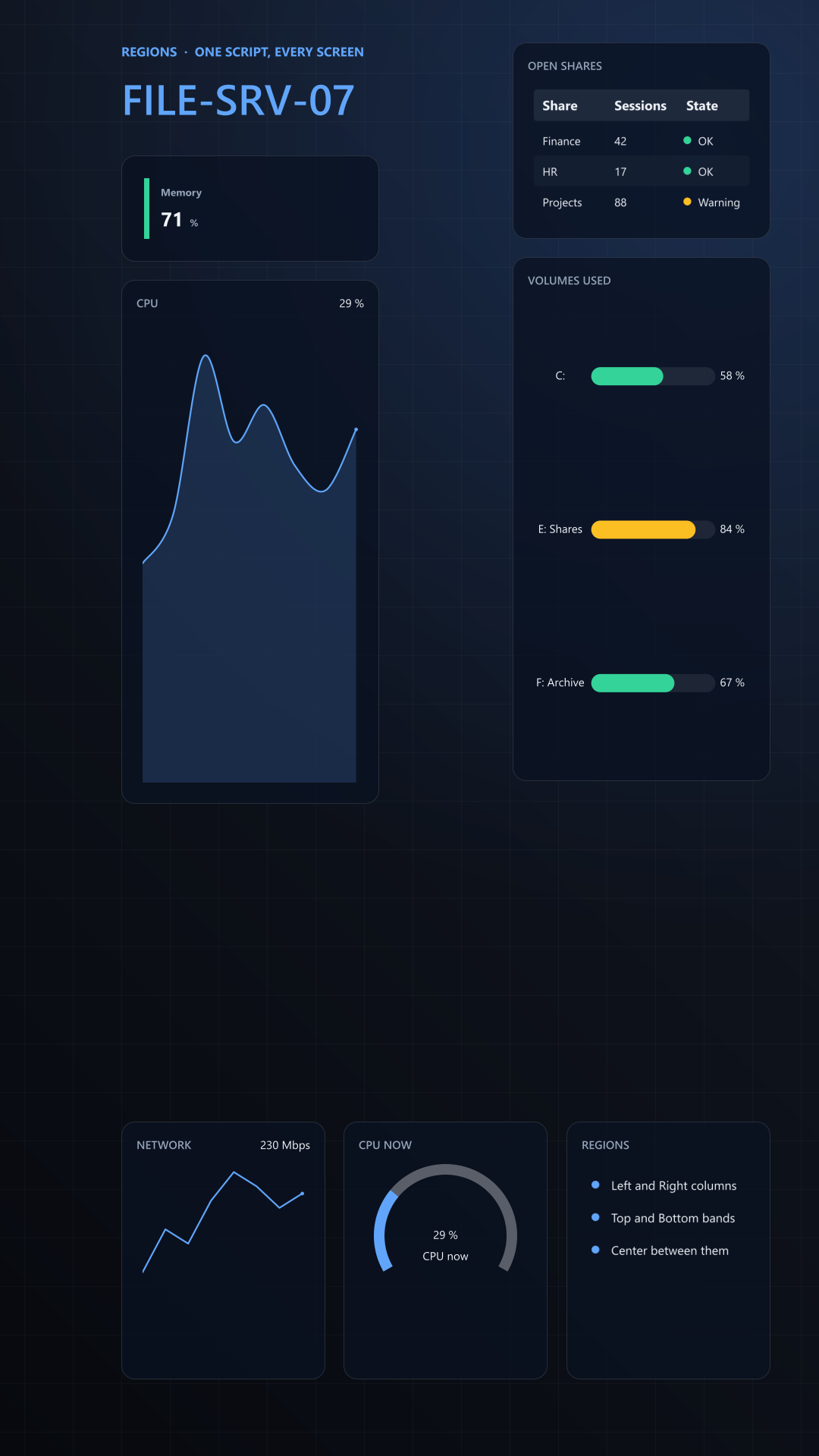
A script lays out for the screen it renders on. The on-call board spreads across a 3440 x 1440 ultrawide in the operations room, and the signage script turns a 1080 x 1920 portrait panel into a poster. Each file is drawn at its size, not scaled from 1920 x 1080.
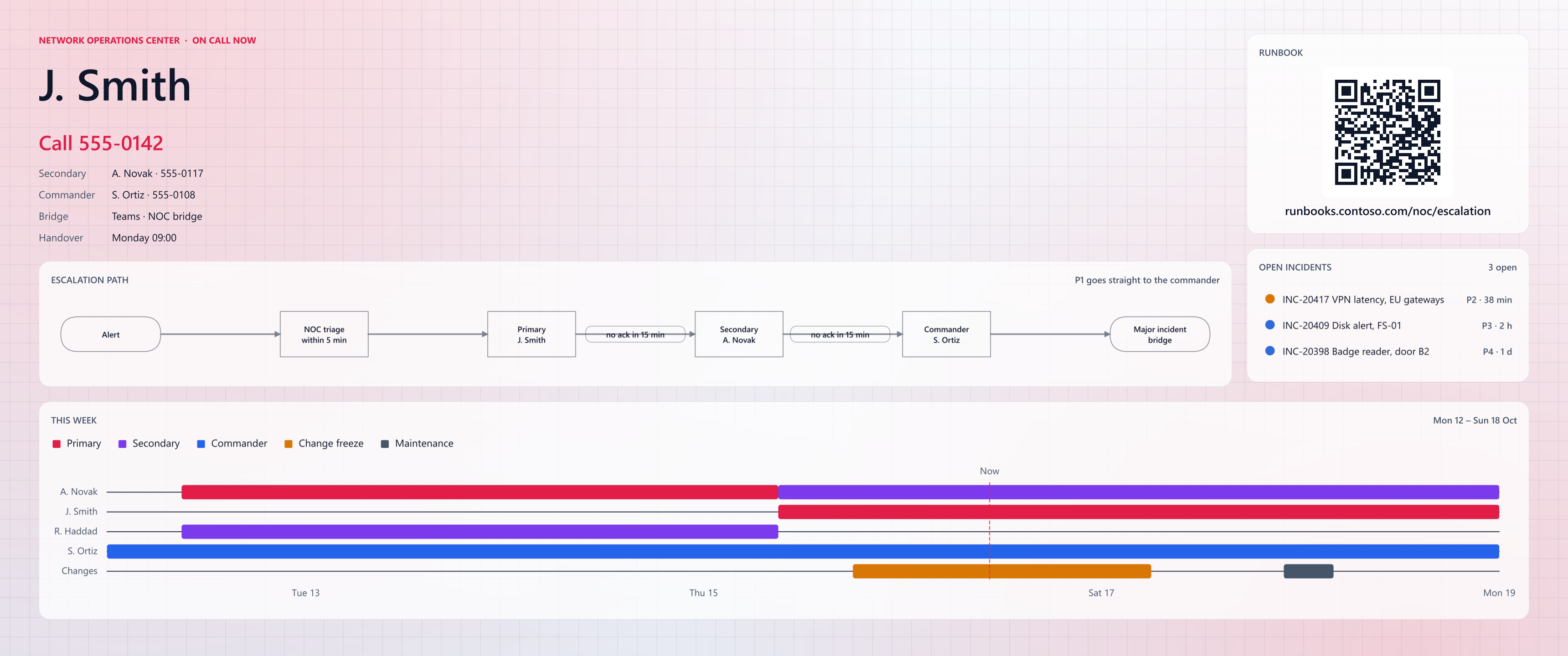
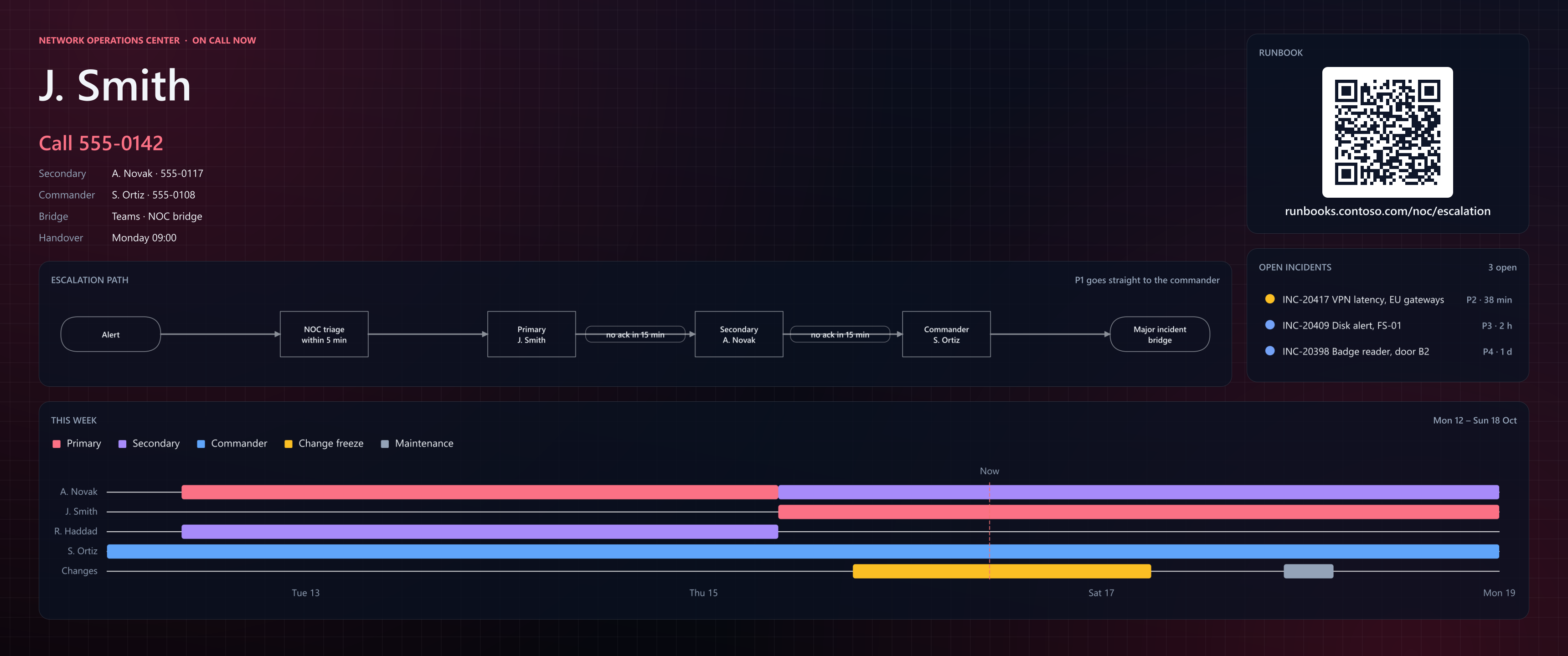
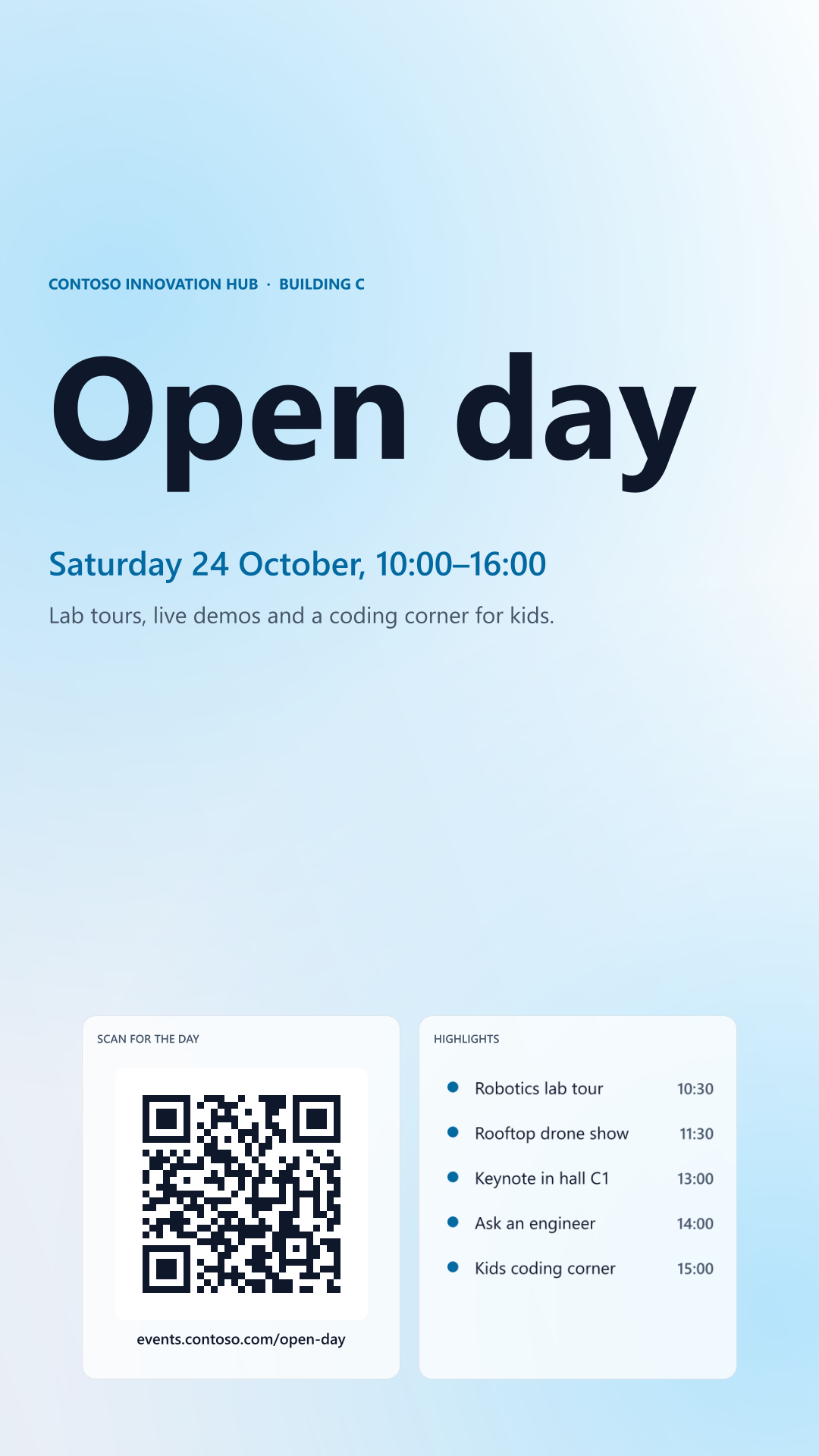
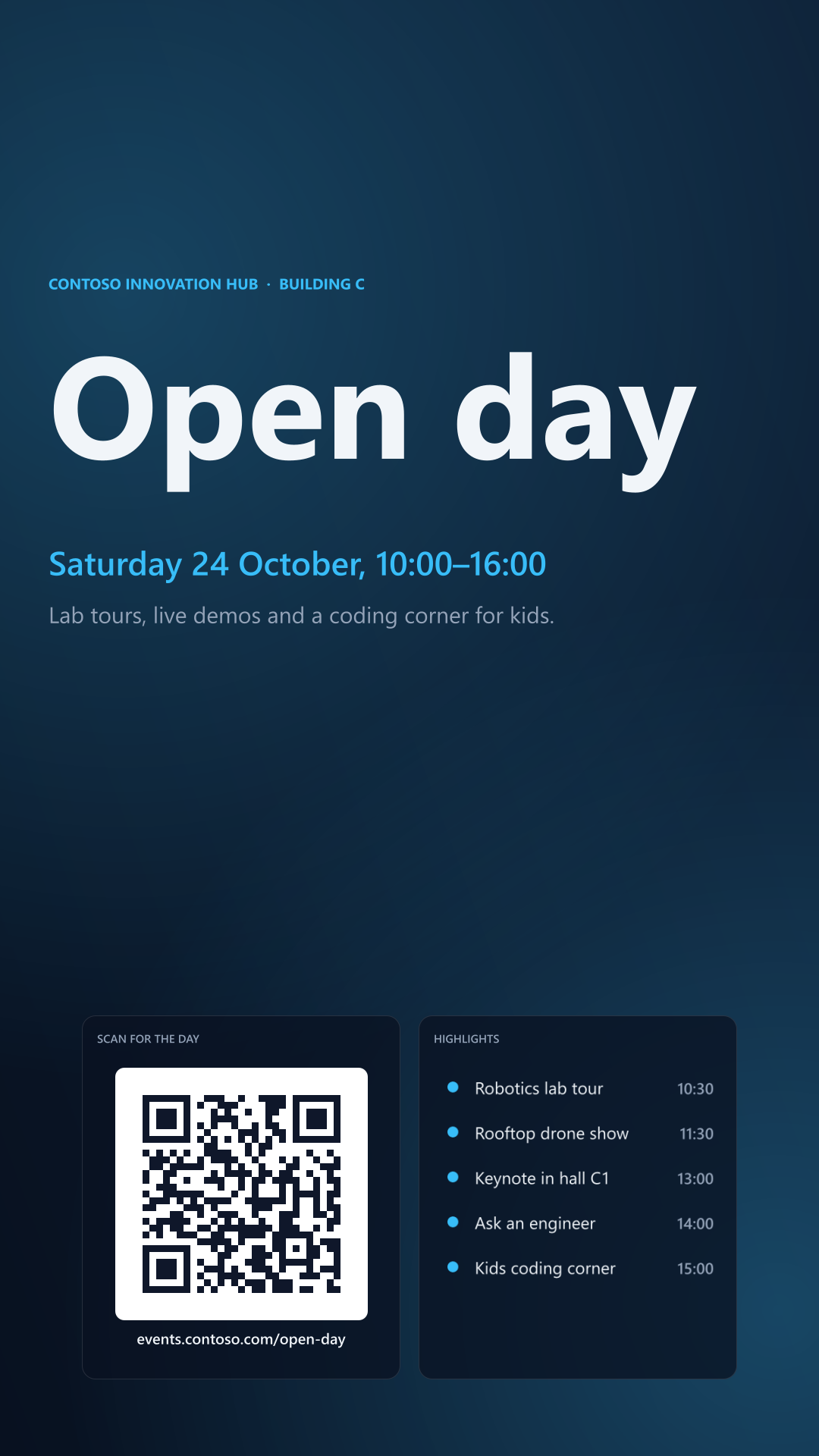
Rendered by Examples/Run.BGInfo.Showcase.ps1 from PowerBGInfo 2f6f22d, every scenario at 1920 x 1080 and these two also at their own screen sizes. Every wallpaper on this page is a script's output, unedited.
Themes, regions and widgets
Six theme presets give a wallpaper one look in one parameter, five regions lay it out on any screen, and eight widget cmdlets draw what charts alone cannot.
Six theme presets
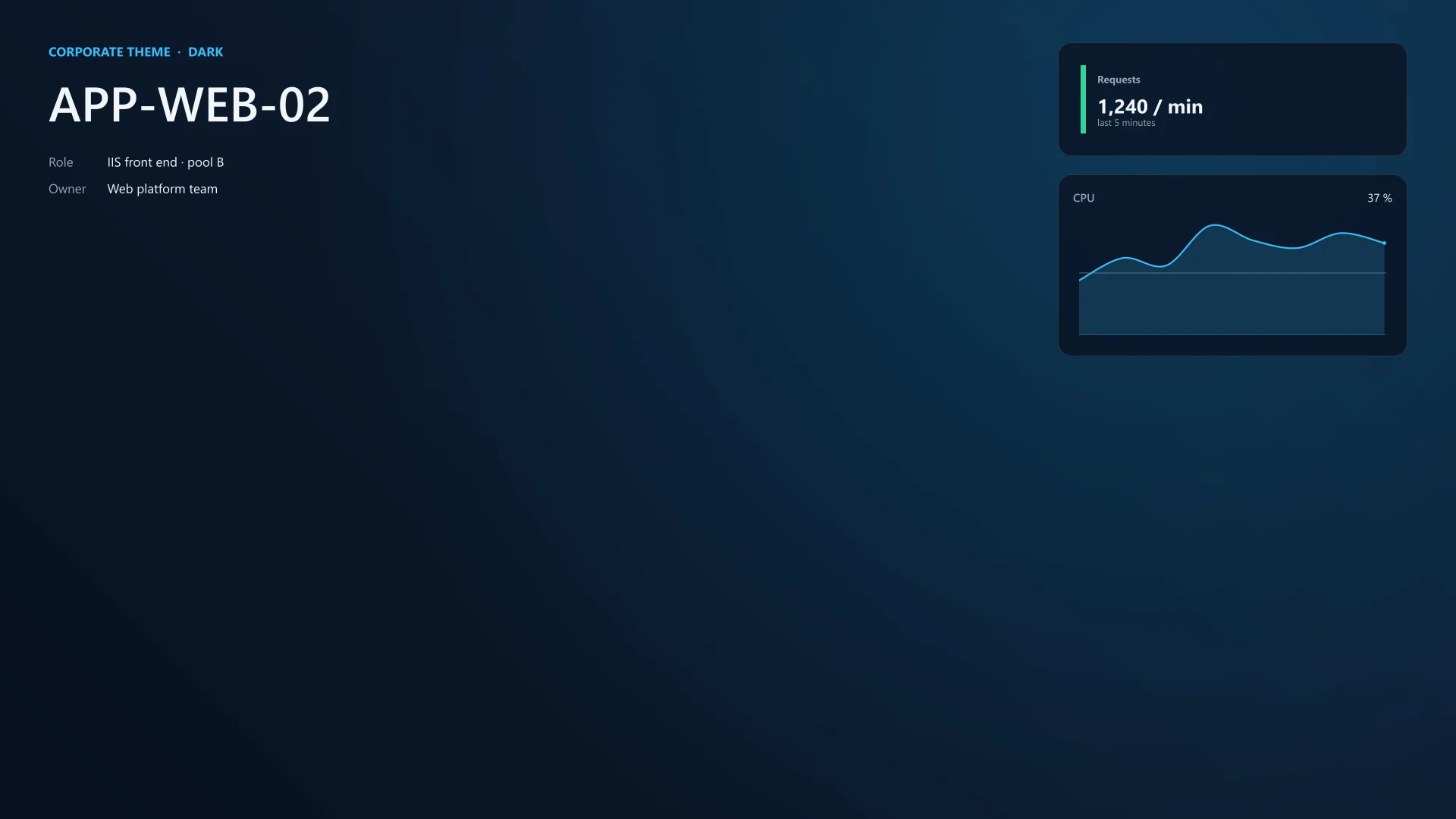
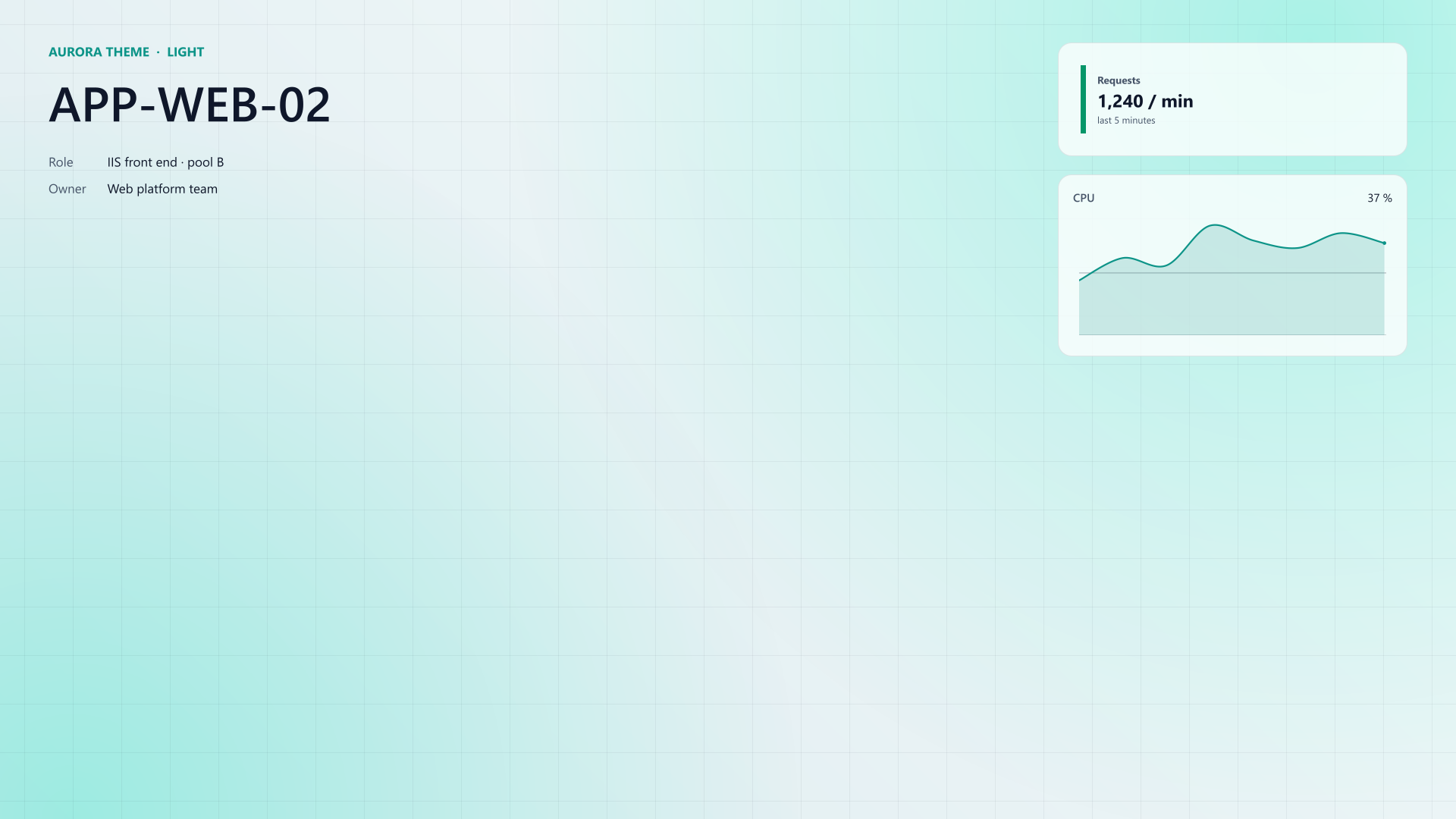
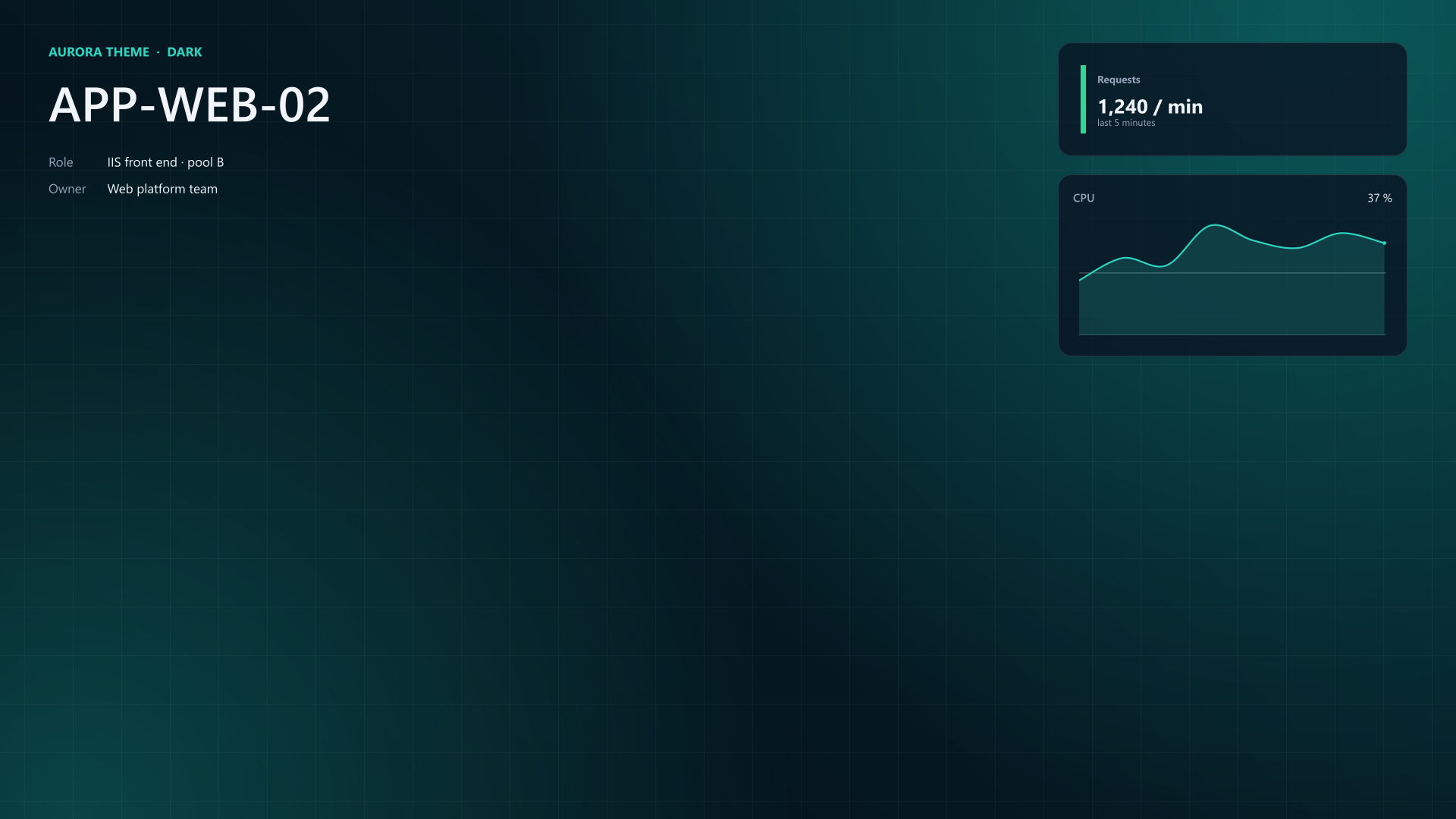
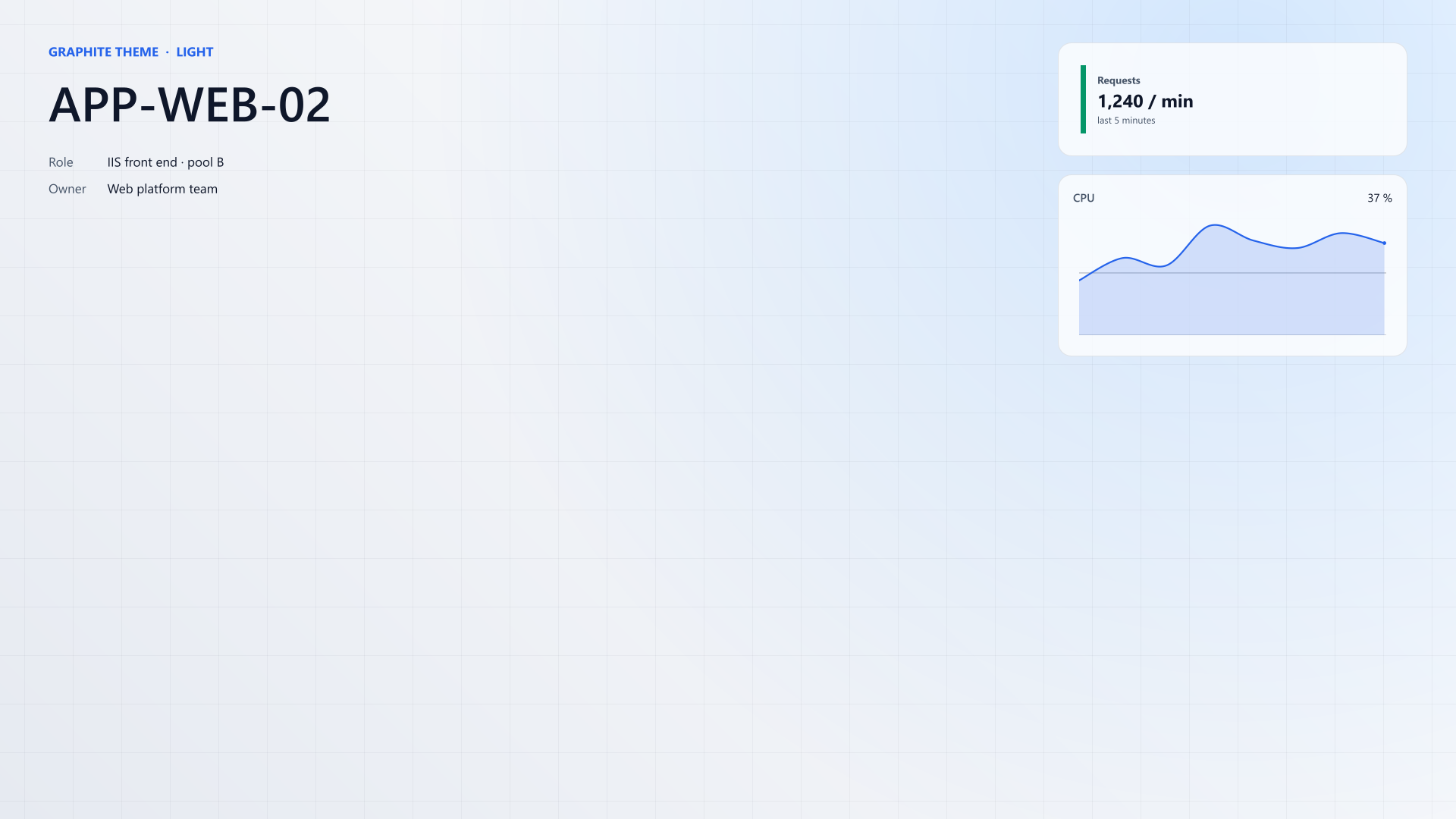
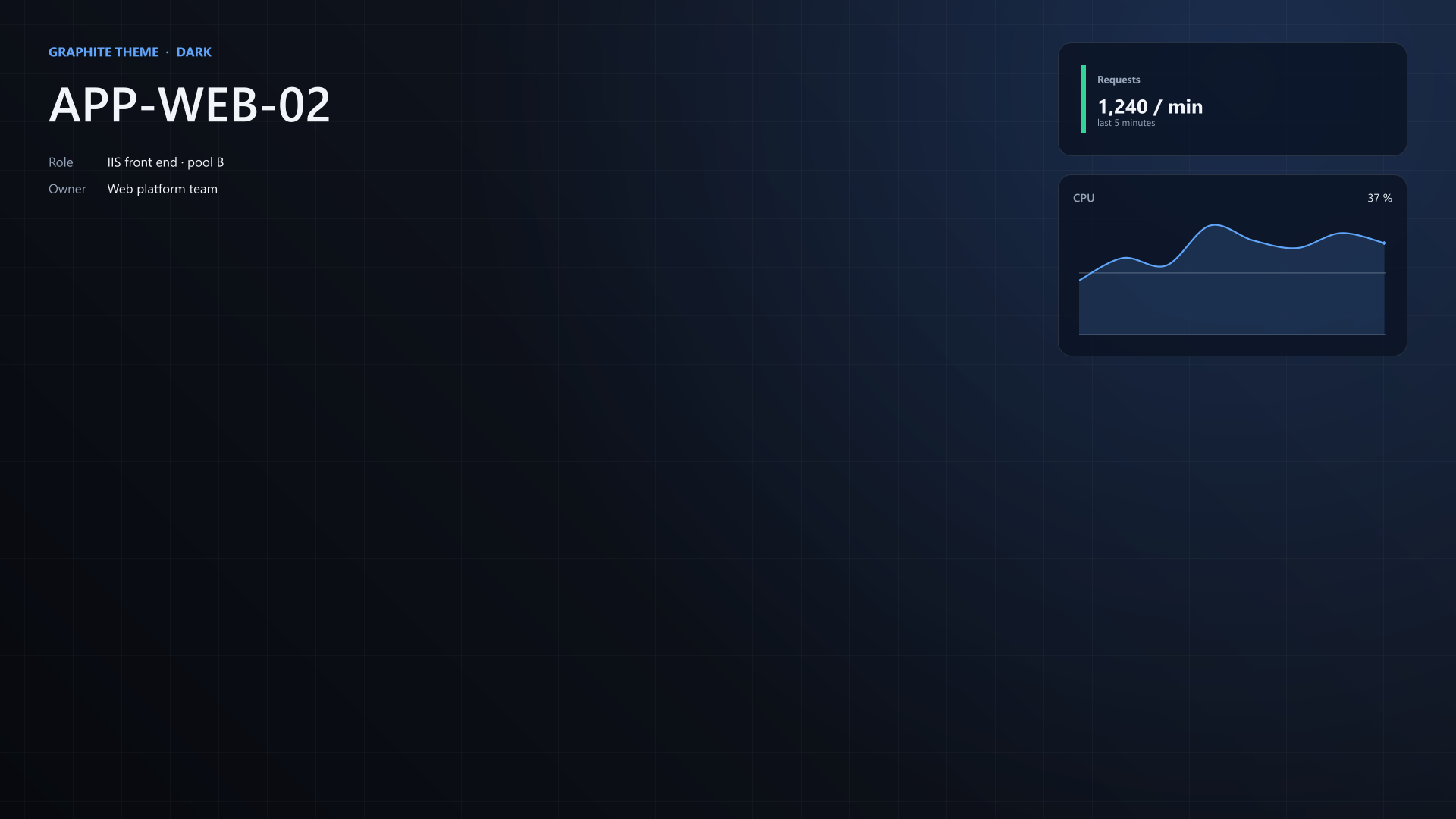
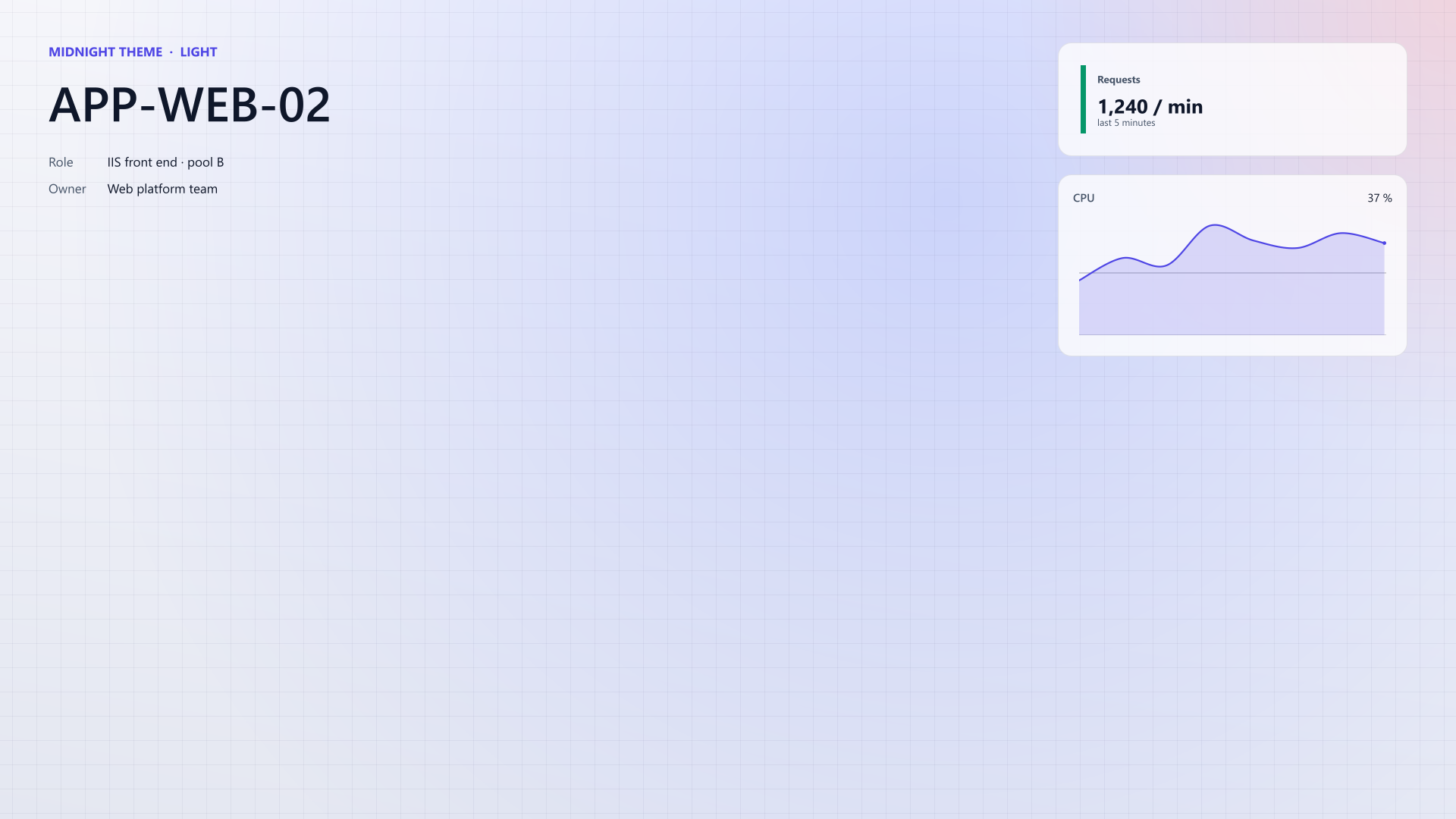
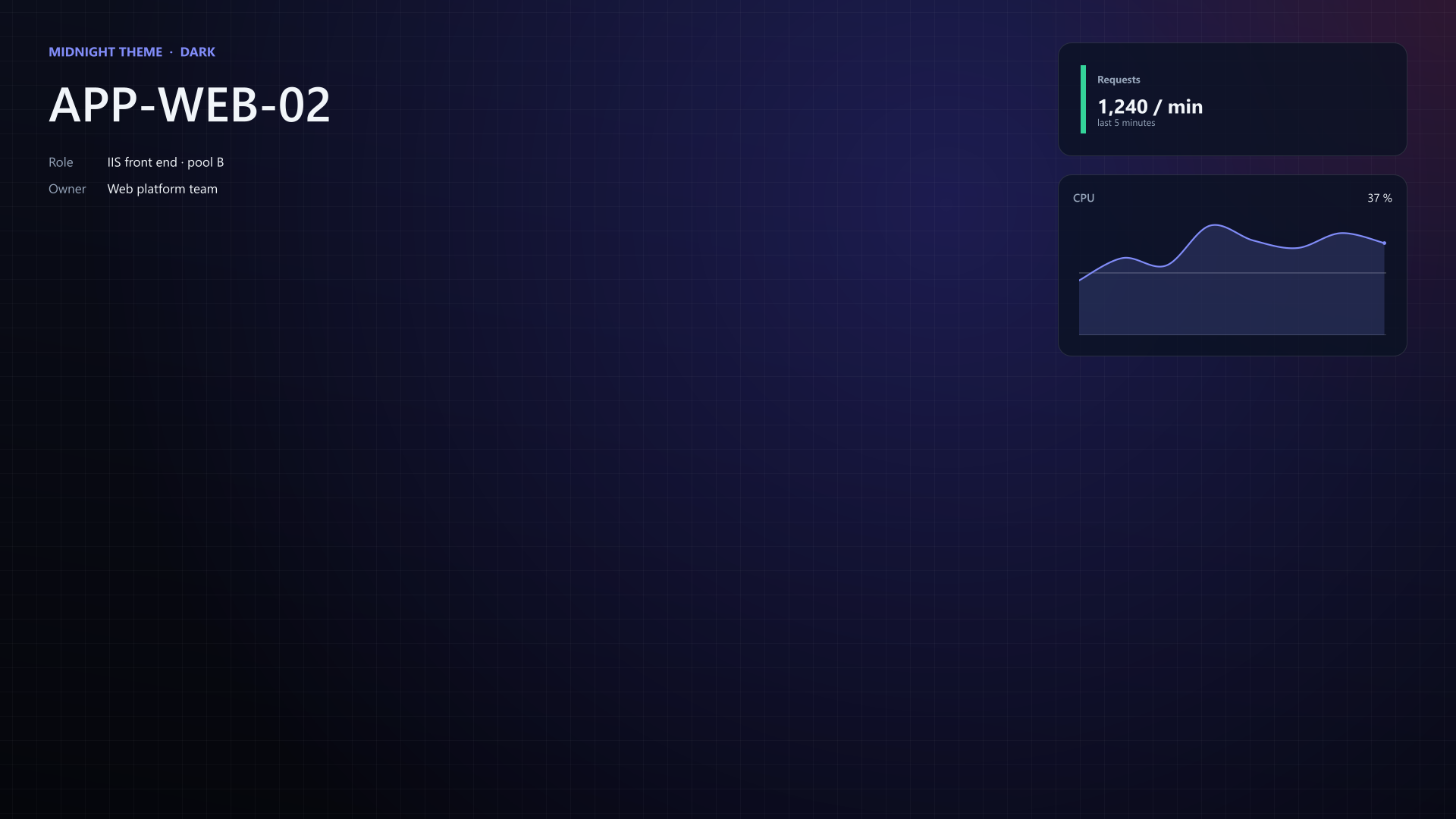
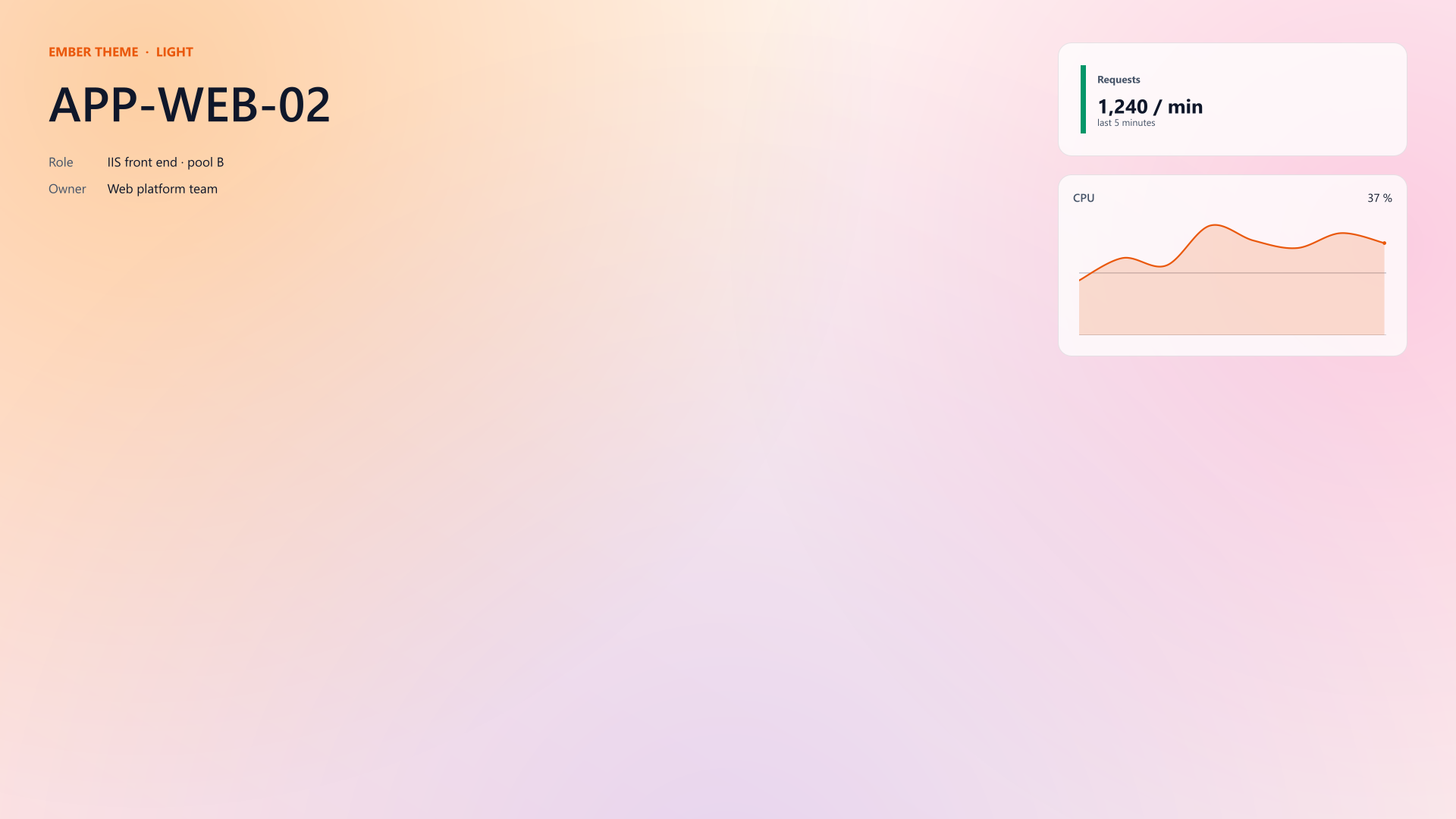
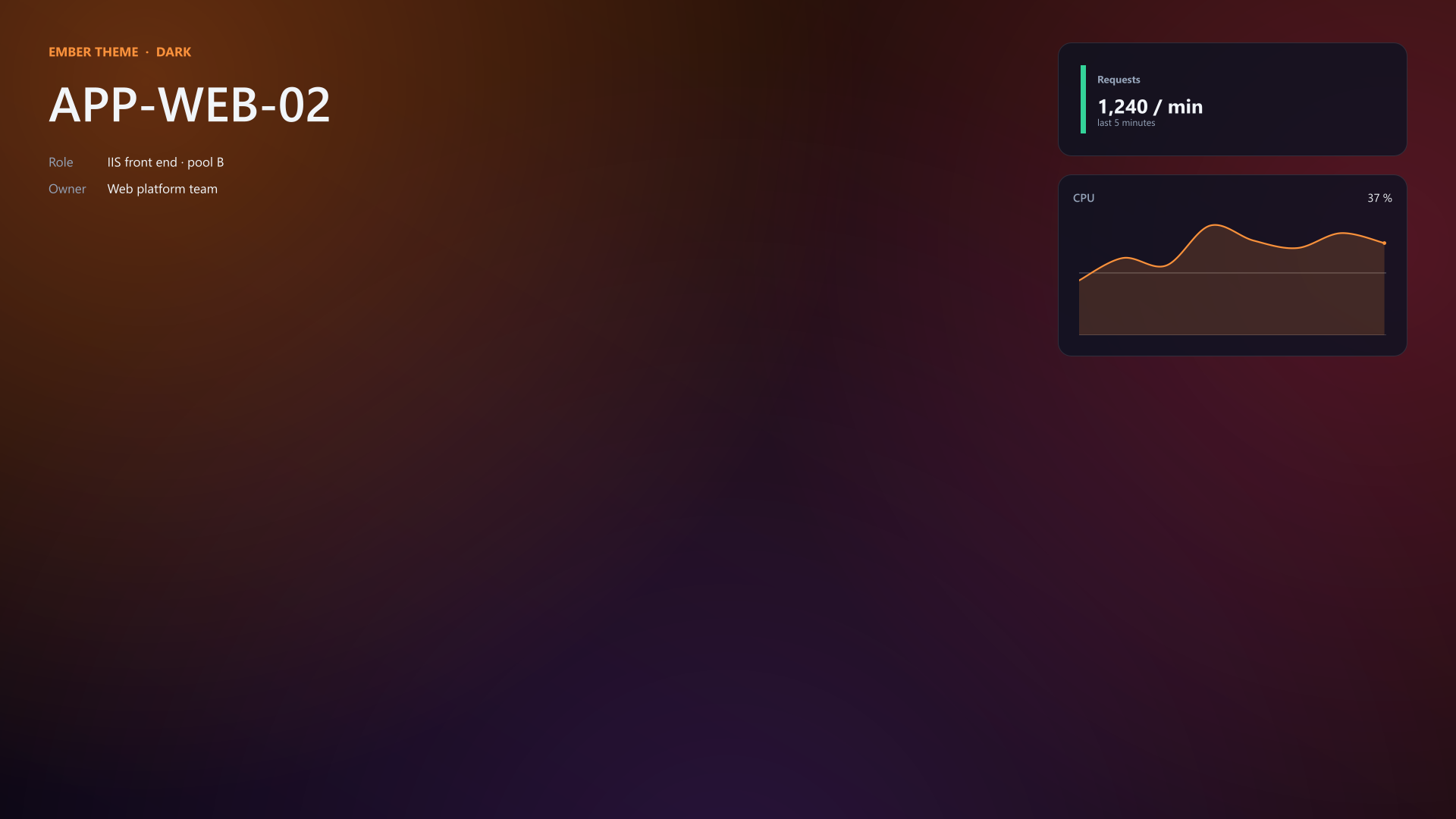
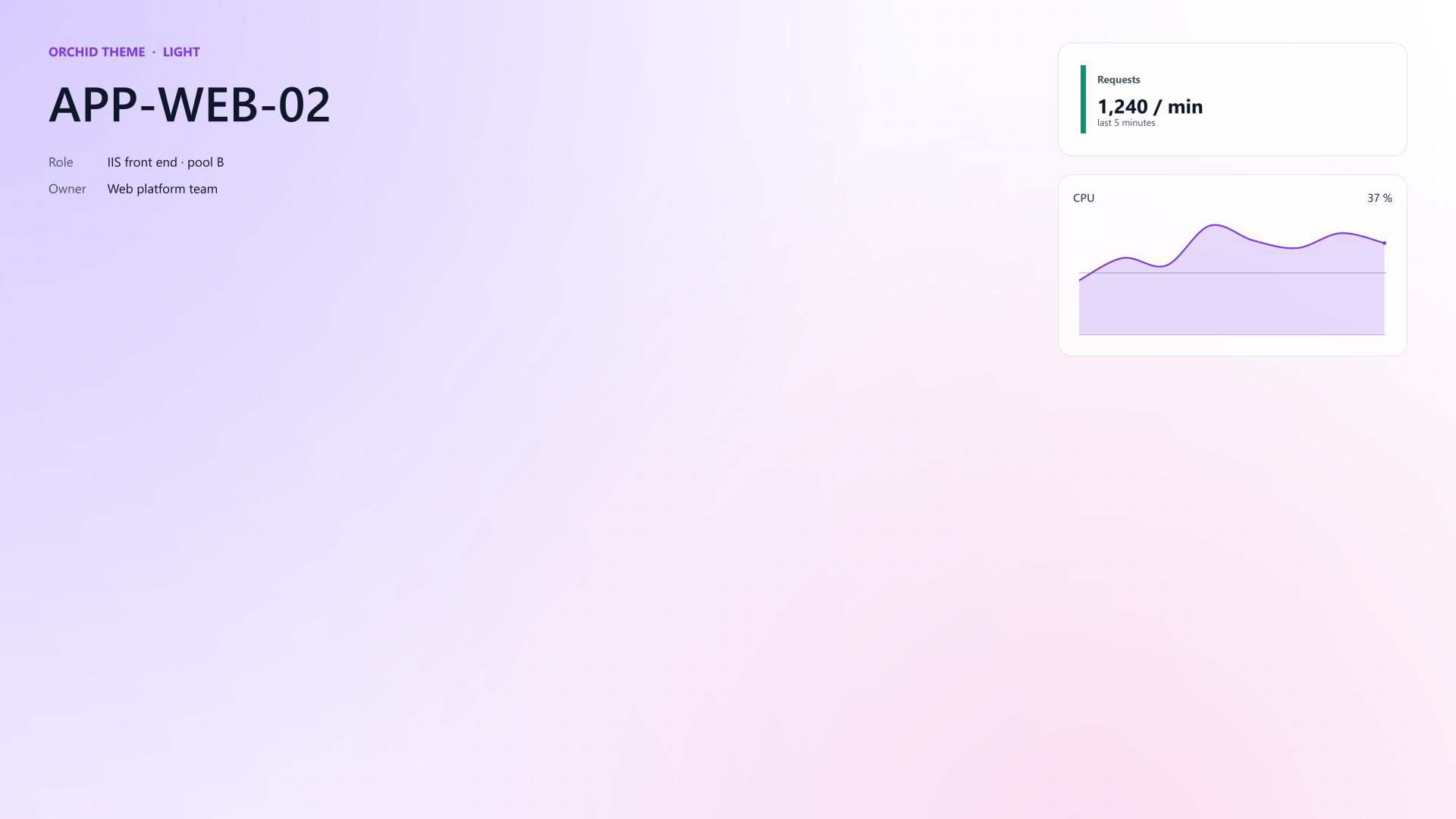
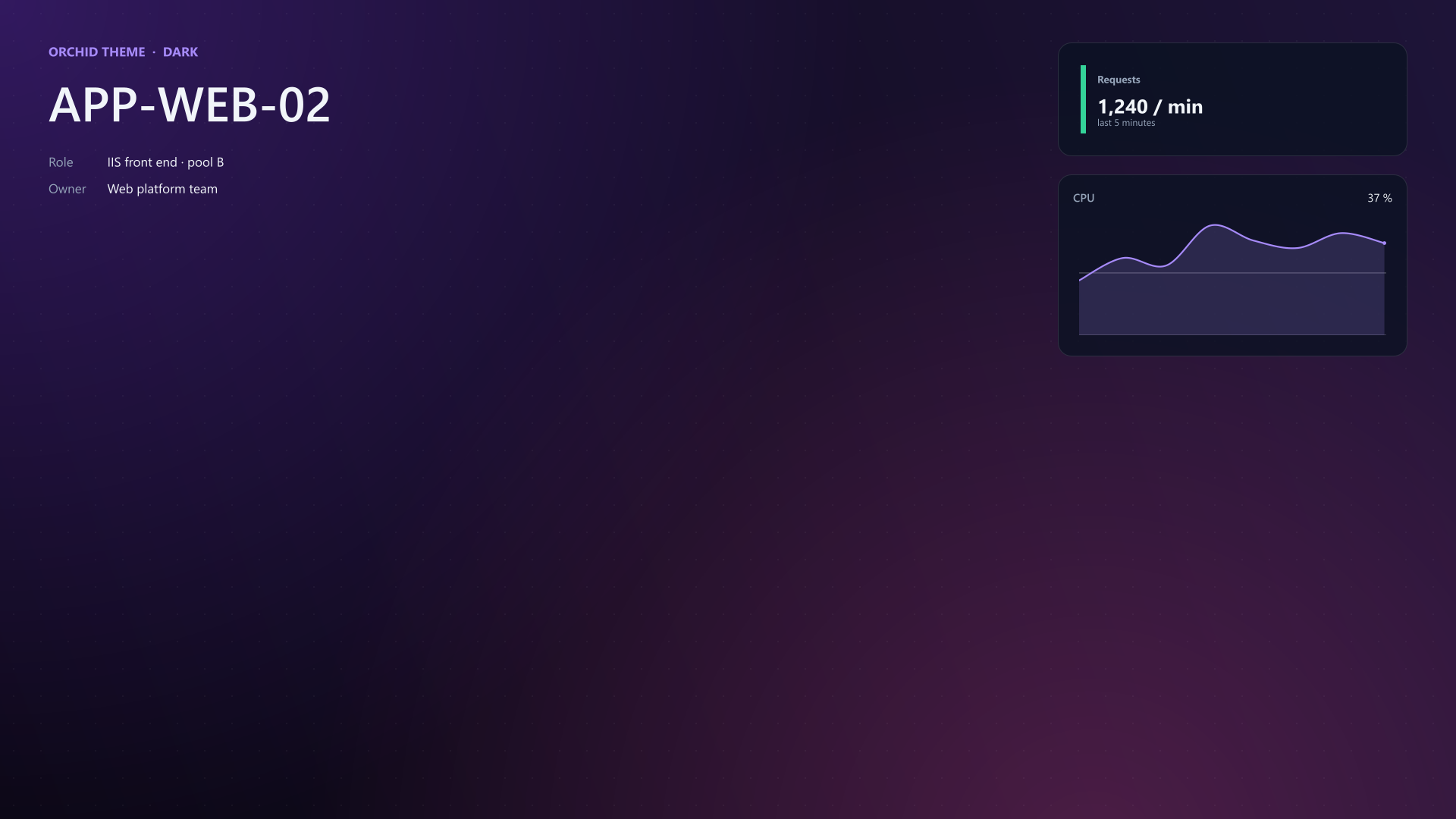
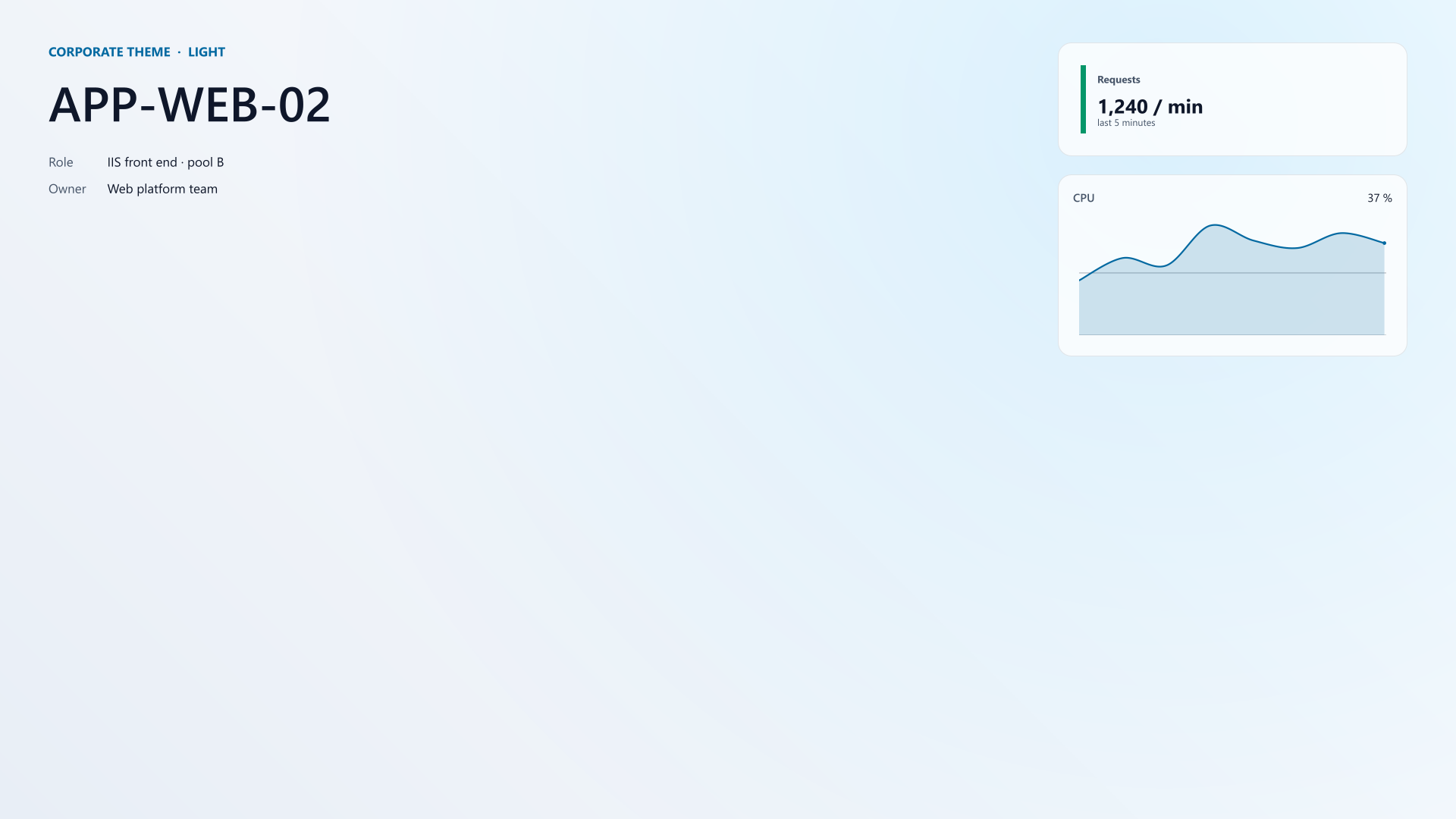
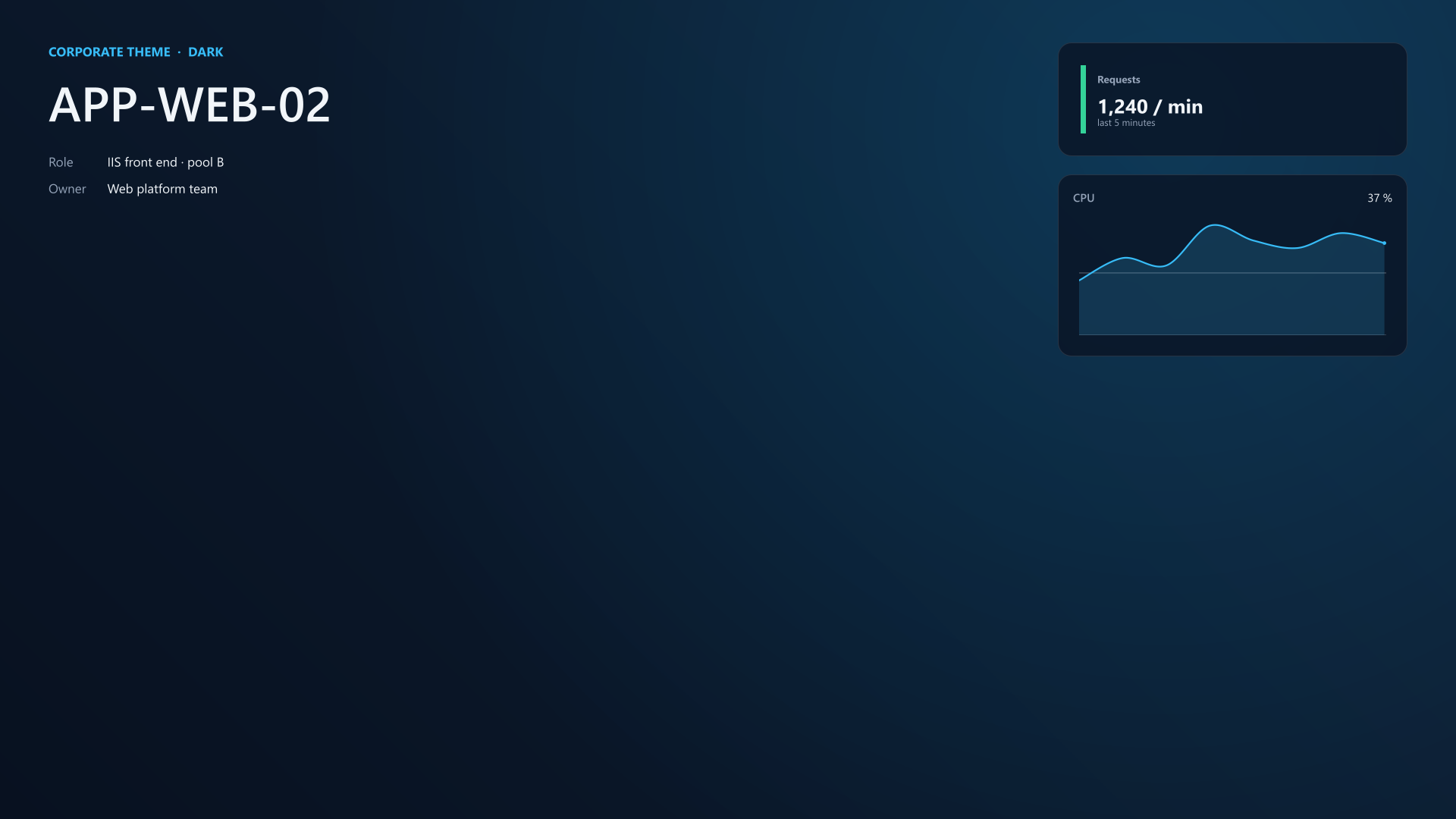
Each preset has a light and a dark pair; the page theme picks which one you see. New-BGInfoTheme adjusts a preset's accent, scale or font, and parameters you set always win. Feature.Themes.ps1
New-BGInfo -Theme Midnight -ThemeMode Light { ... }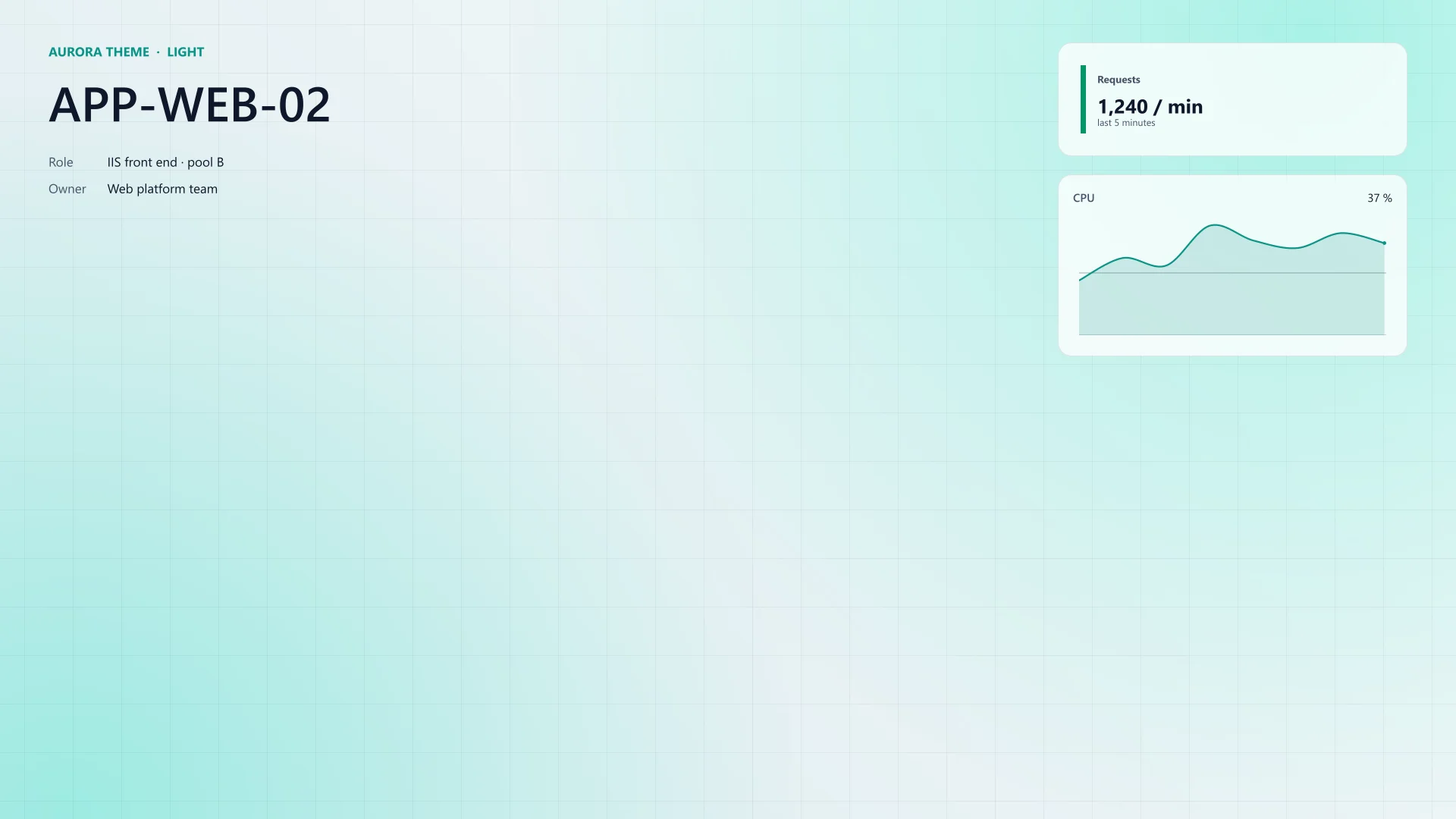
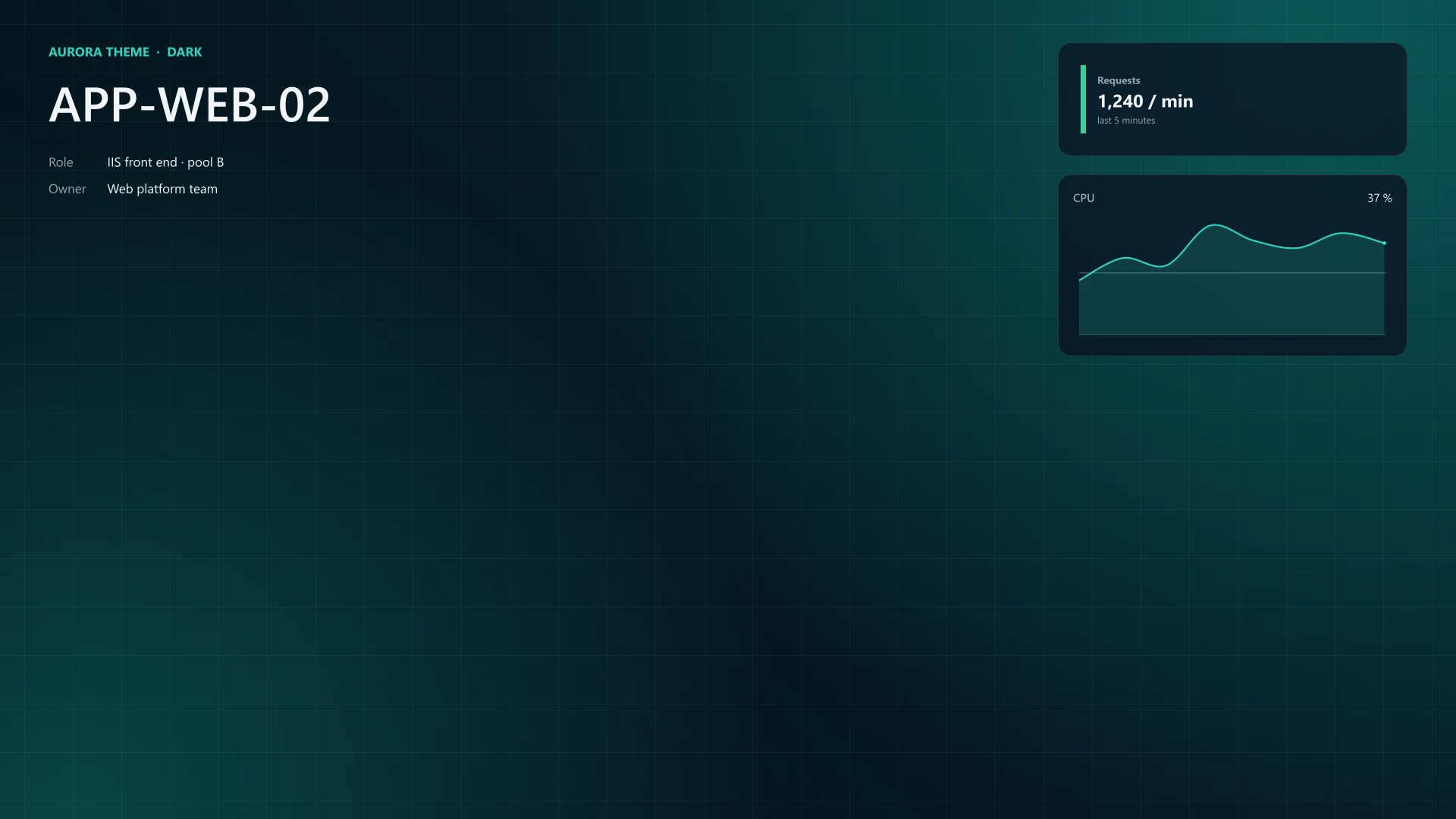
Aurora 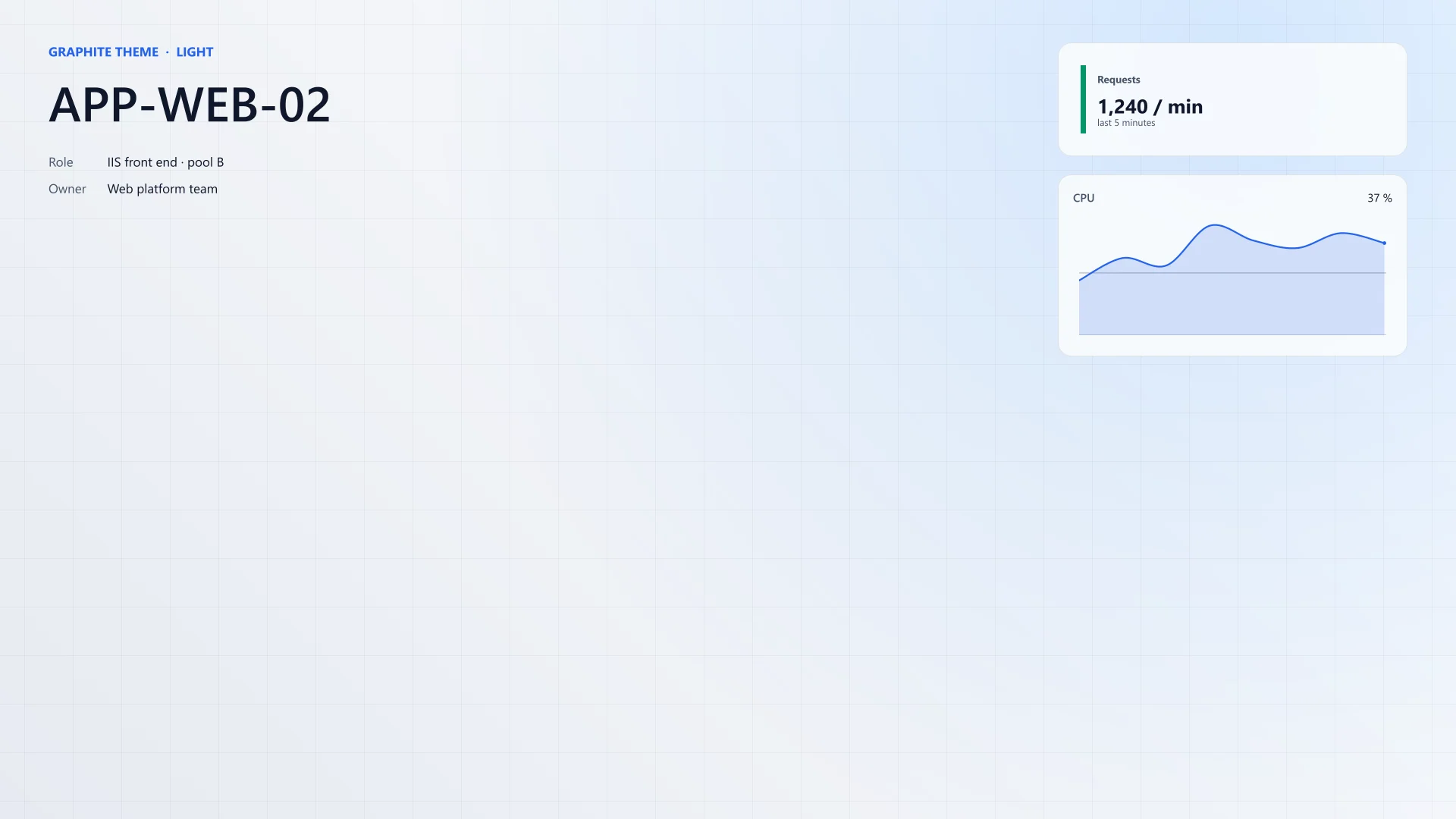
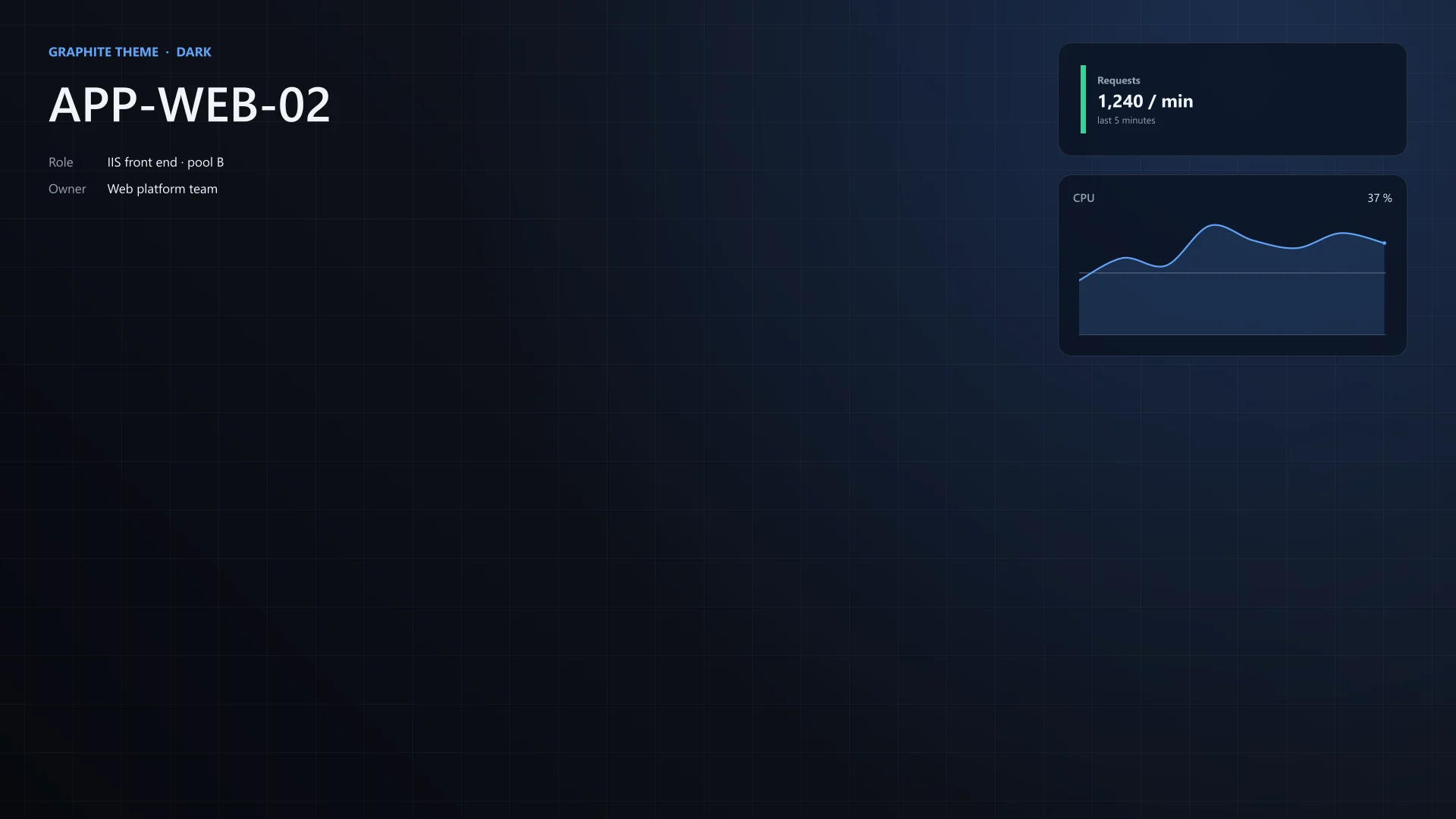
Graphite 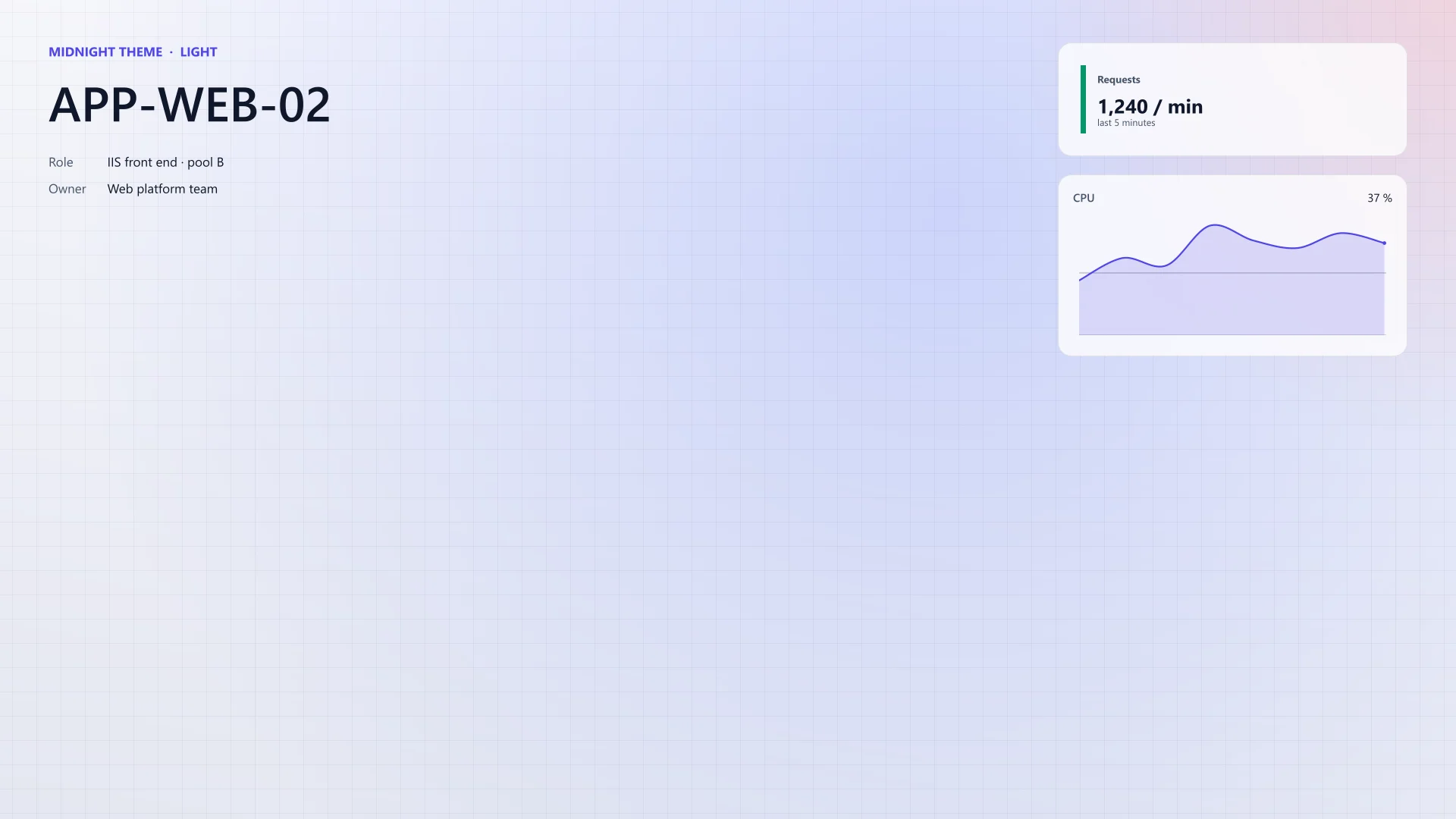
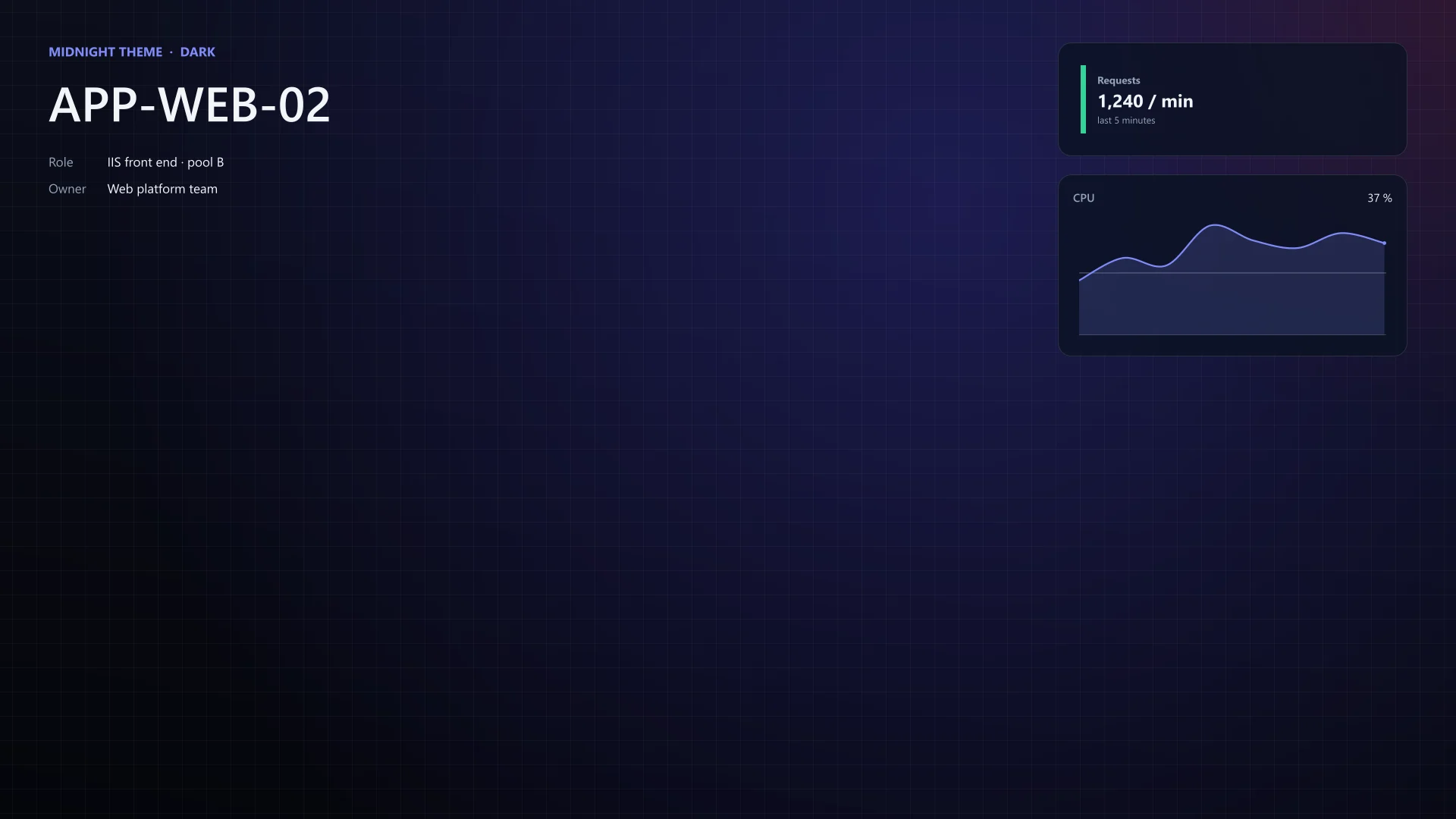
Midnight 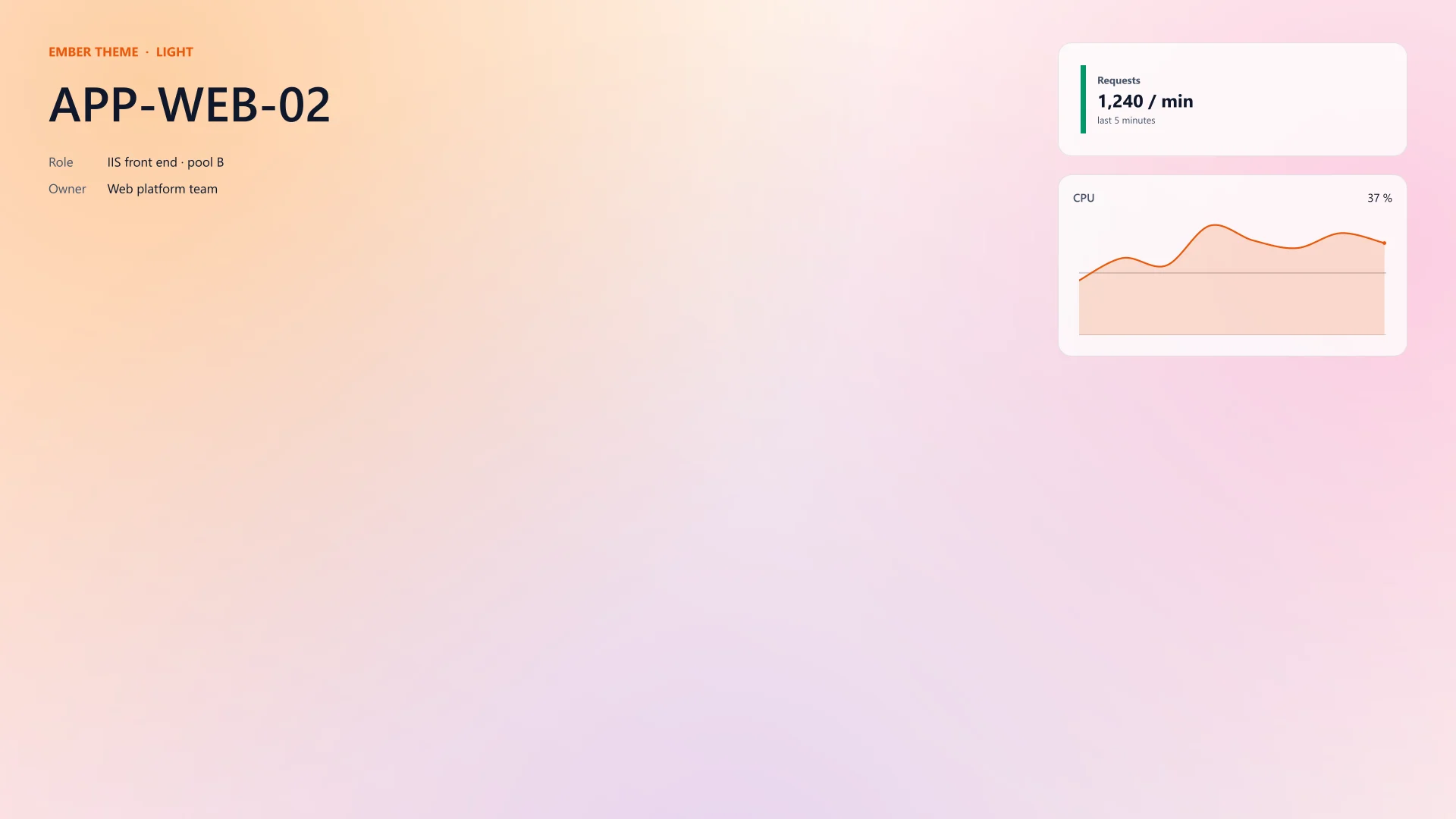
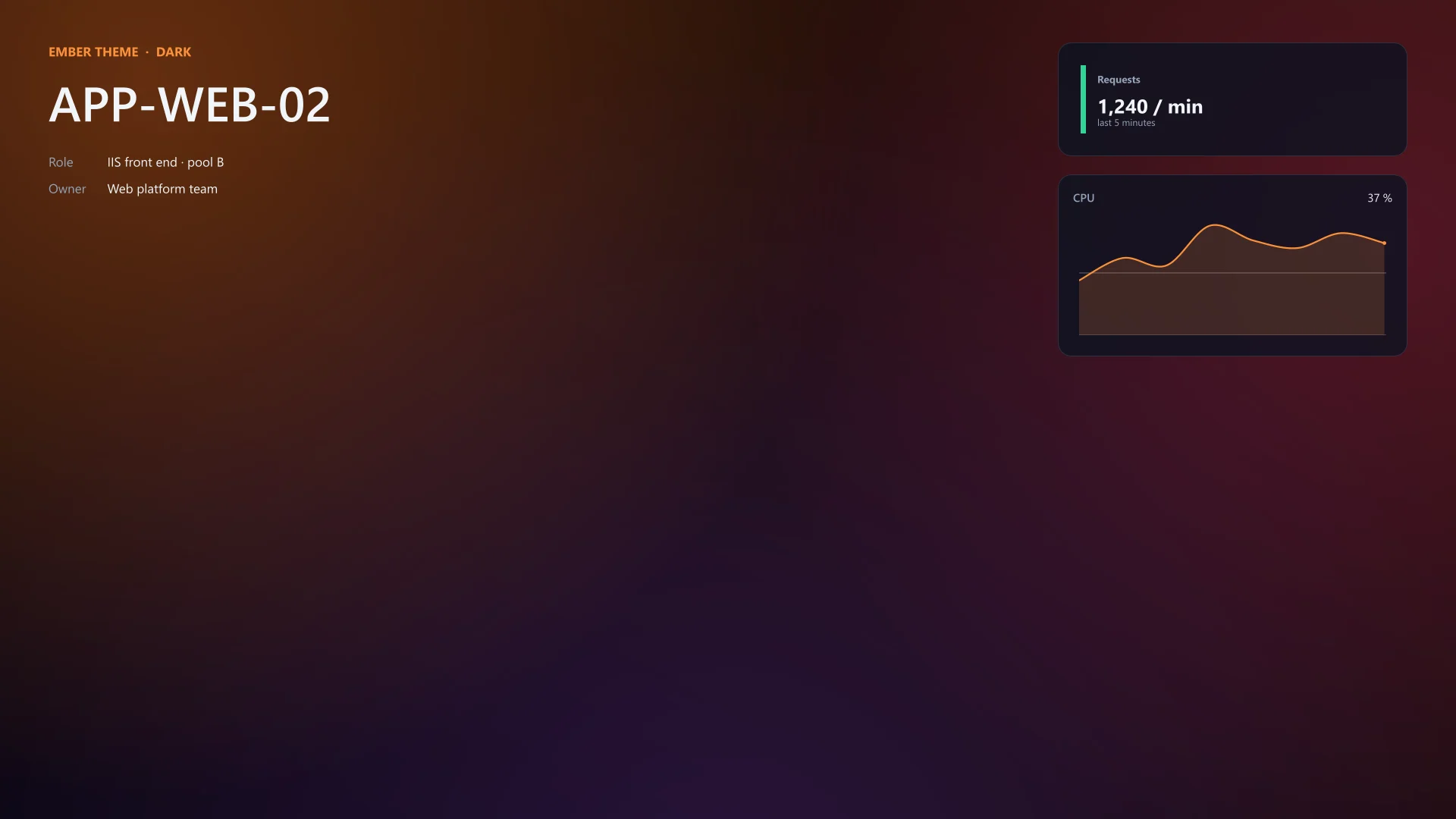
Ember 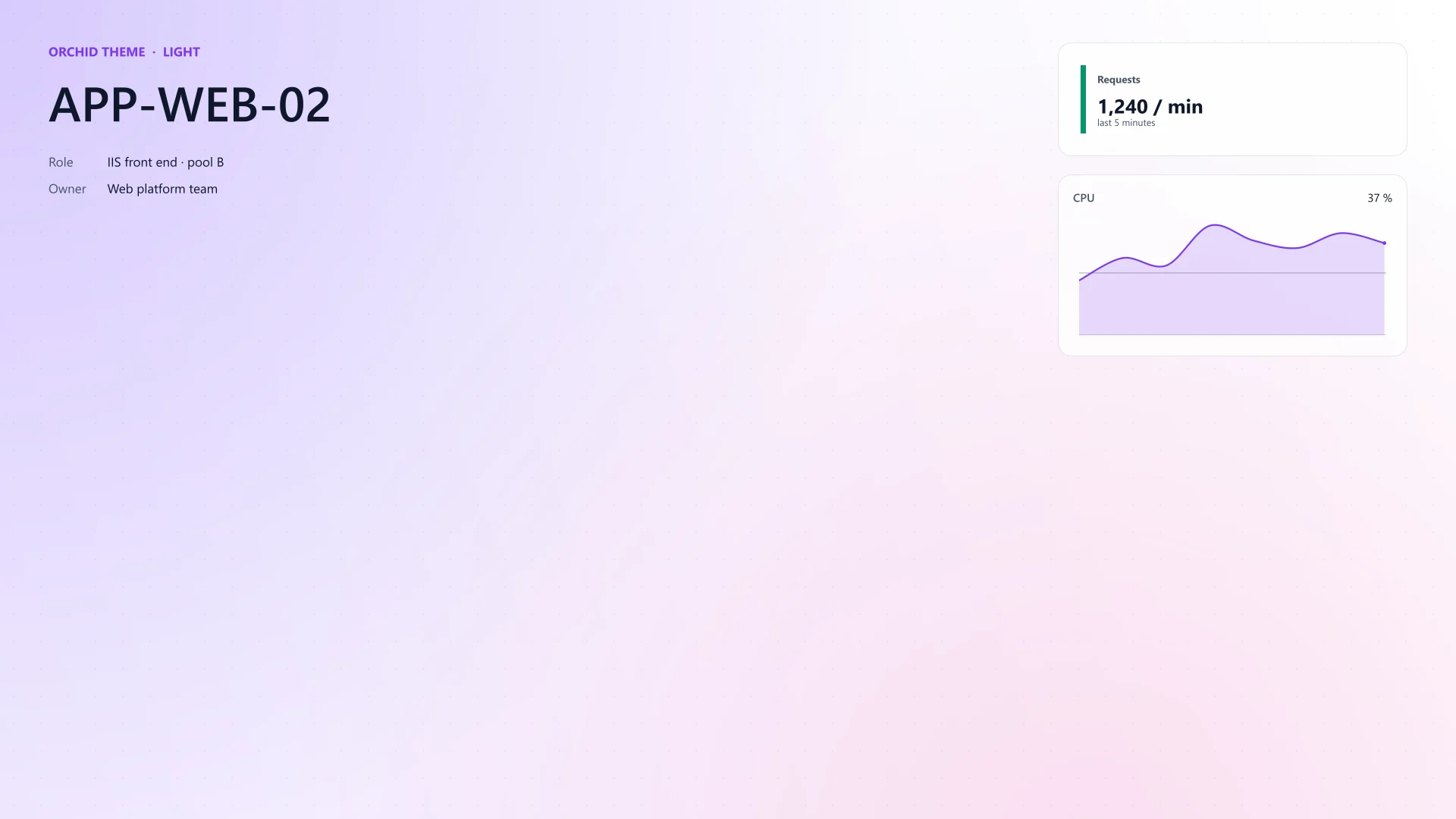
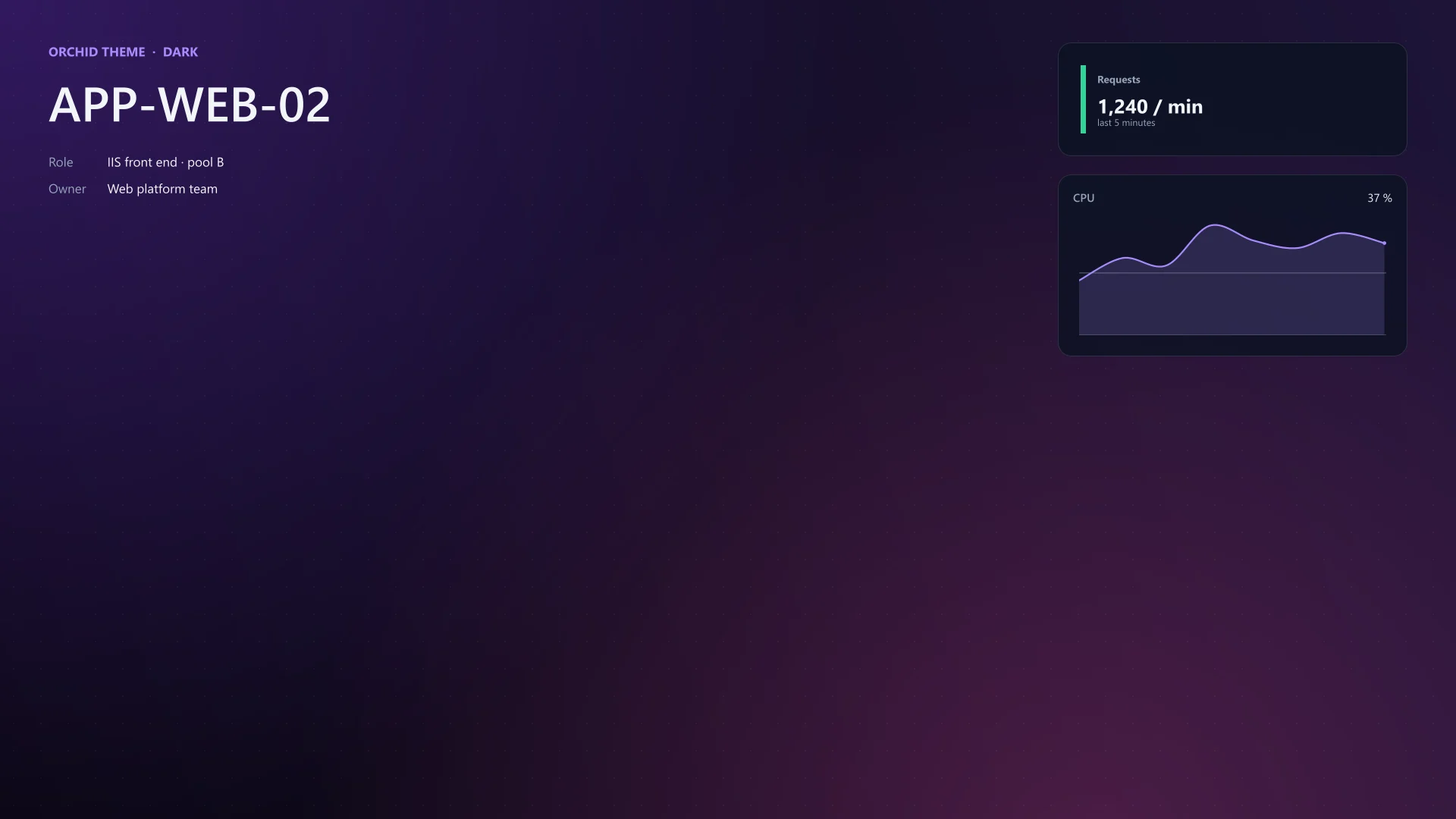
Orchid 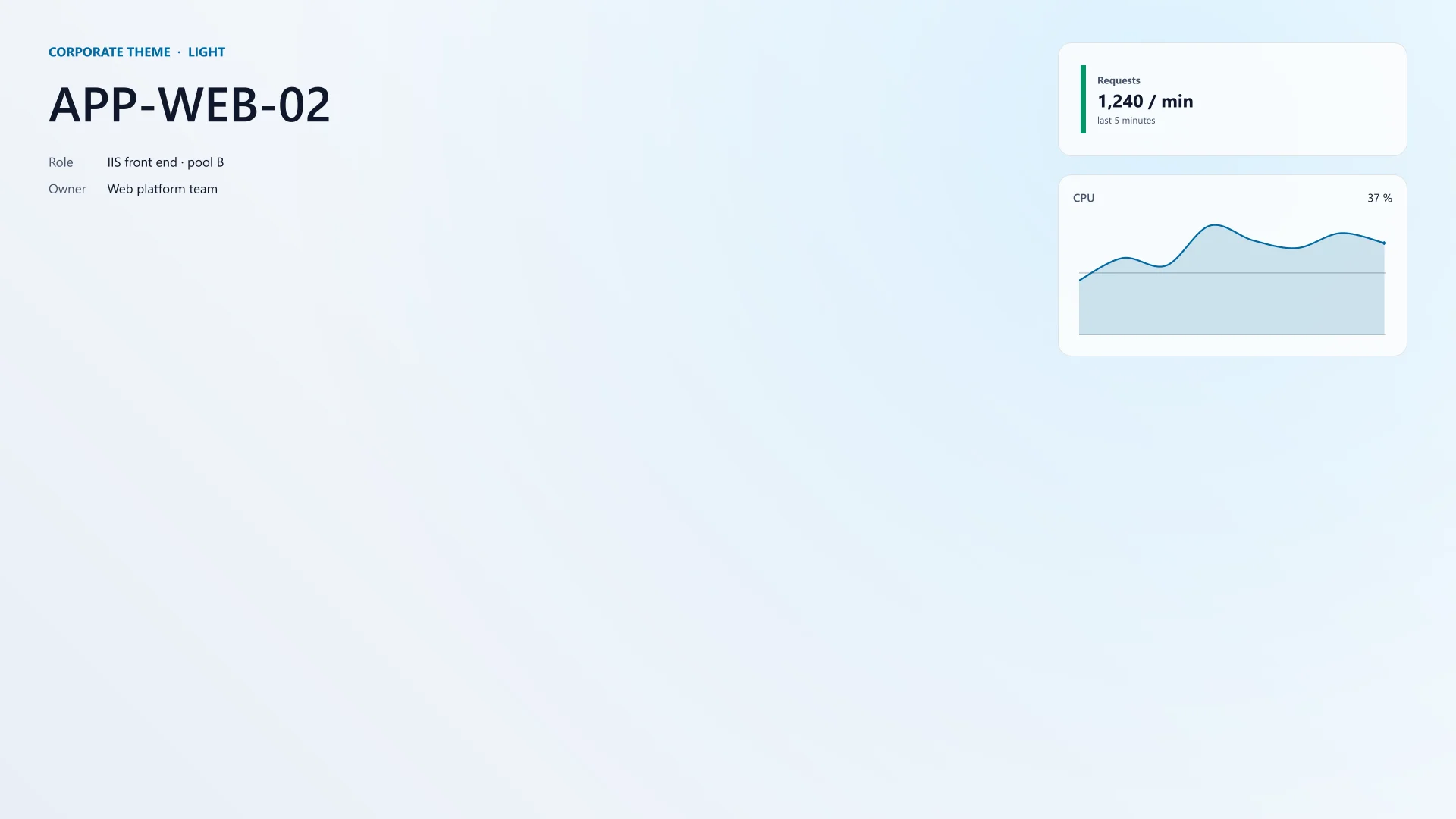
Corporate
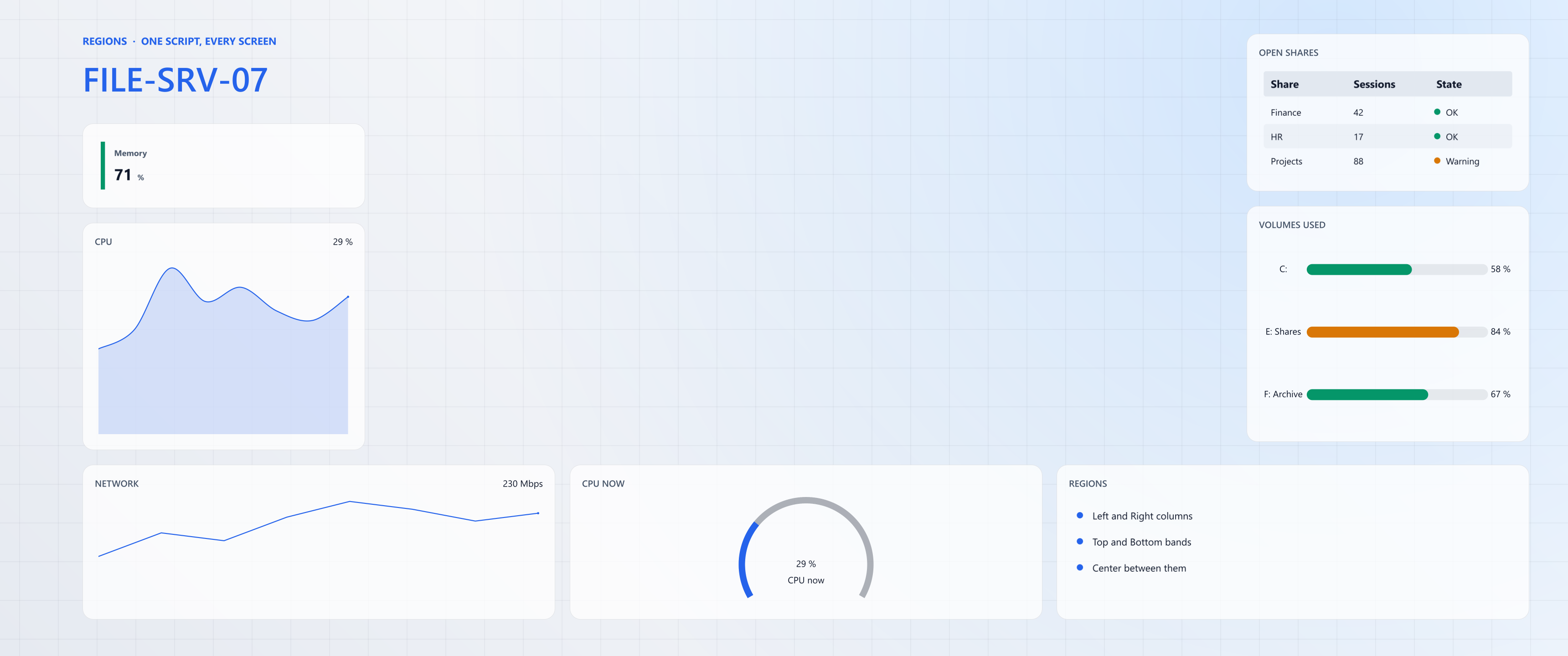
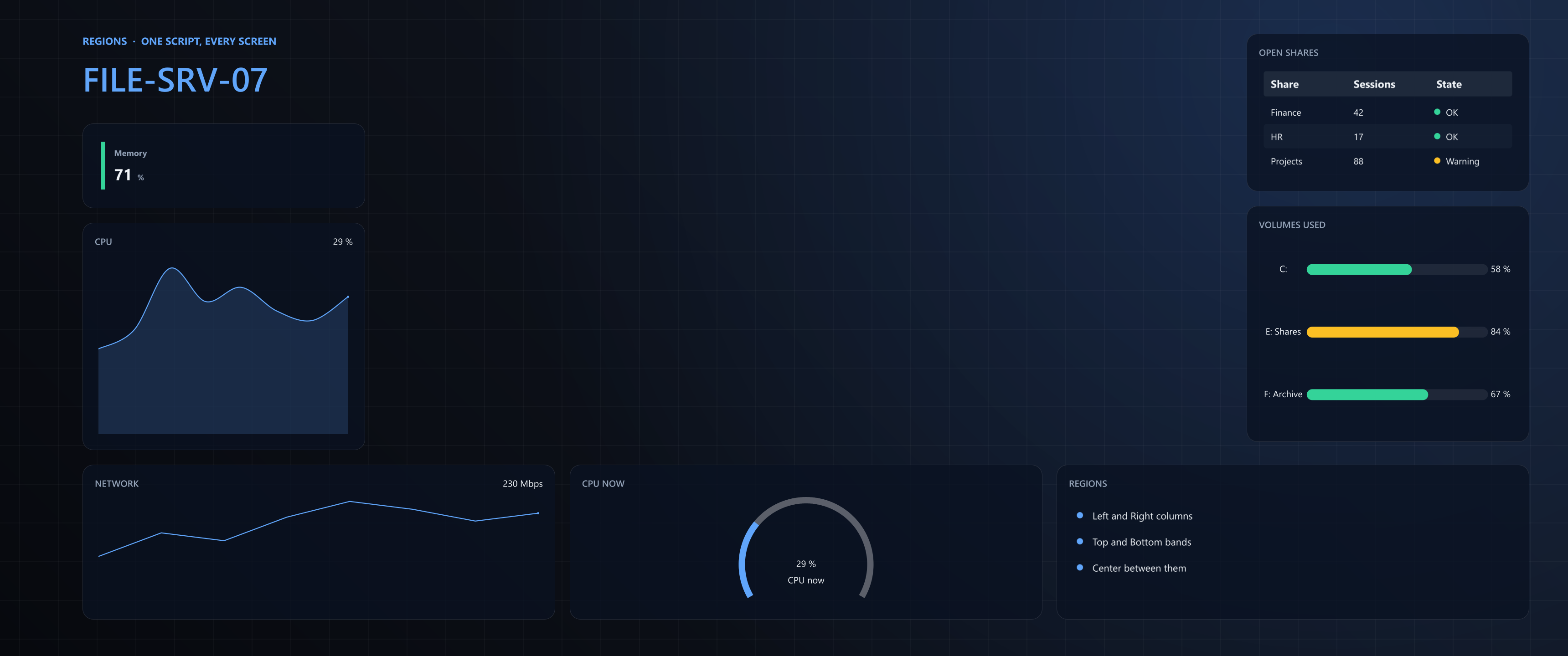
Regions on every screen
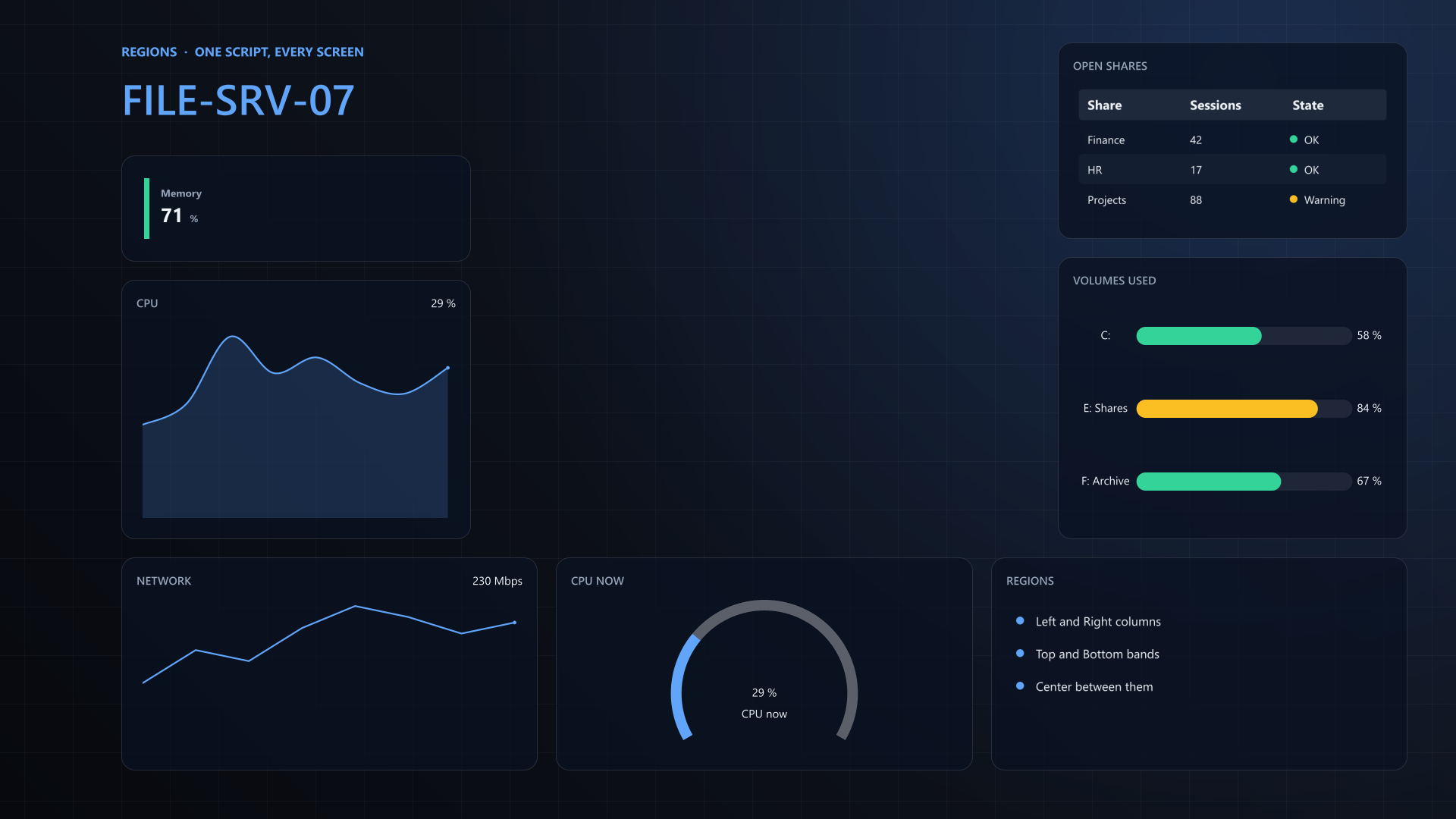
One script rendered at three sizes. Left and Right are columns, Top and Bottom are bands and Center sits between them; a panel without a size shares what is left. New-BGInfoLayout keeps the taskbar and the desktop icons clear. Feature.Regions.ps1
New-BGInfoLayout -IconAreaWidth 96 -Gap 24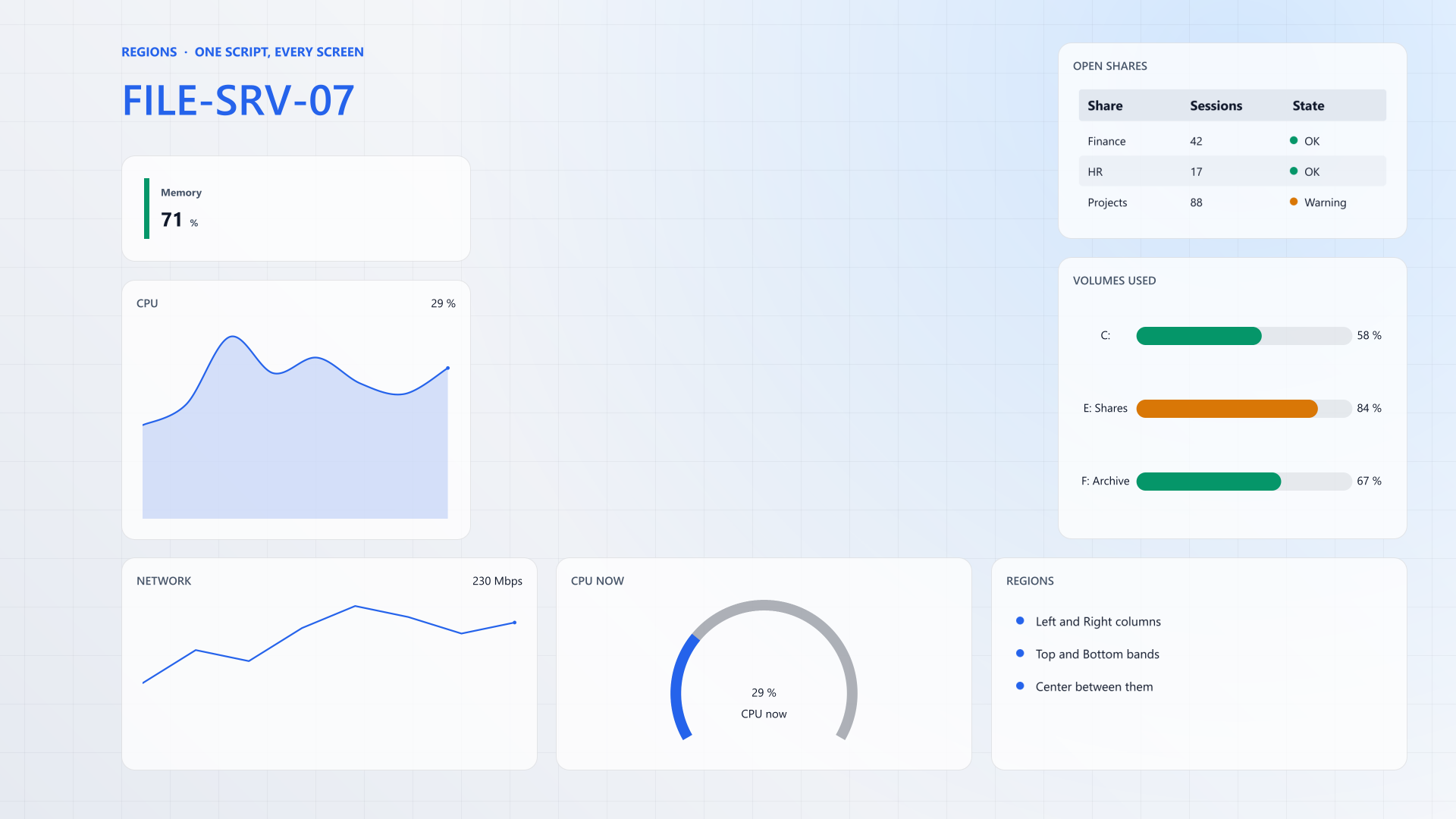
Widgets
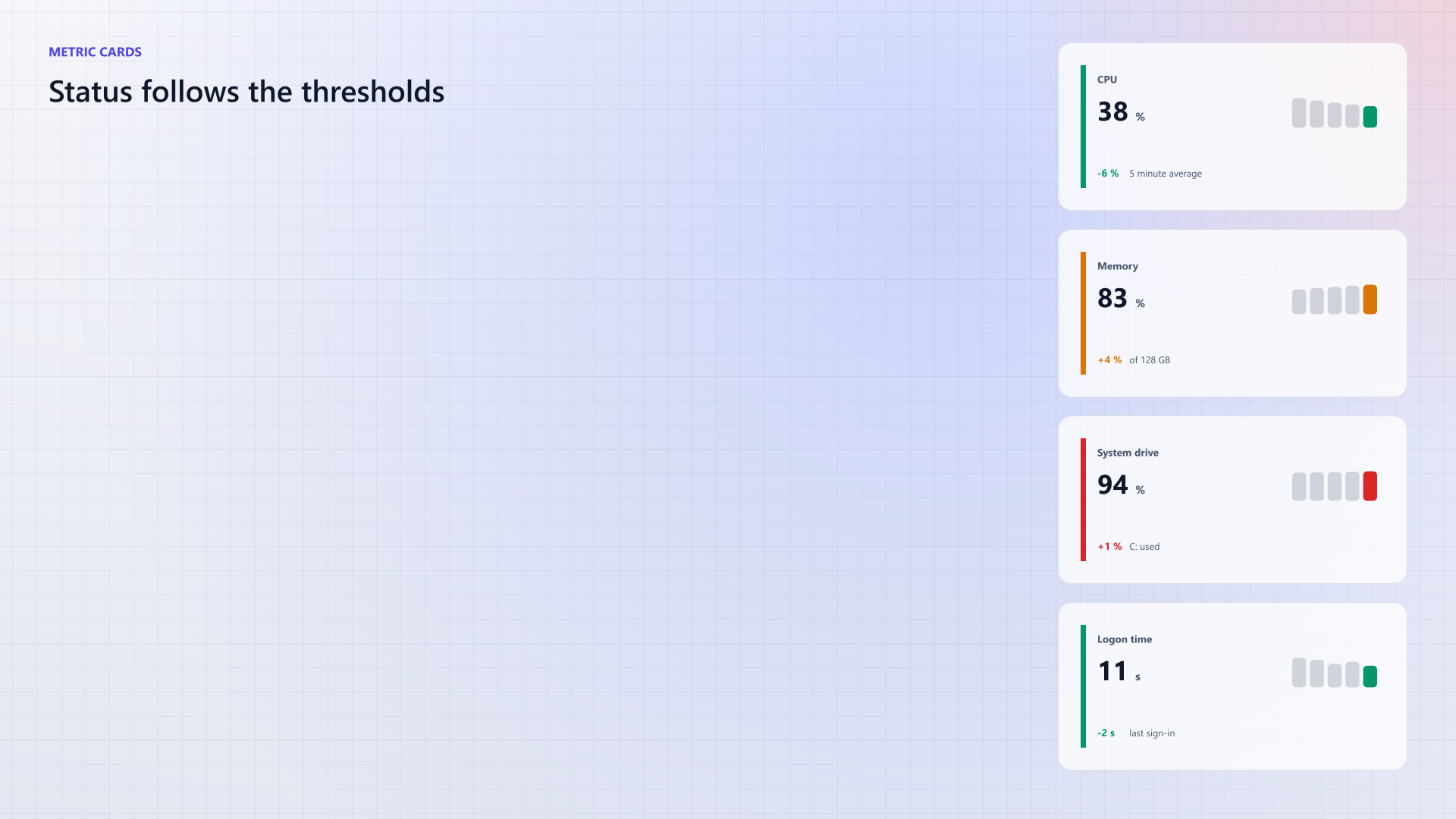
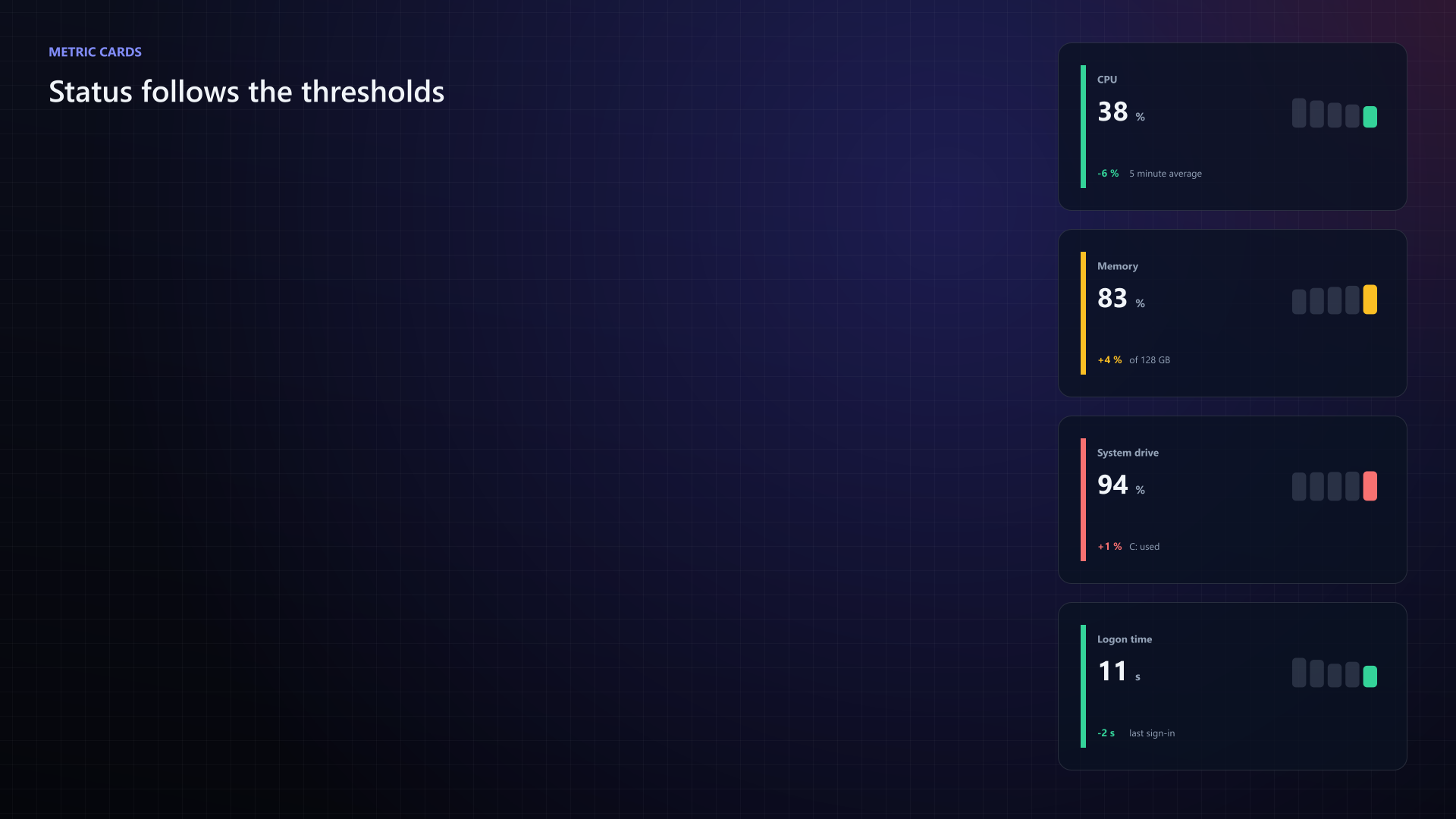
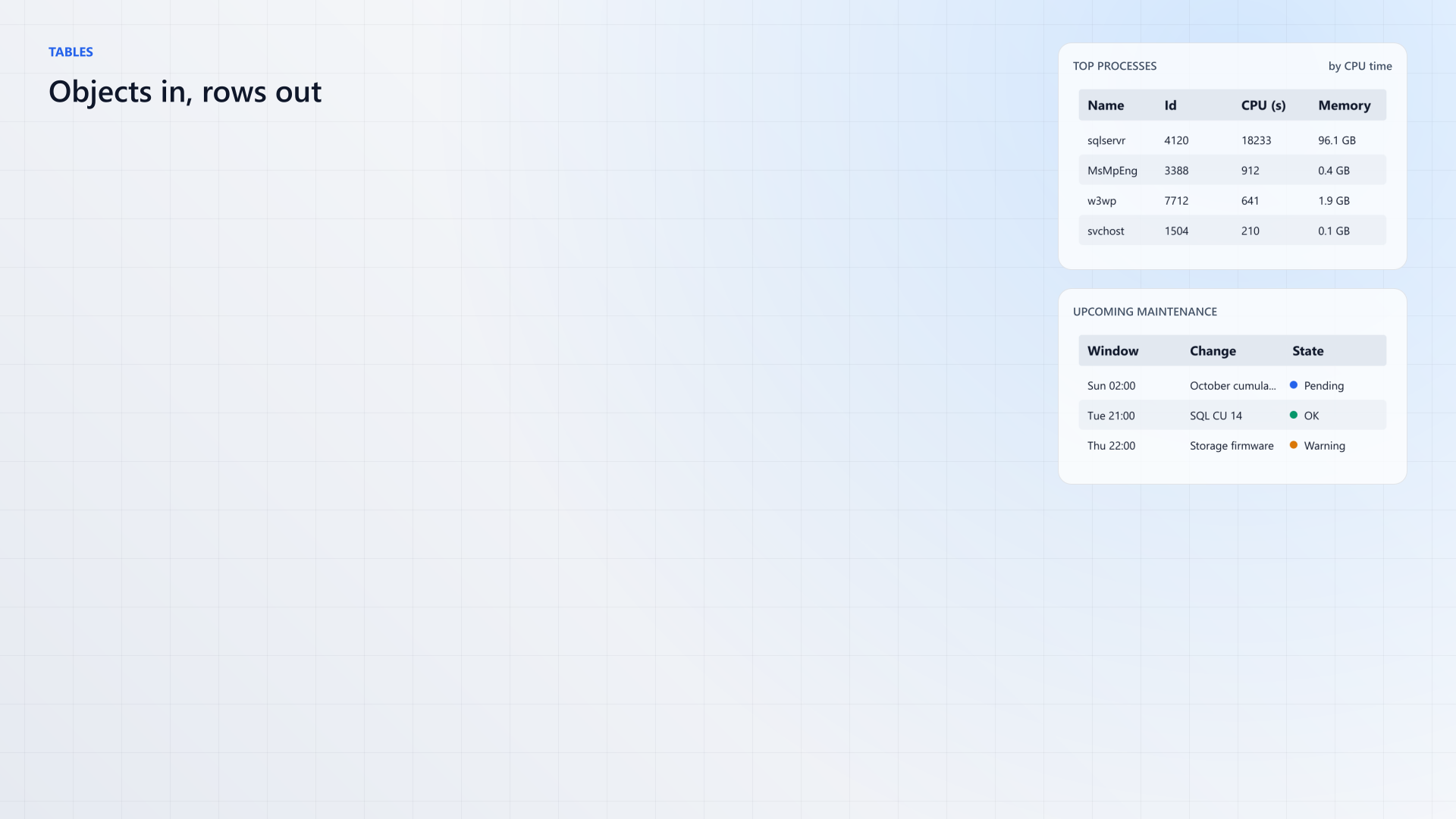
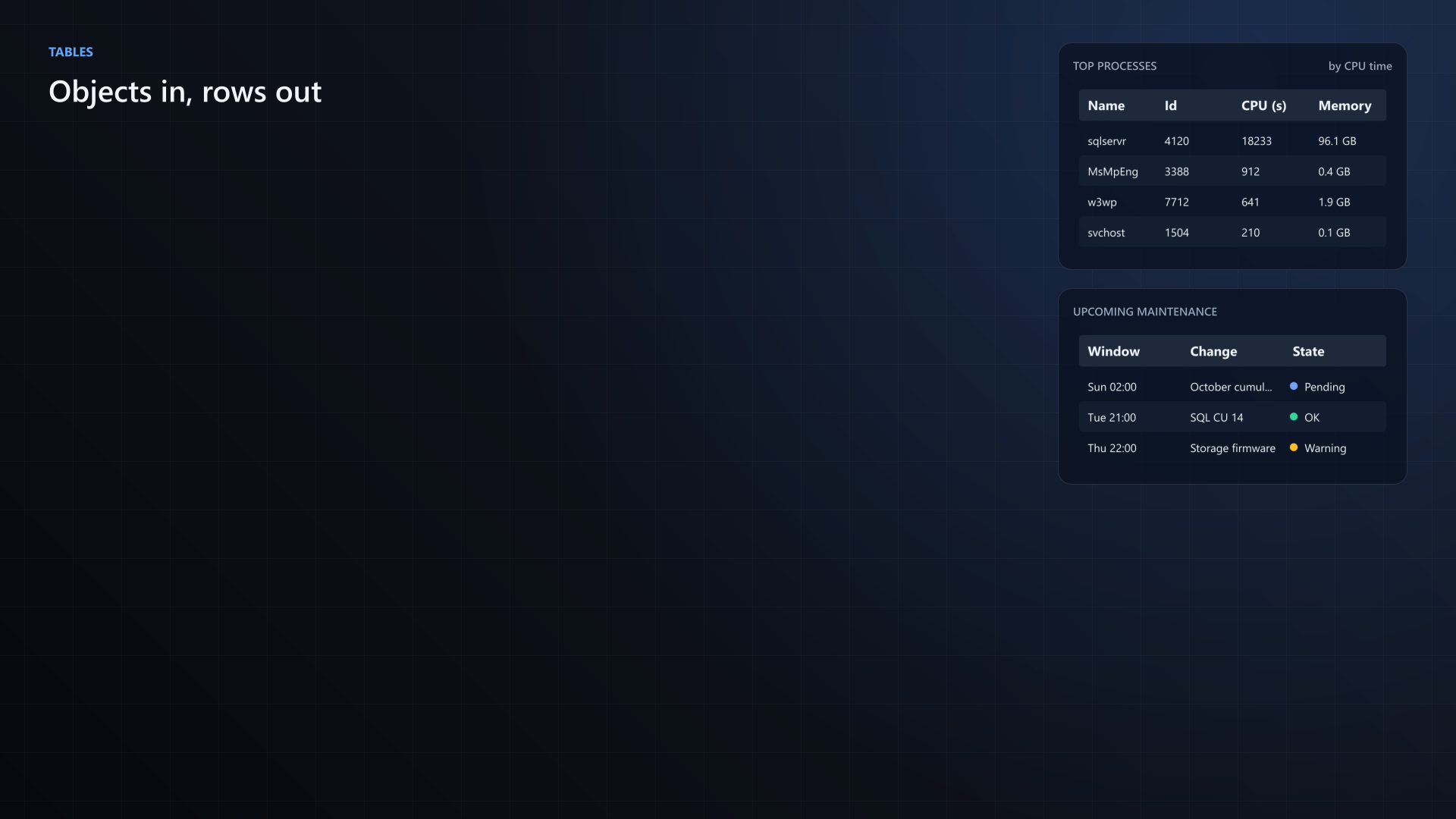
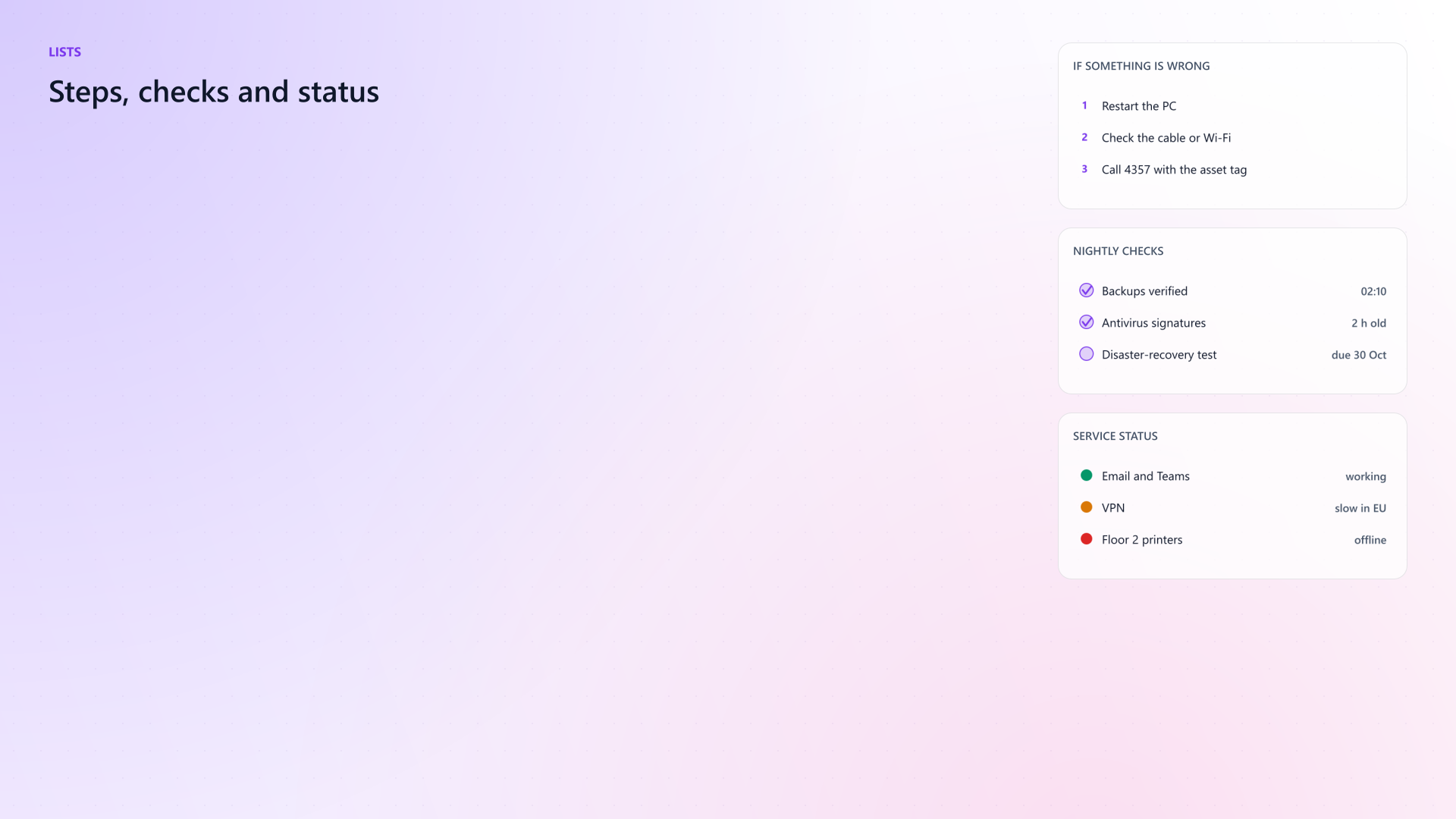
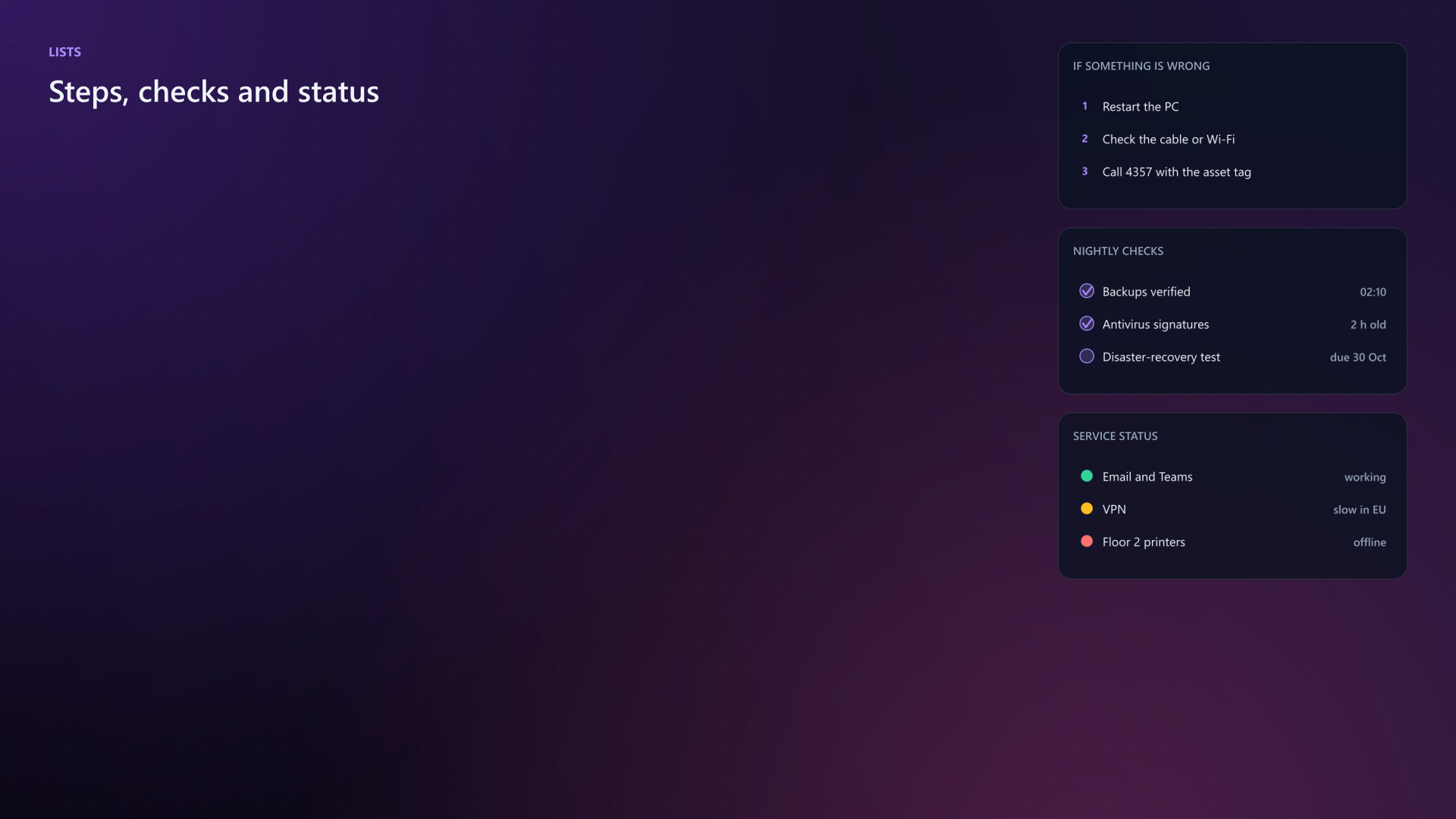
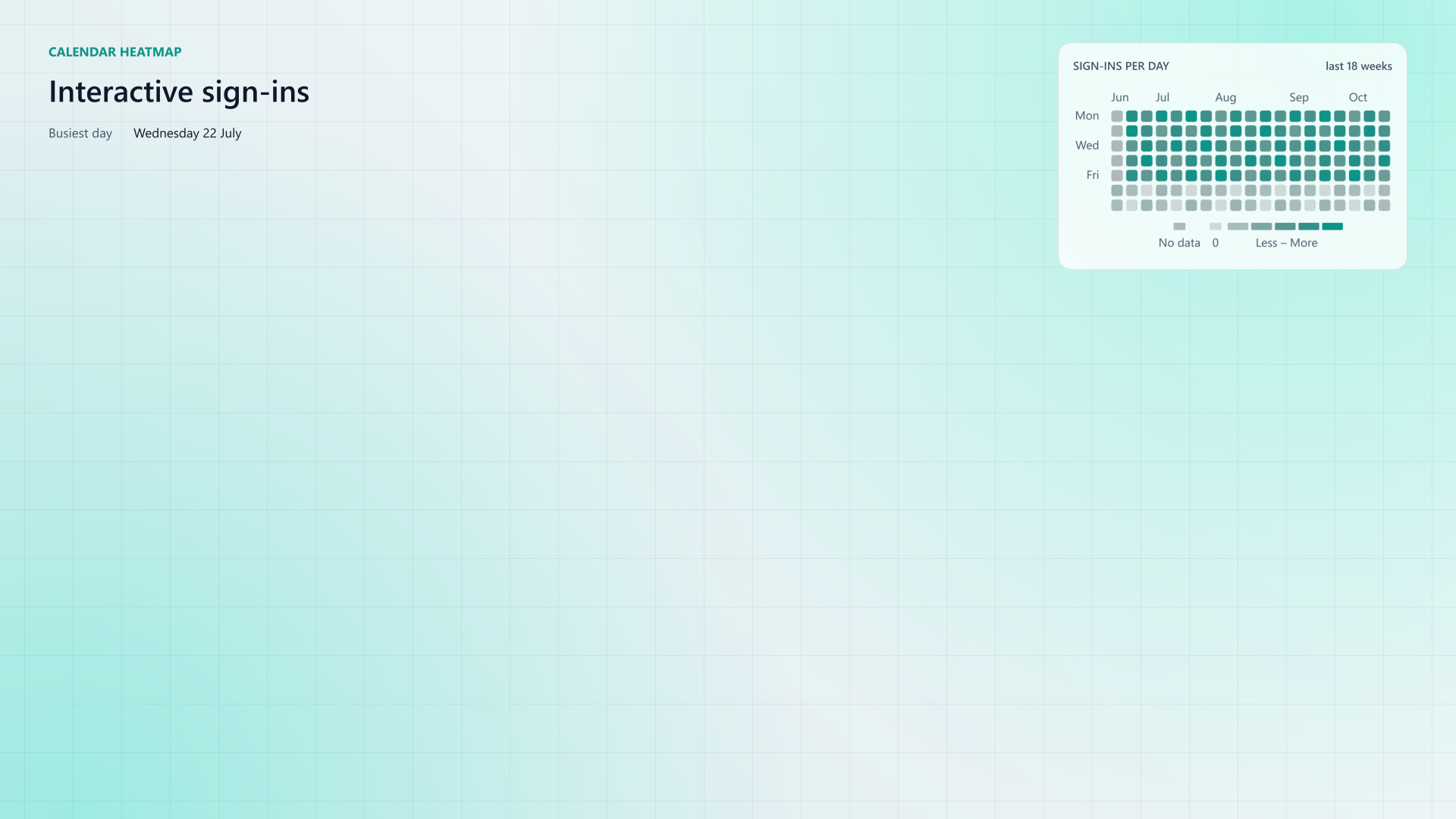
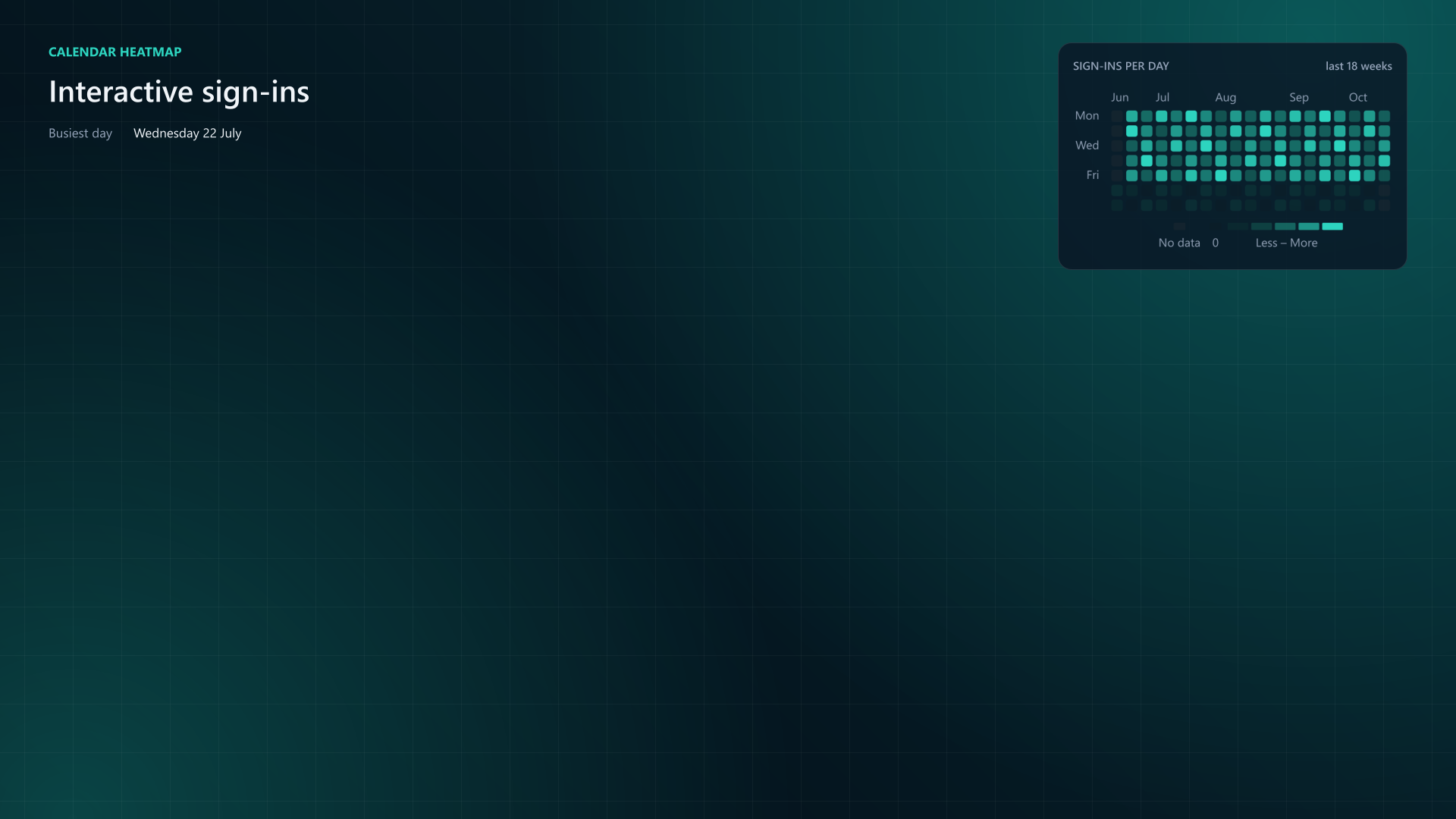
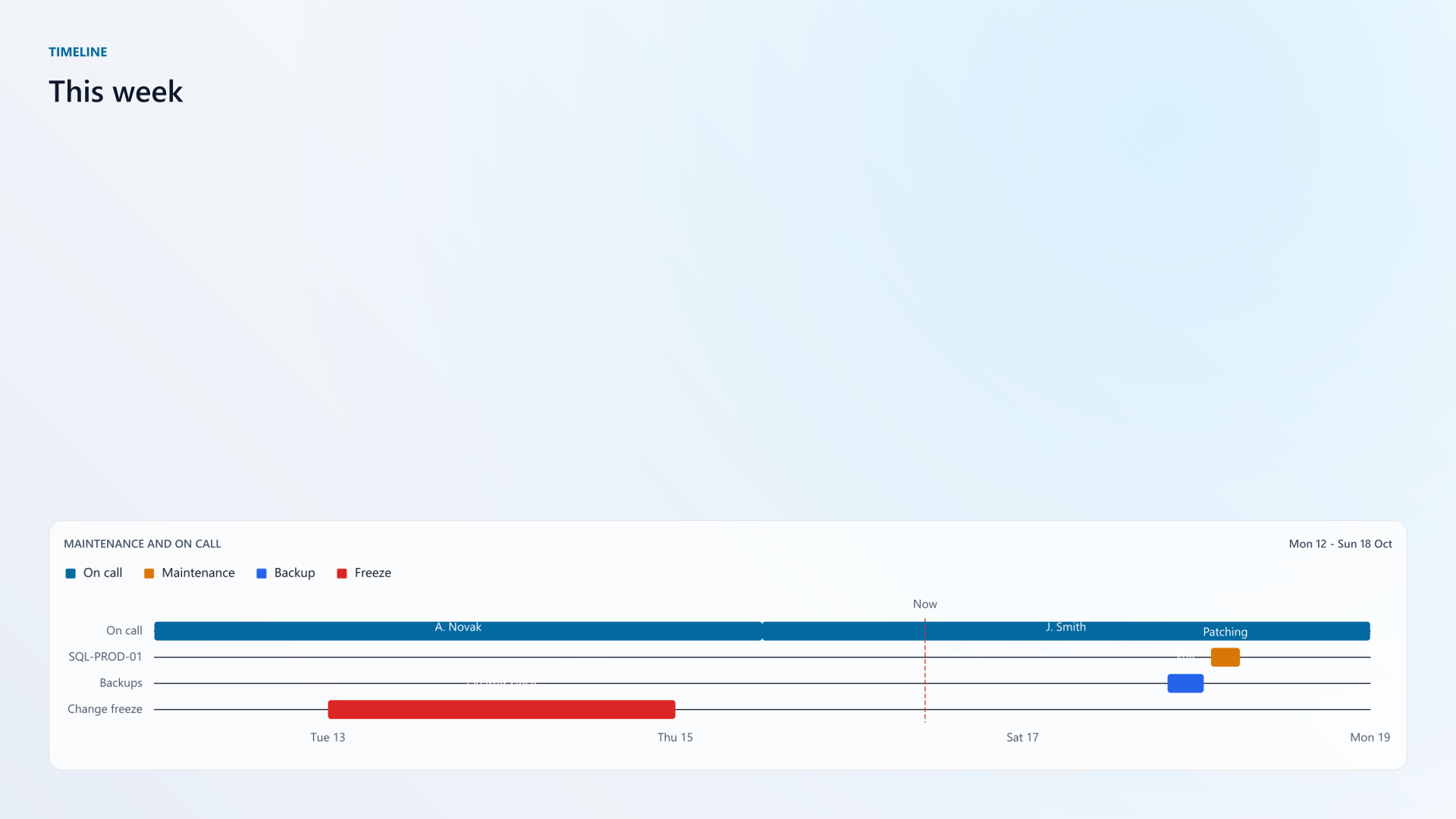
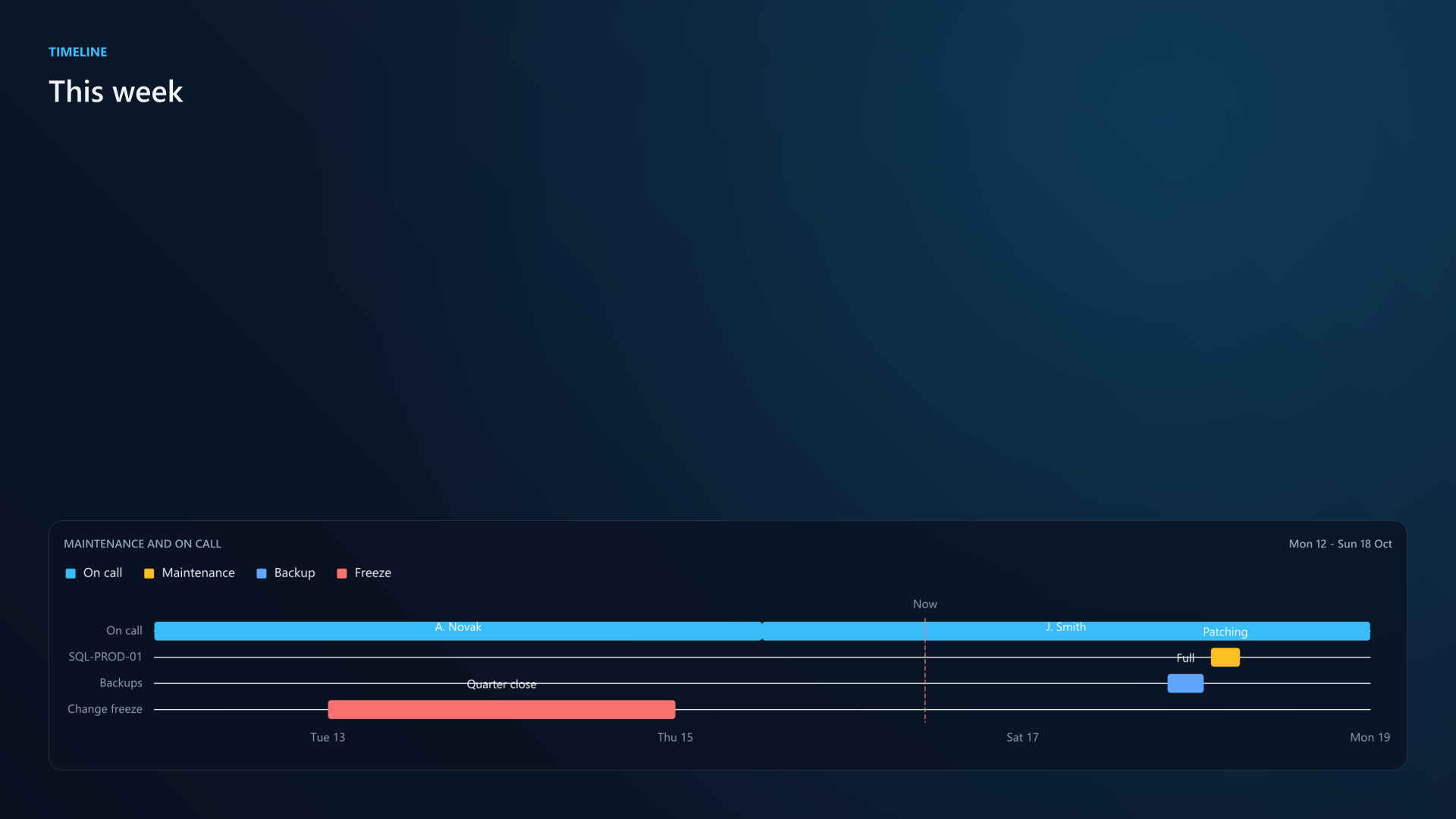
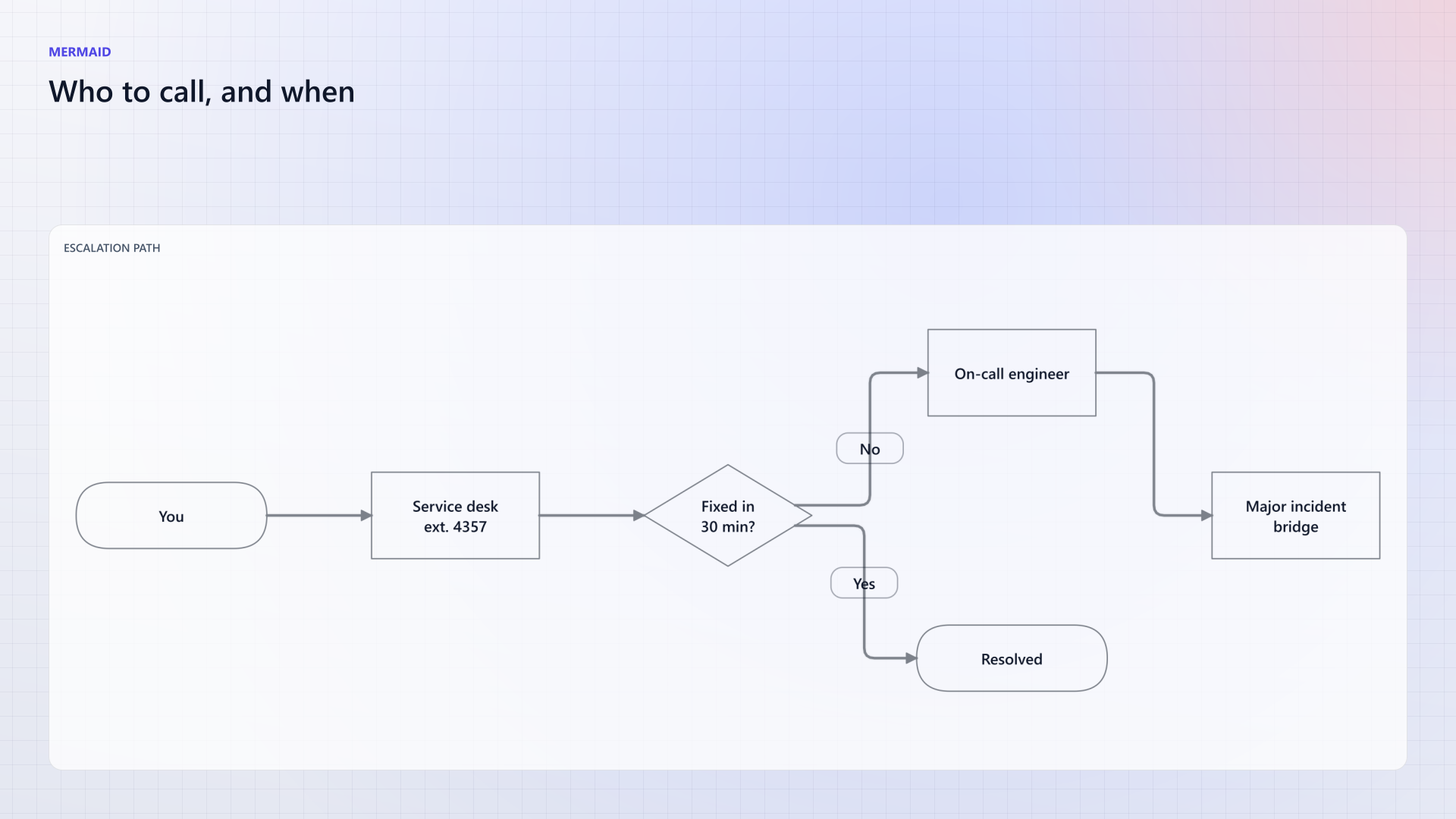
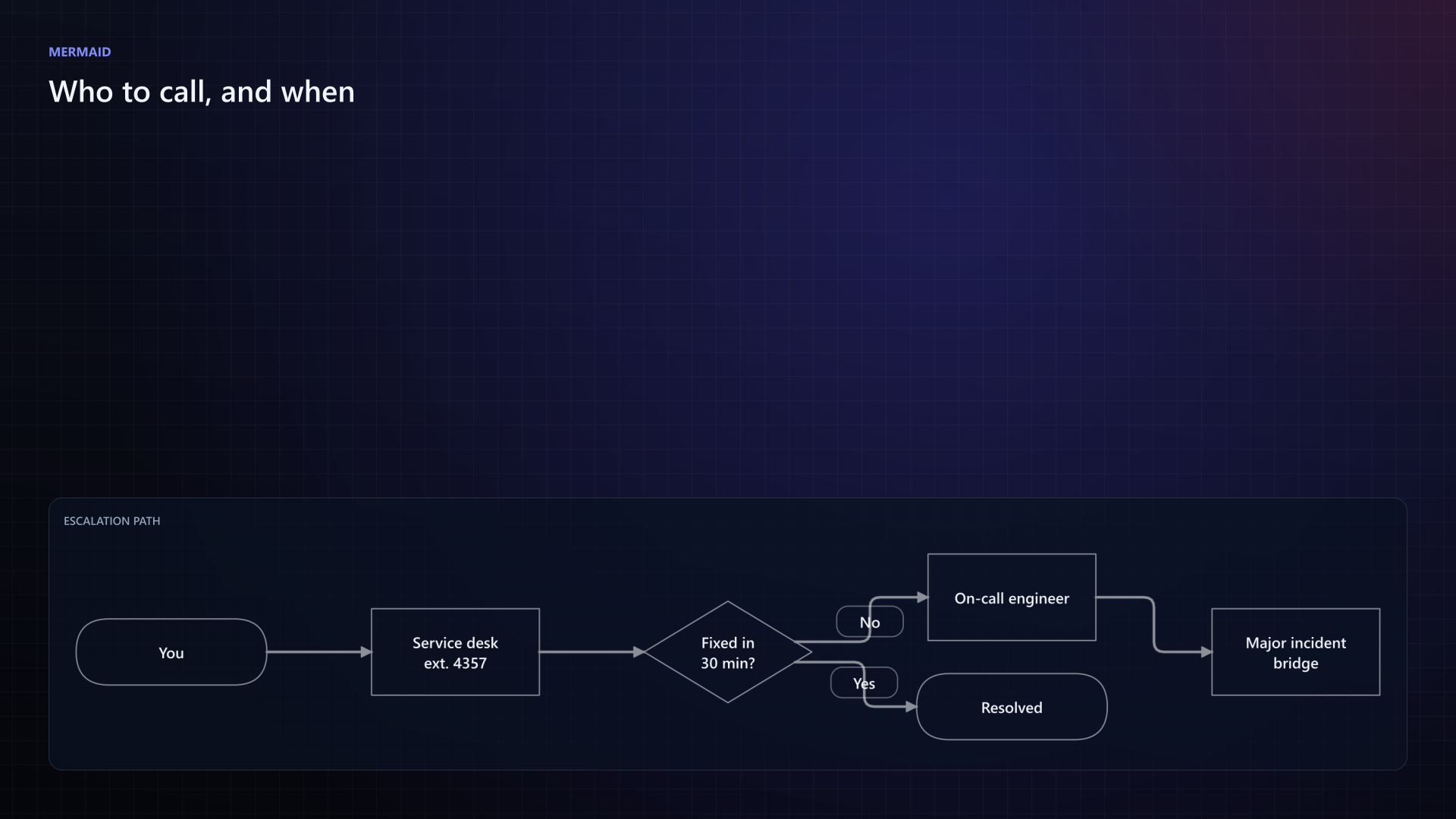
Each widget is one cmdlet that takes plain values, hashtables or the pipeline, and flows into a region like any chart. The crops come from the feature examples; open one for the whole wallpaper. Examples/Features
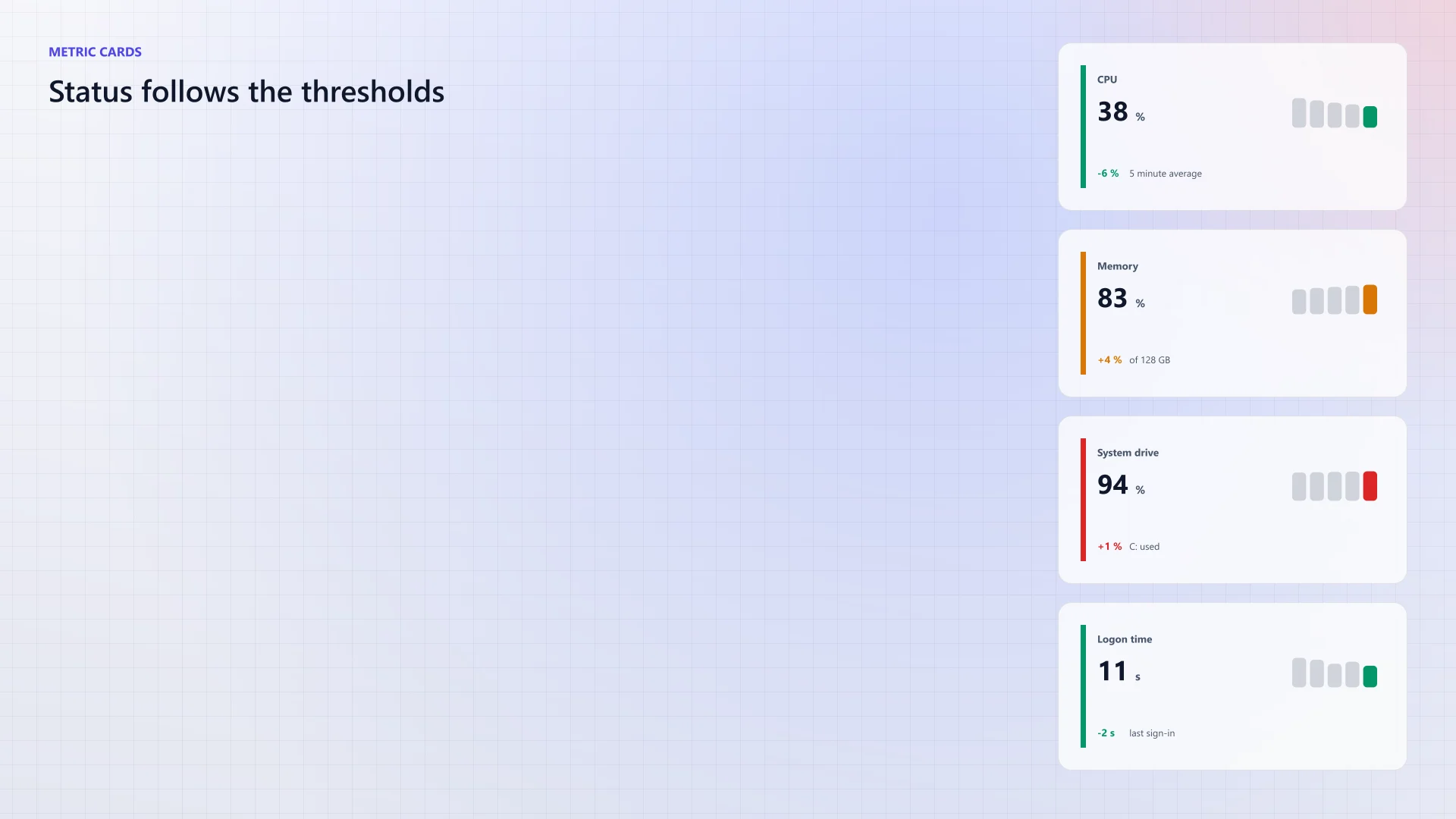
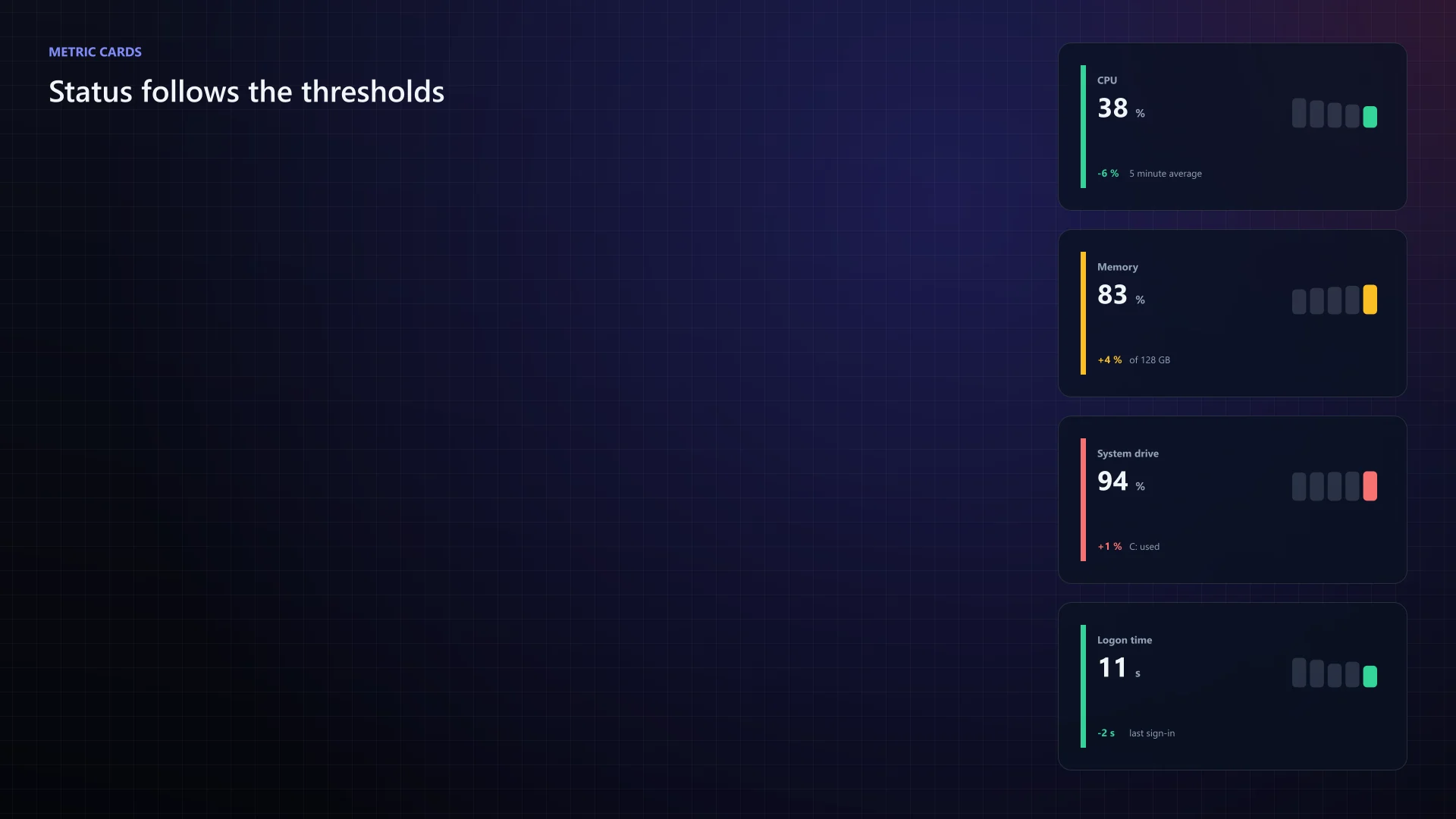
PowerShellFeature.Metrics.ps1 New-BGInfoMetric -Region Right -Label CPU -Value 38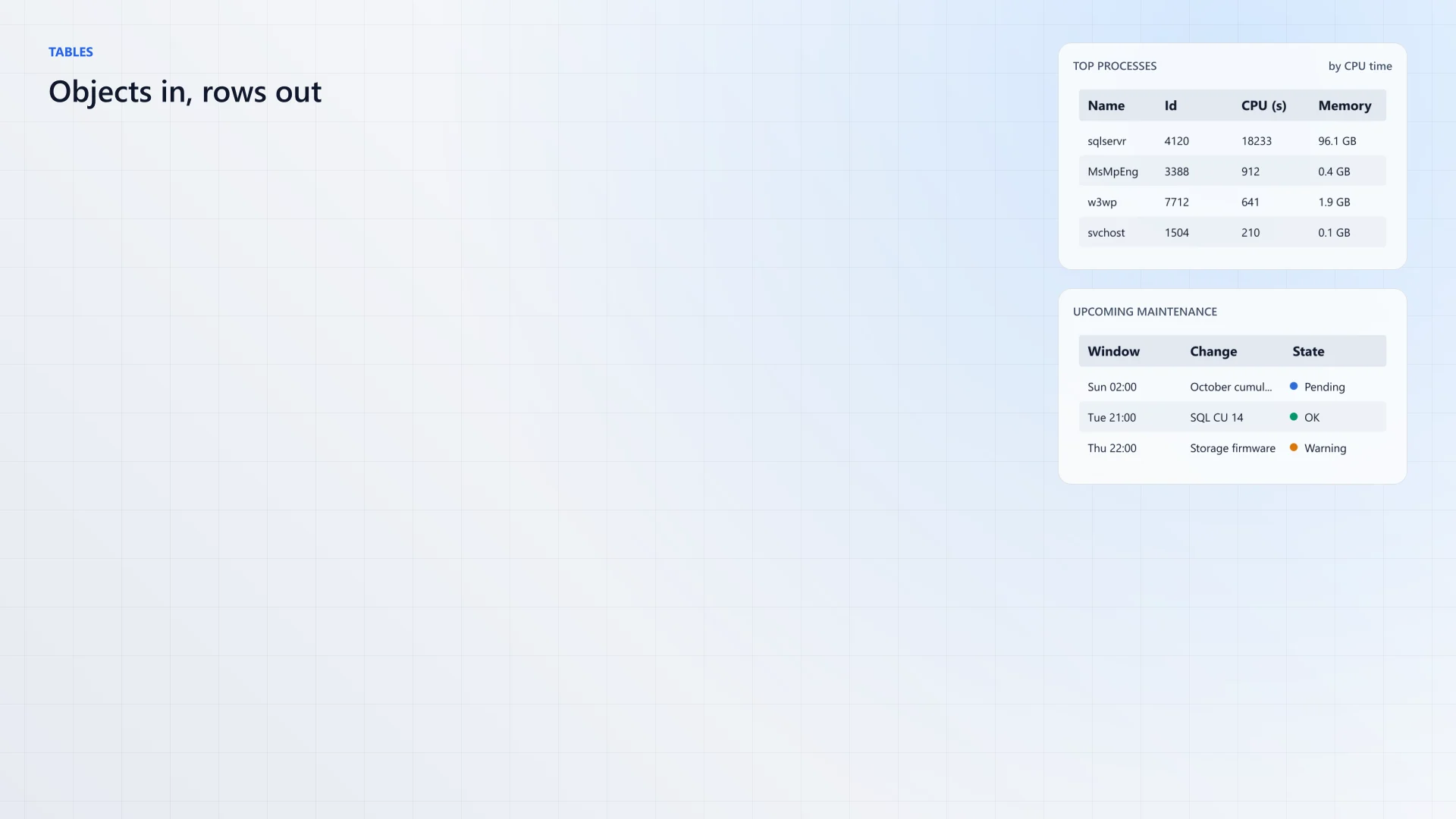
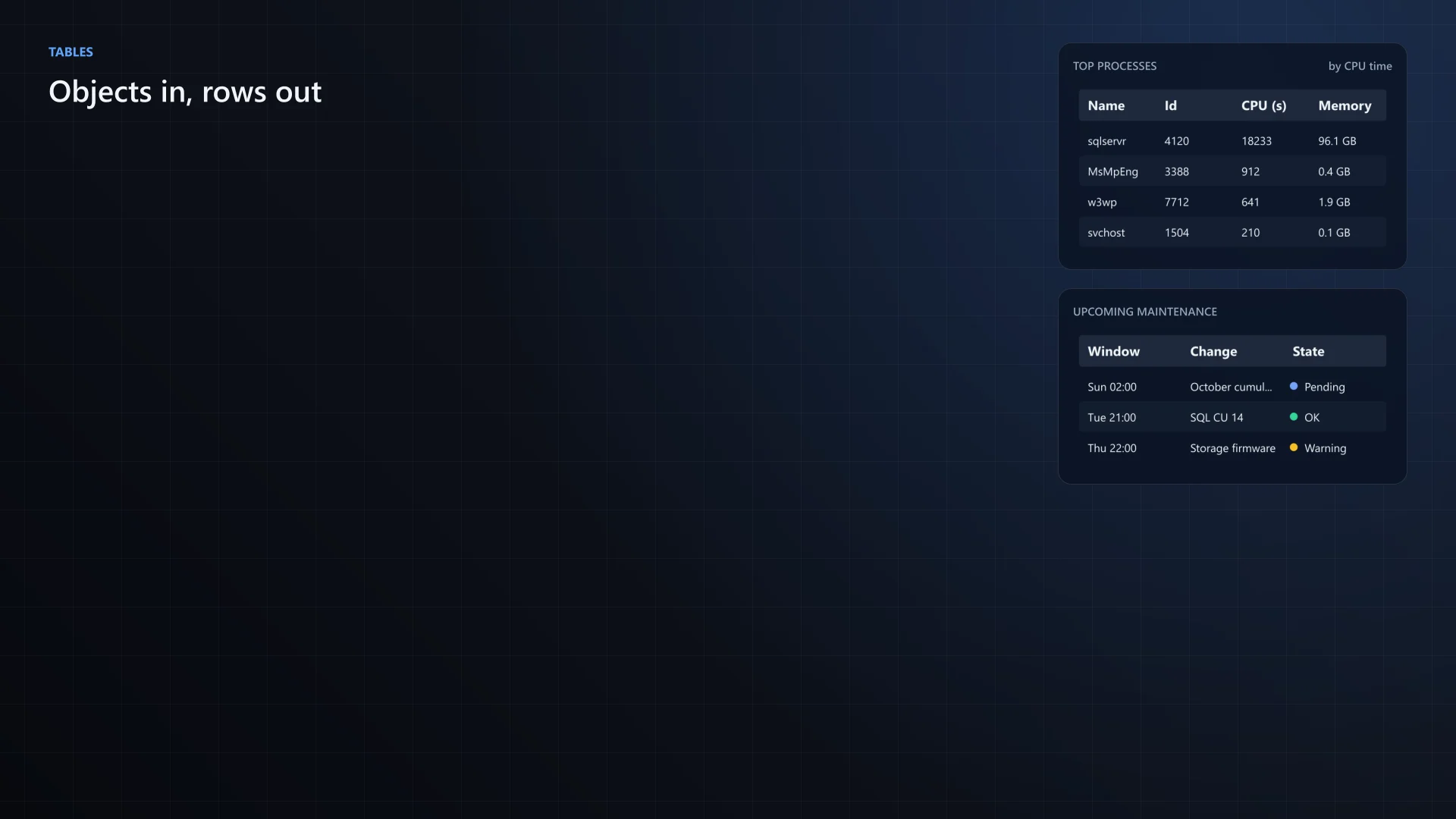
PowerShellFeature.Tables.ps1 $procs | New-BGInfoTable -Region Right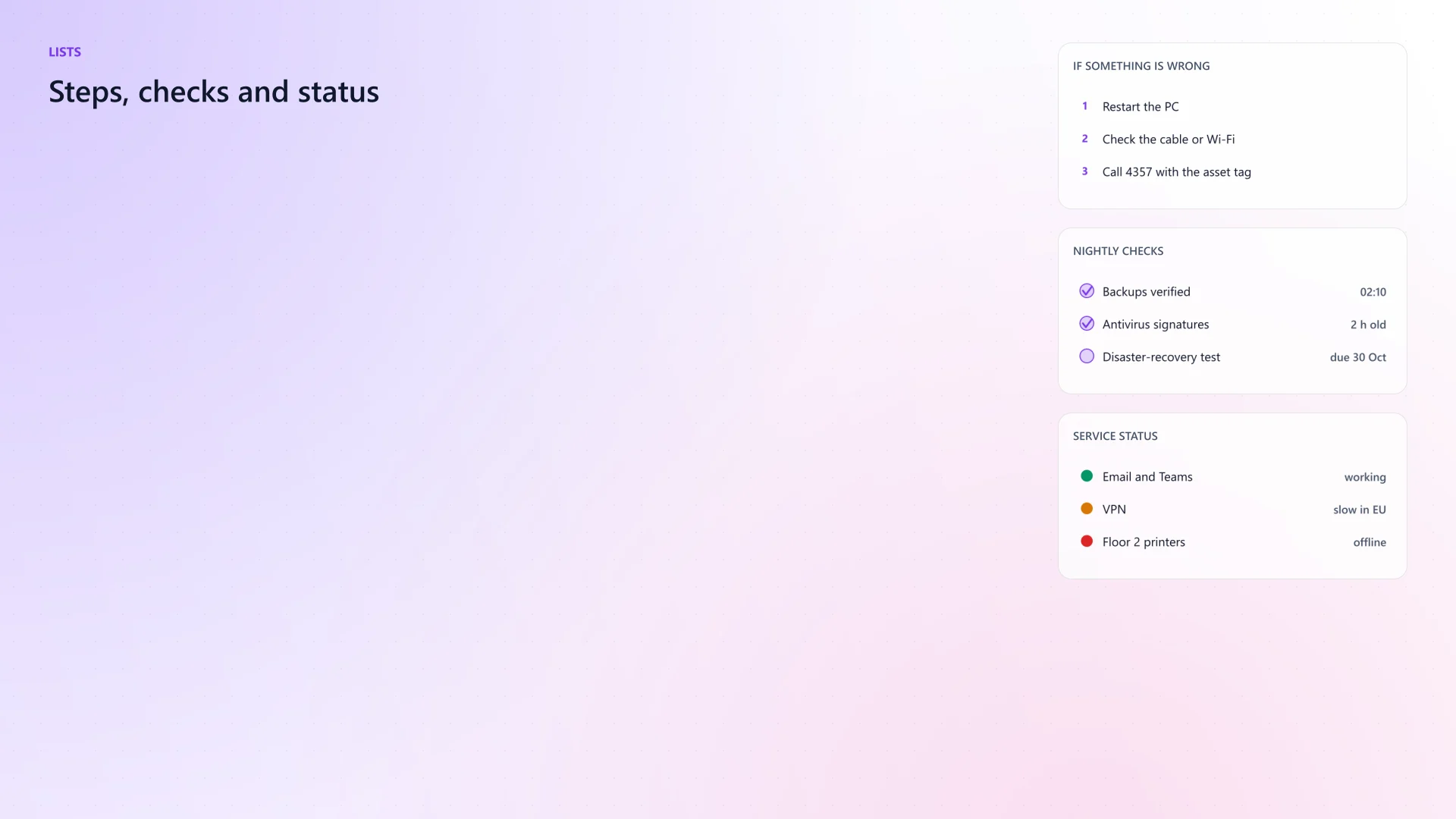
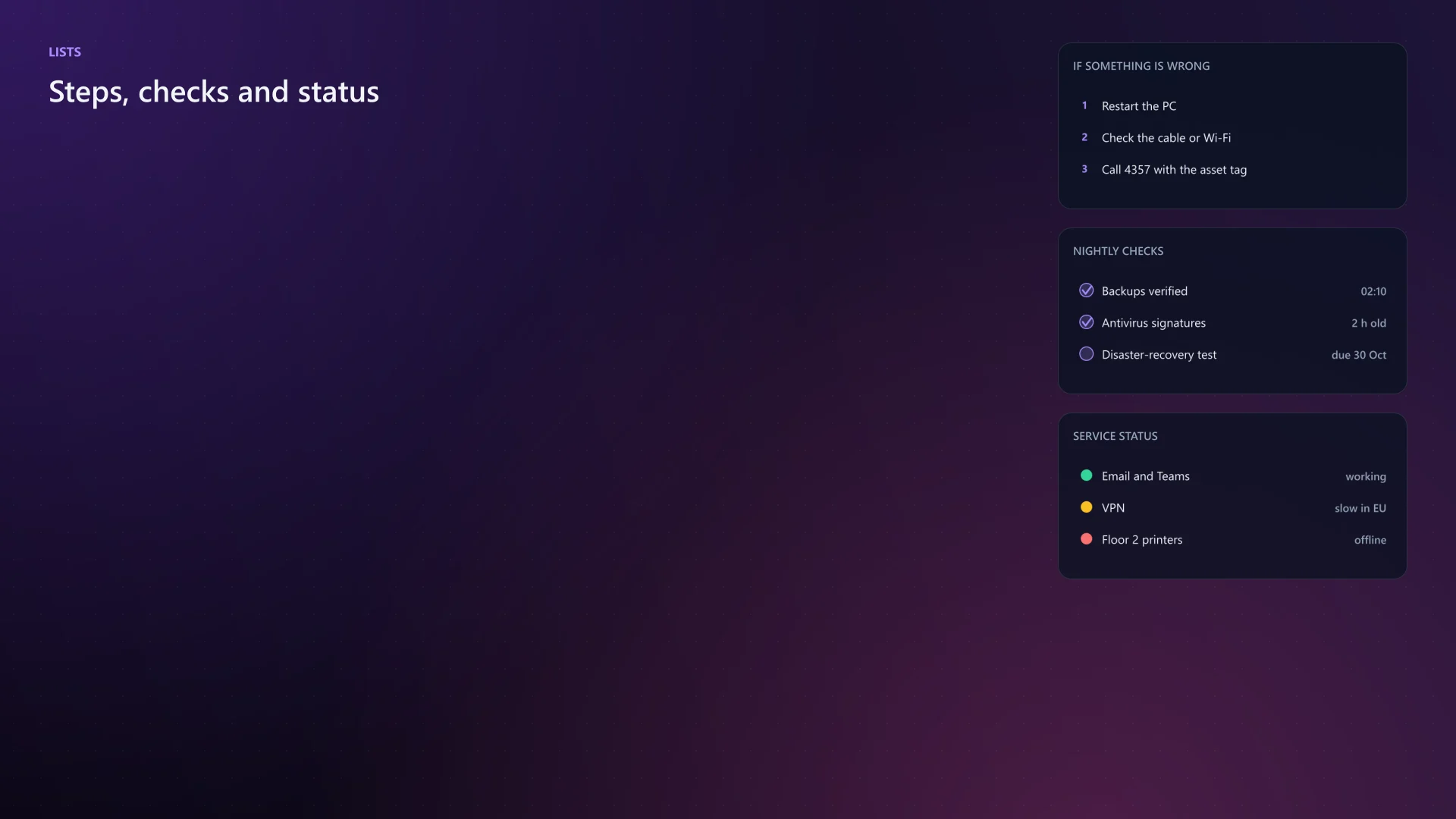
PowerShellFeature.Lists.ps1 New-BGInfoList -Region Right -Item $checks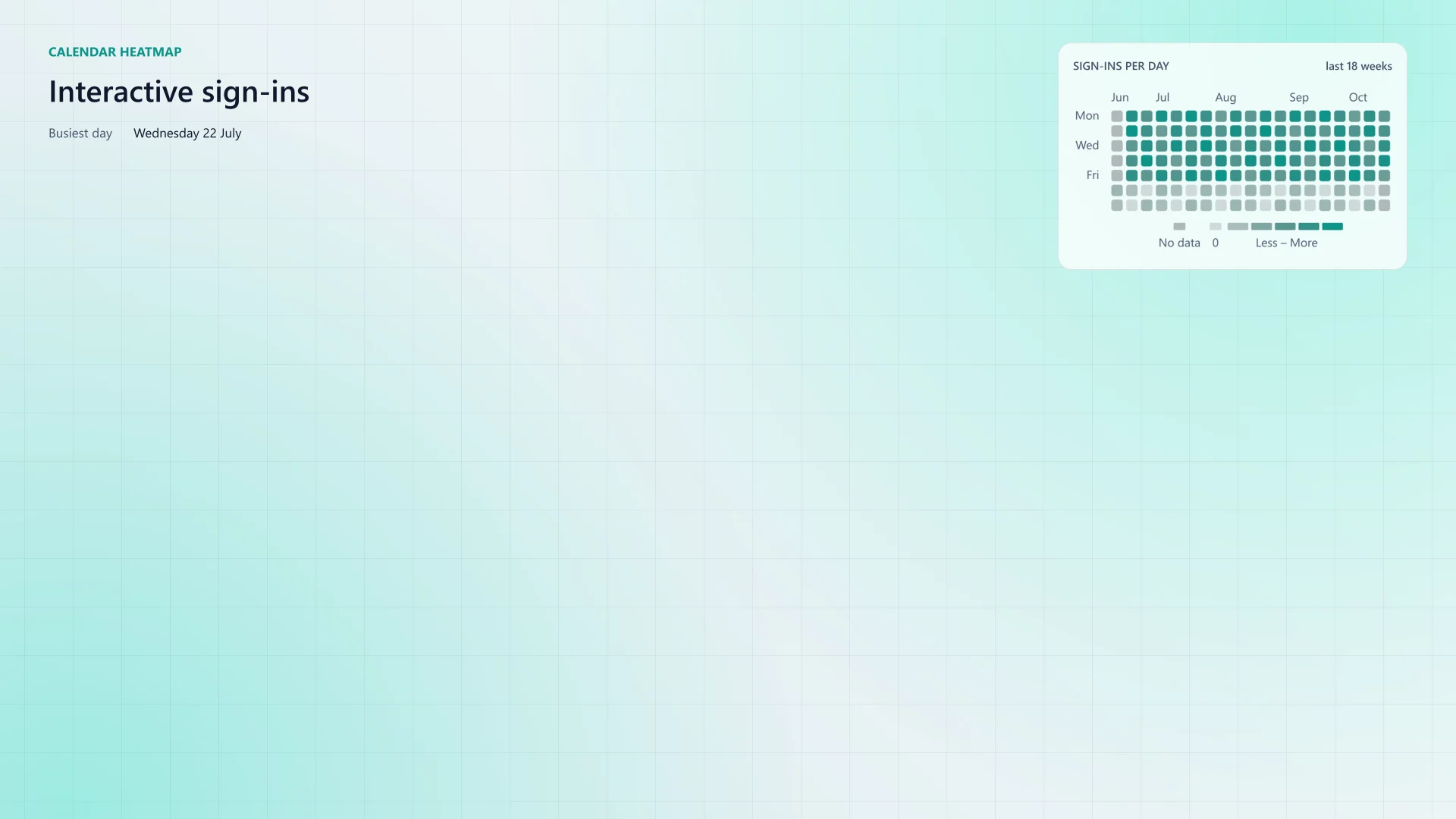
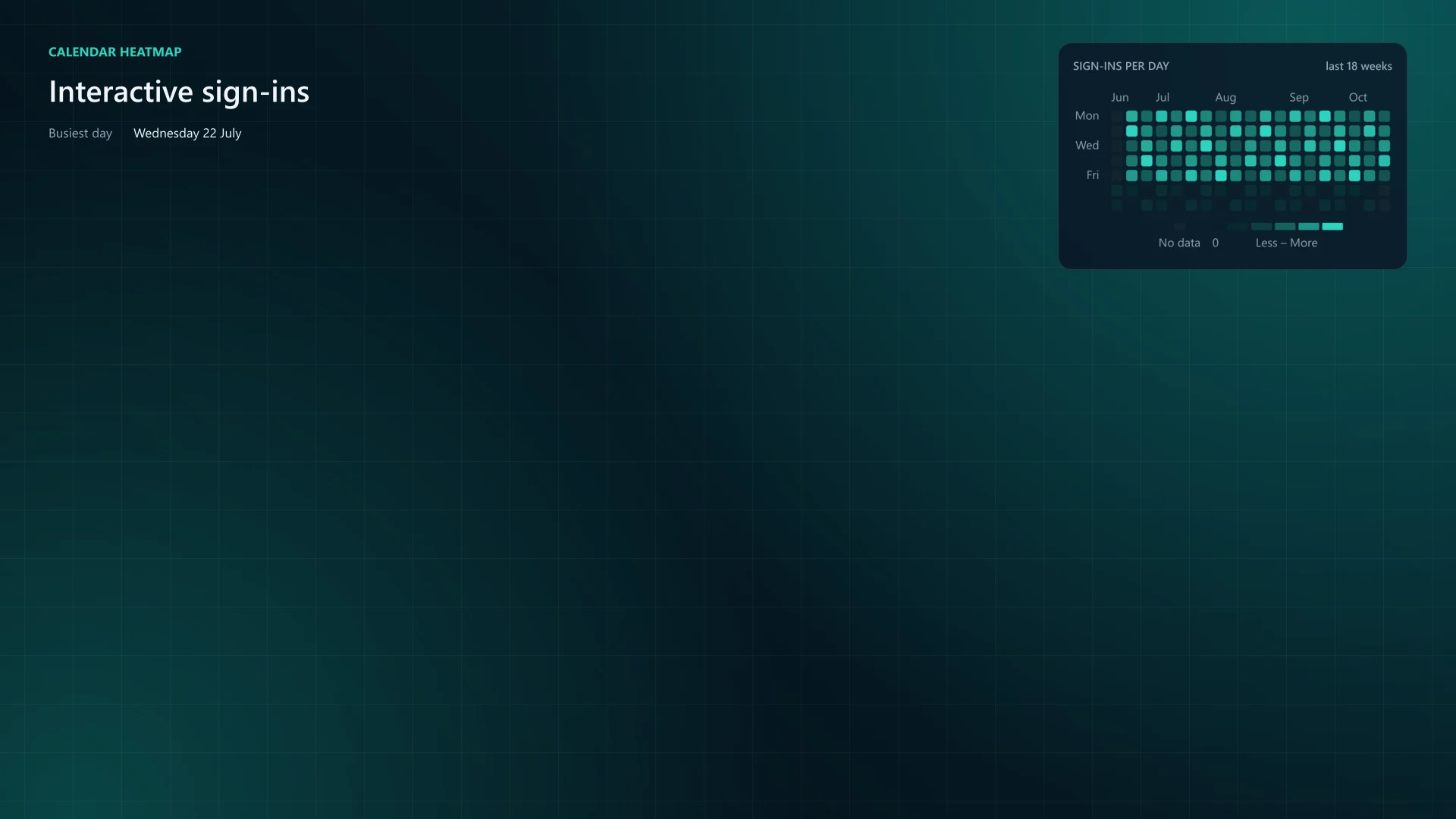
PowerShellFeature.CalendarHeatmap.ps1 $signIns | New-BGInfoCalendarHeatmap -Region Right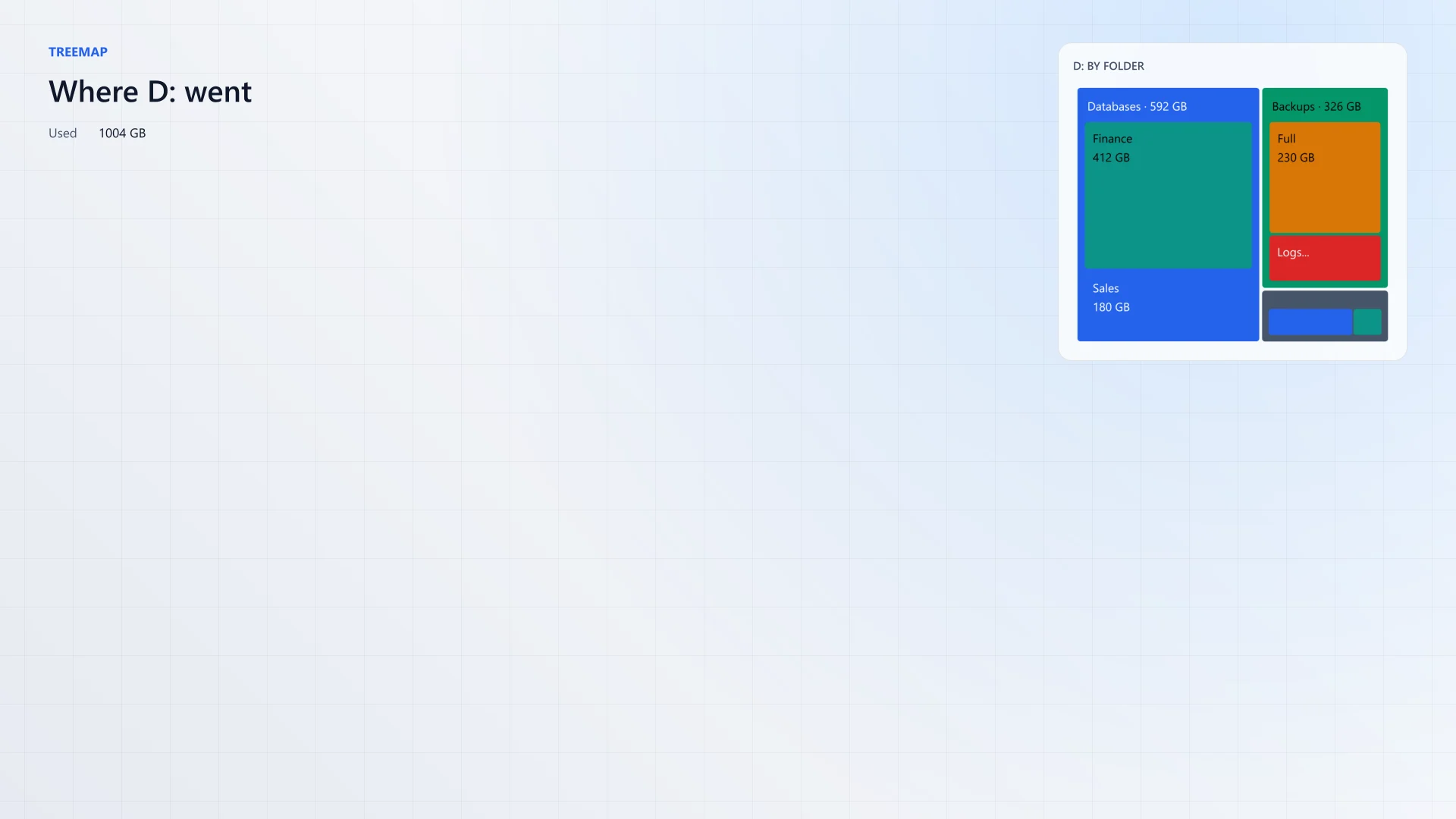
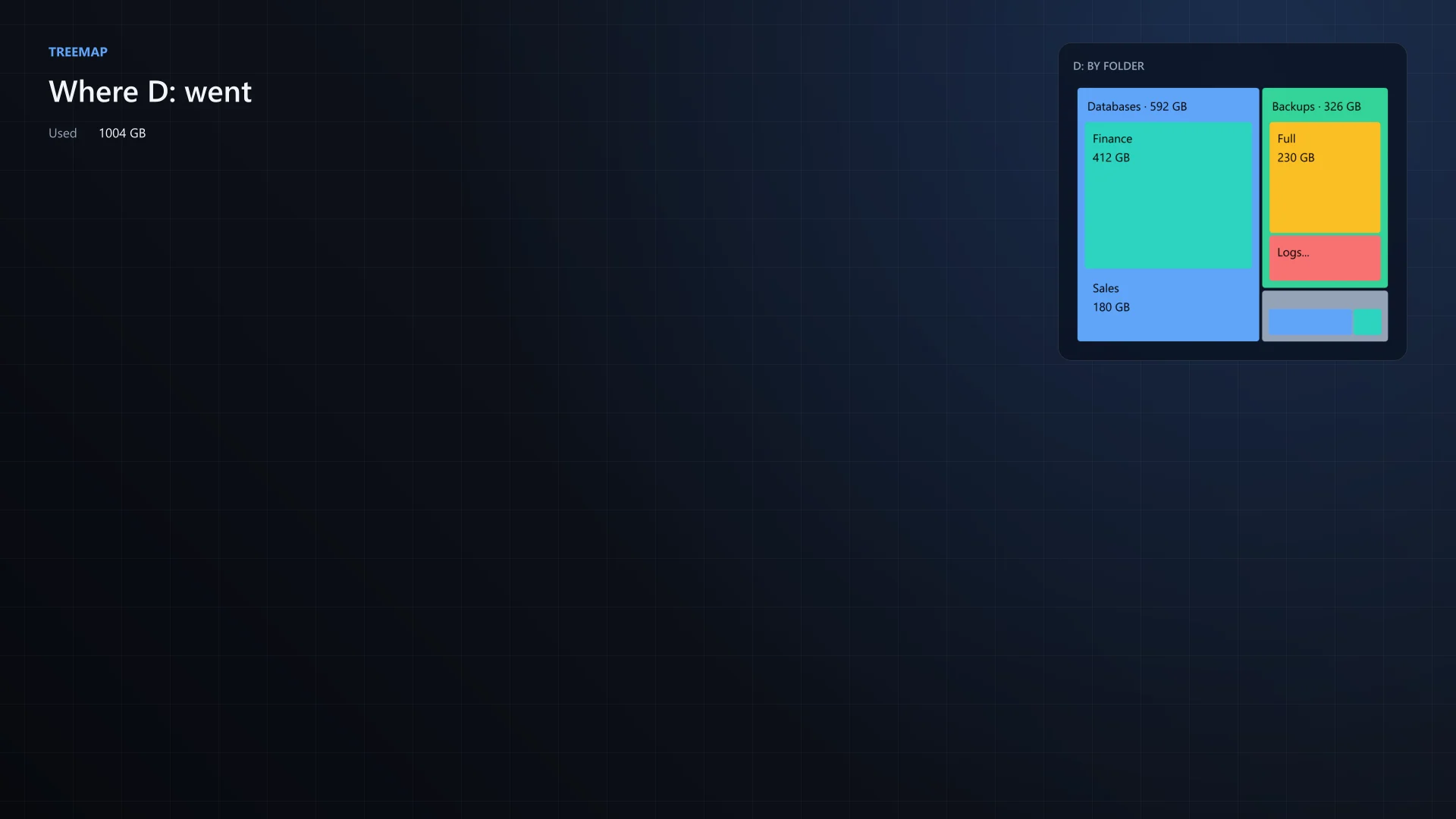
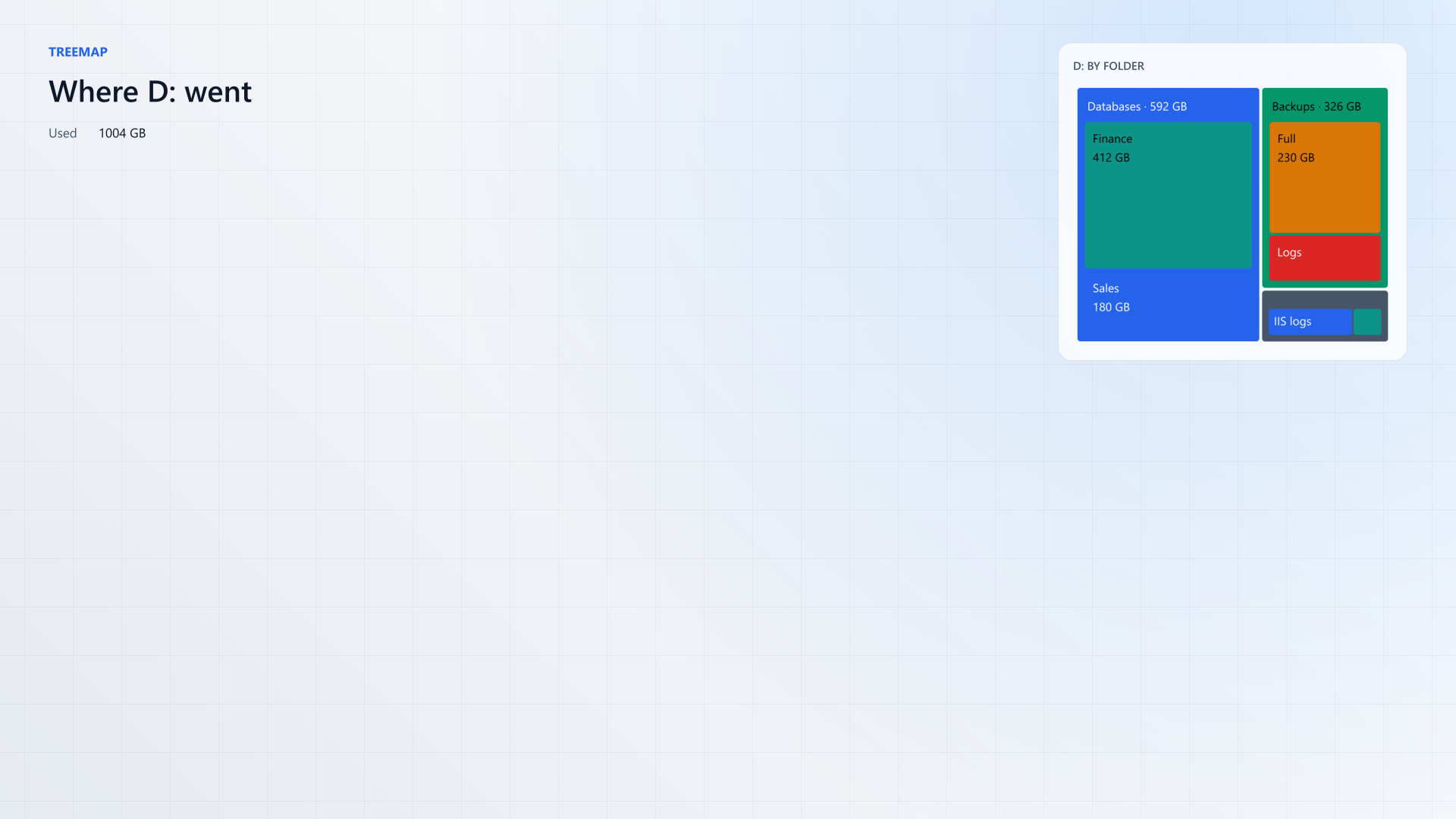
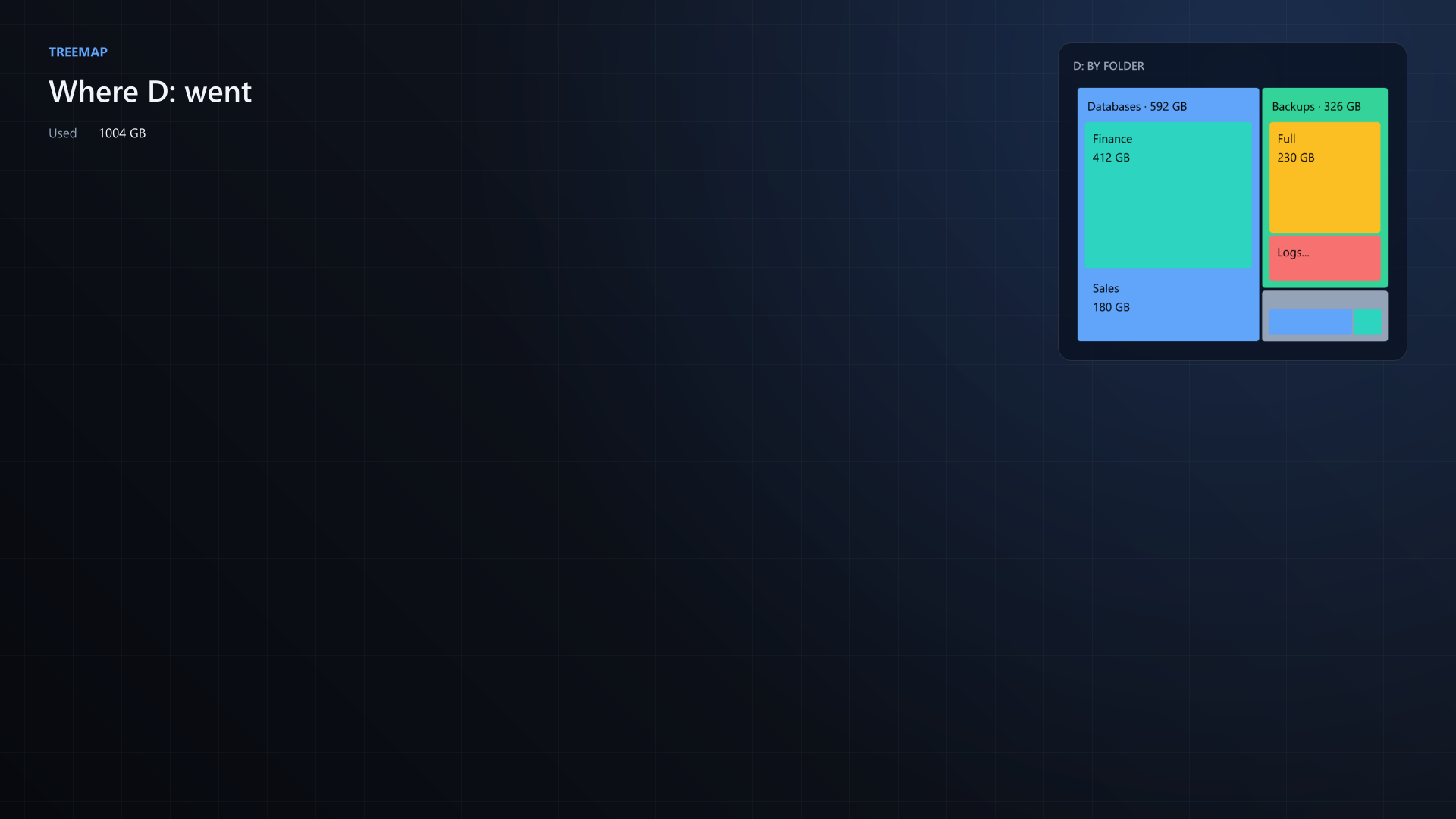
PowerShellFeature.Treemap.ps1 $usage | New-BGInfoTreemap -Region Right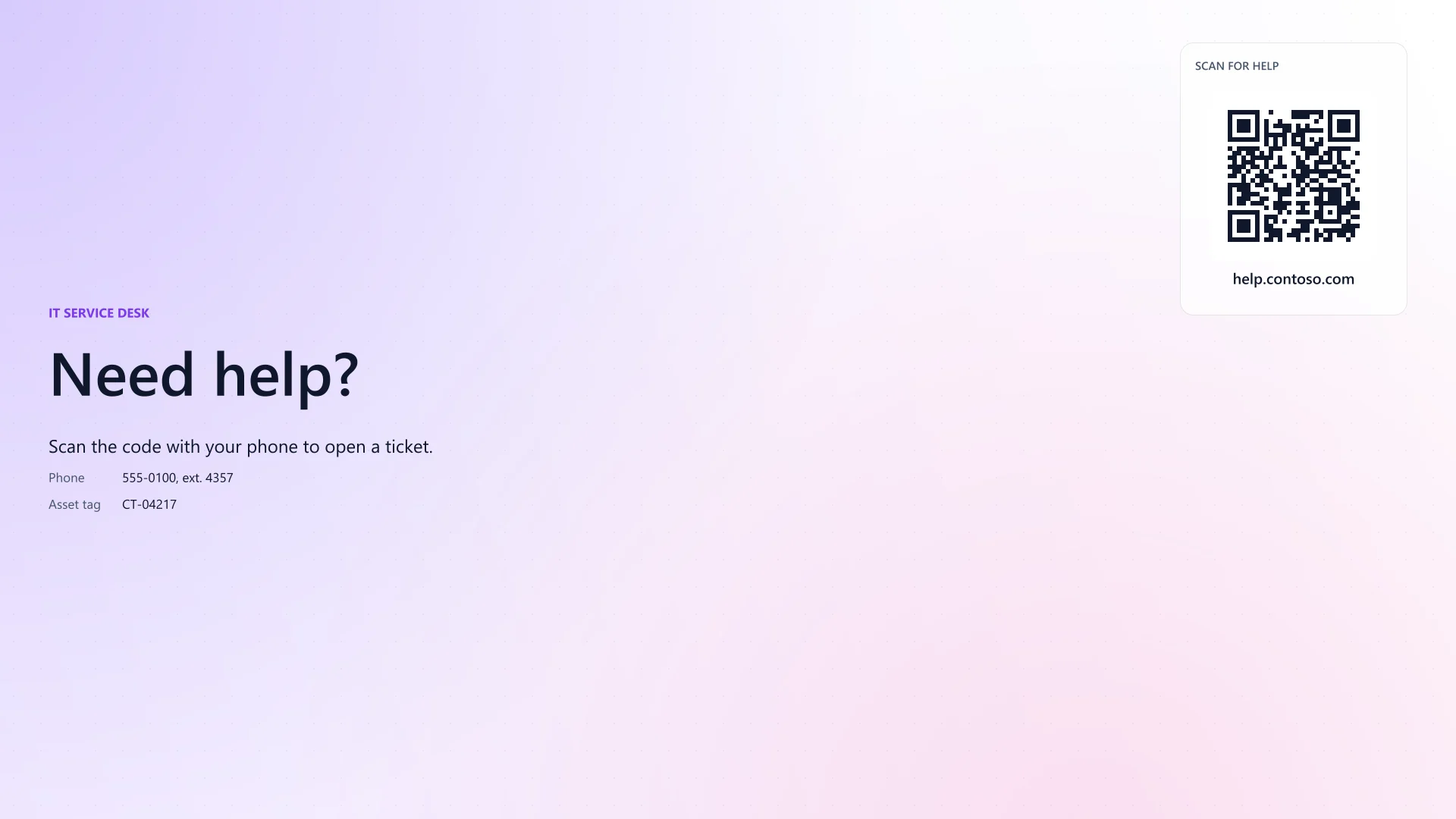
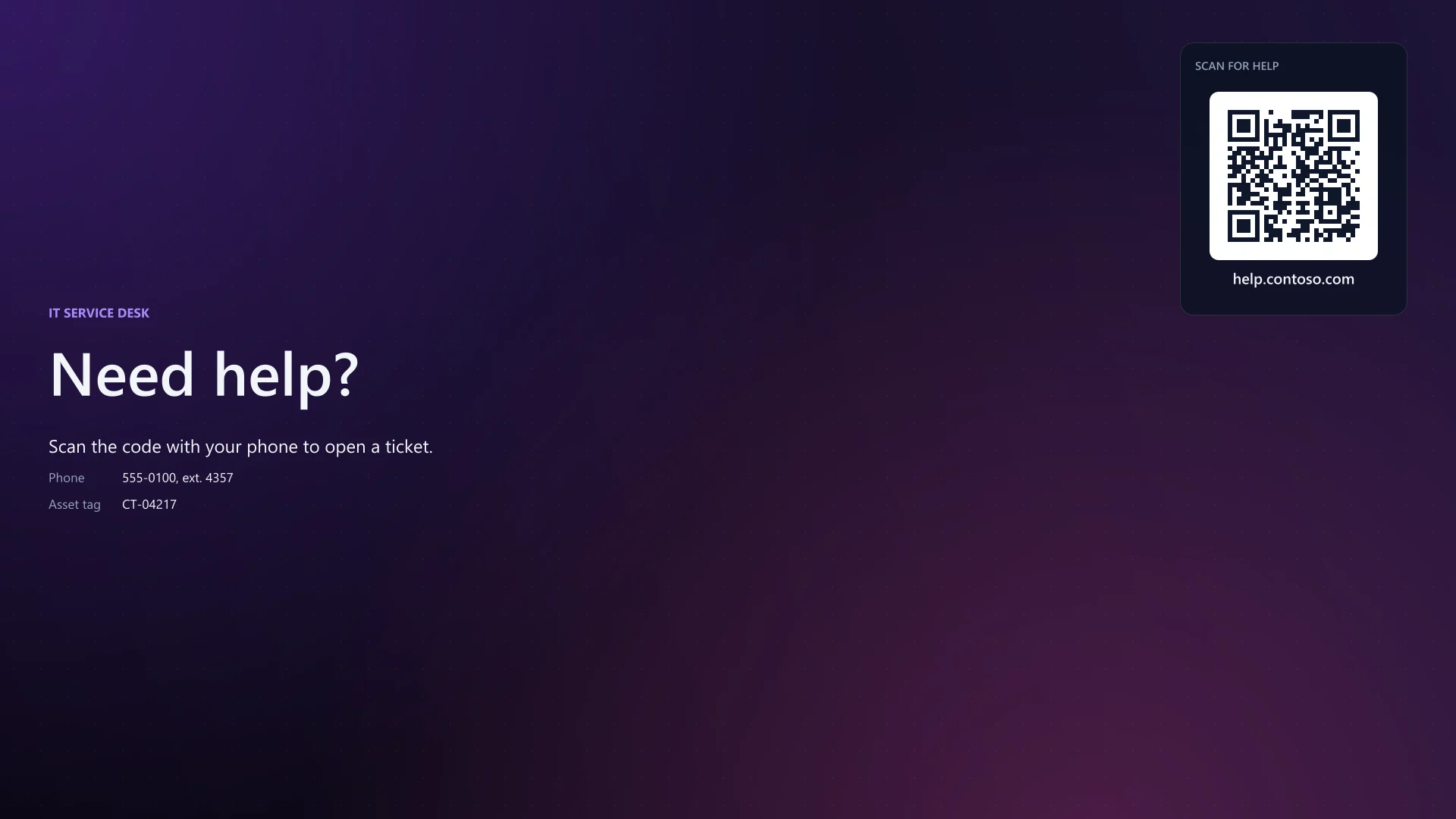
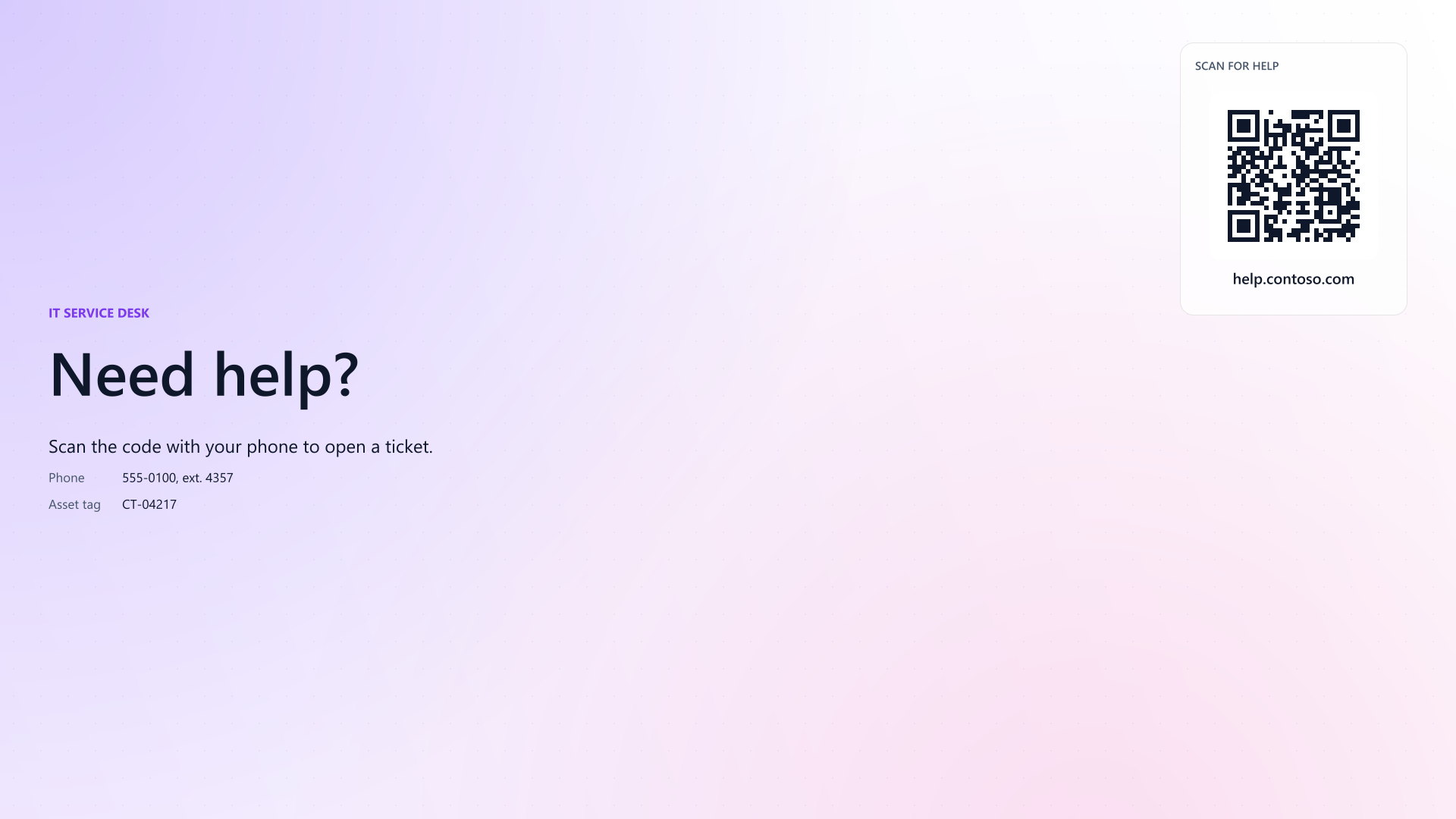
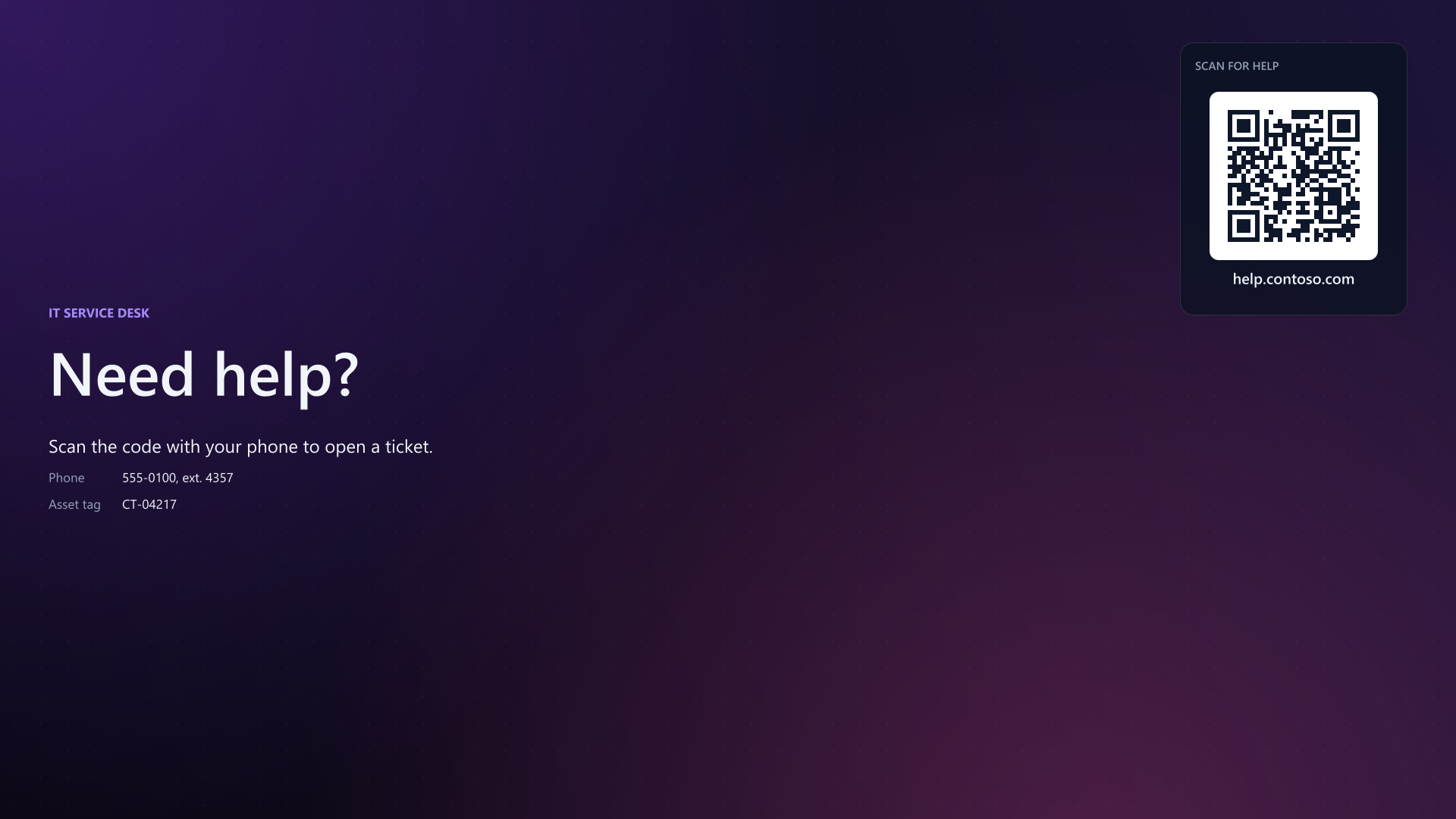
PowerShellFeature.QRCode.ps1 New-BGInfoQRCode -Region Right -Url $link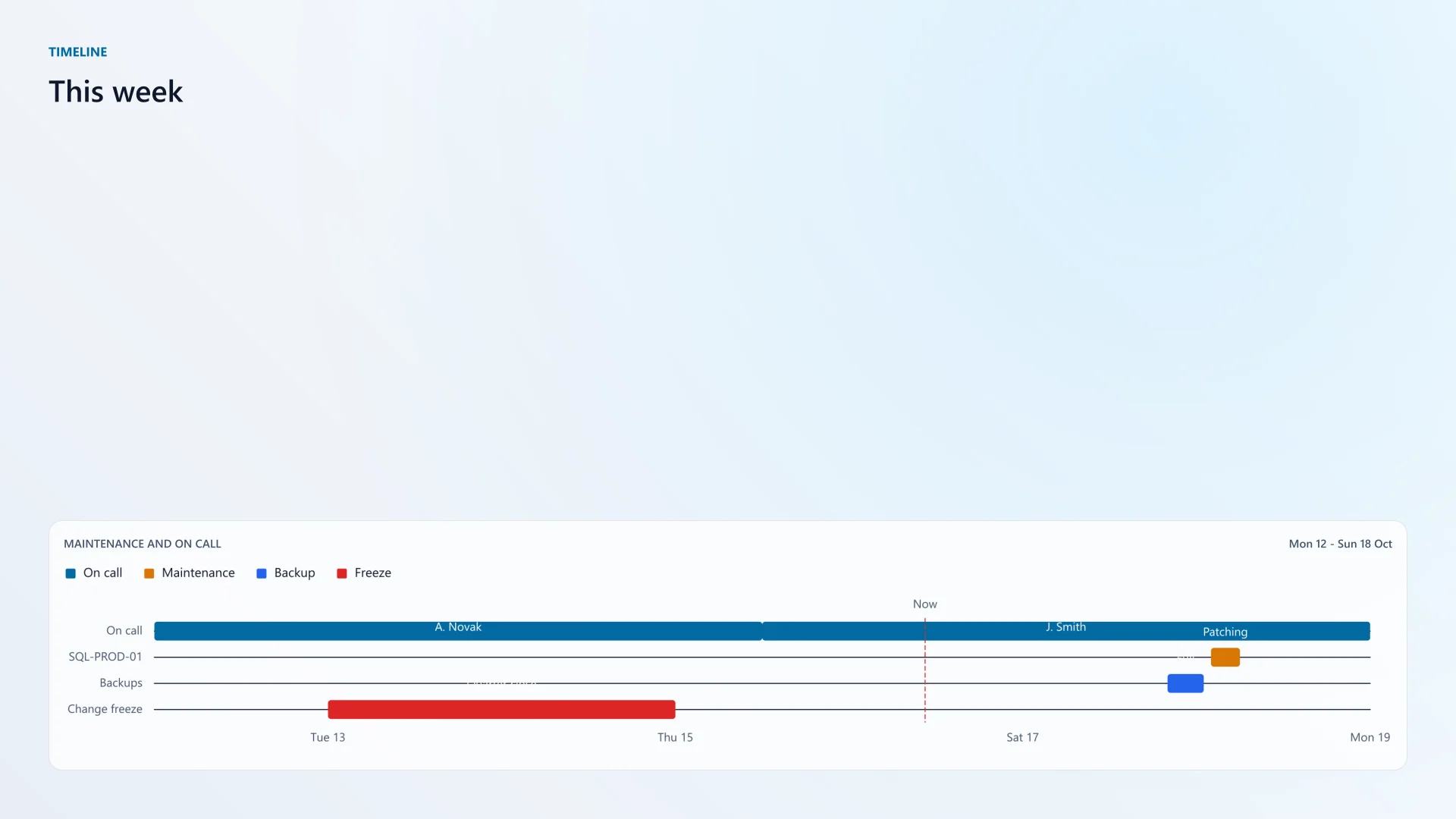
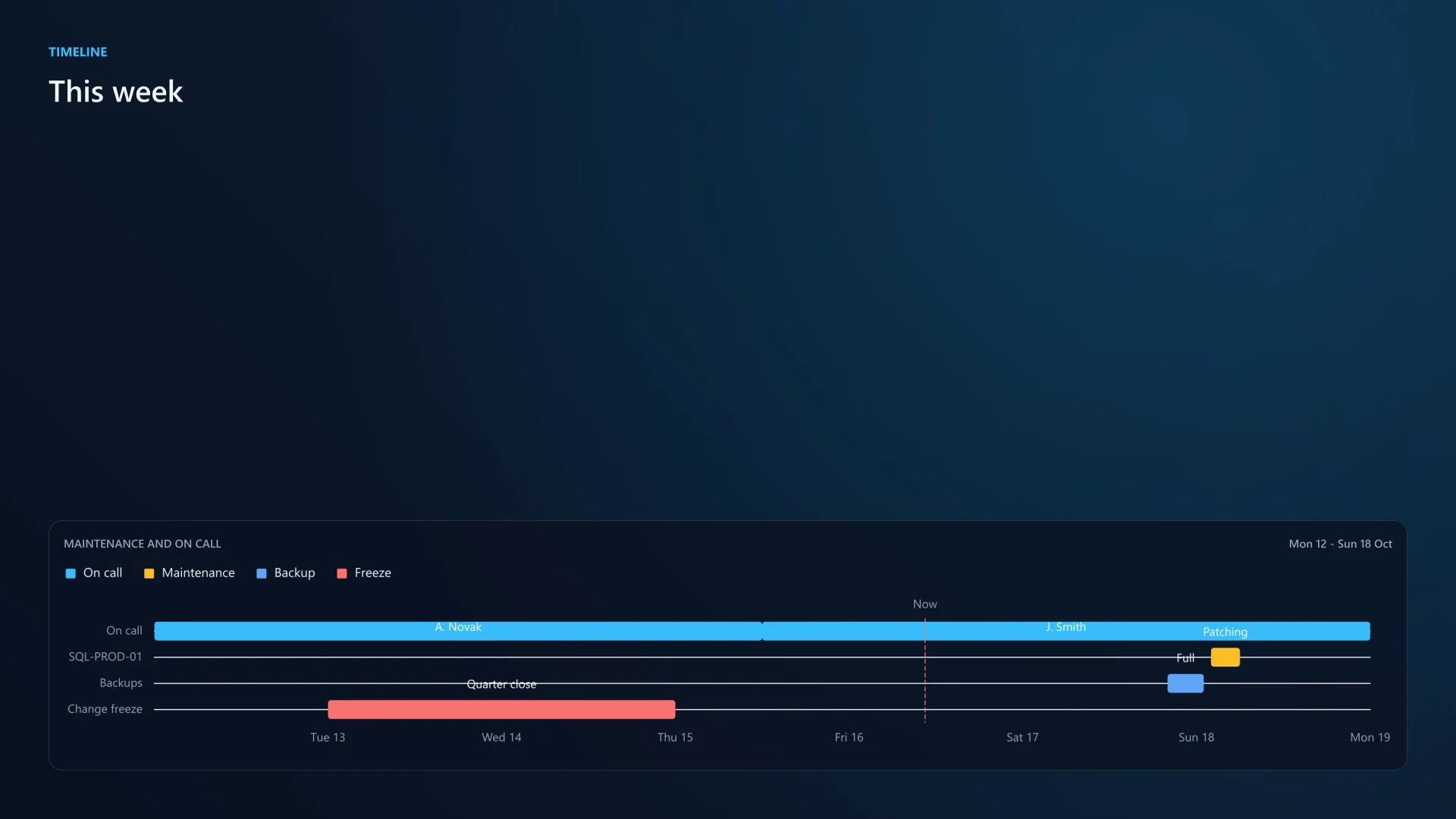
PowerShellFeature.Timeline.ps1 New-BGInfoTimeline -Region Bottom -Title 'On call' -Item $schedule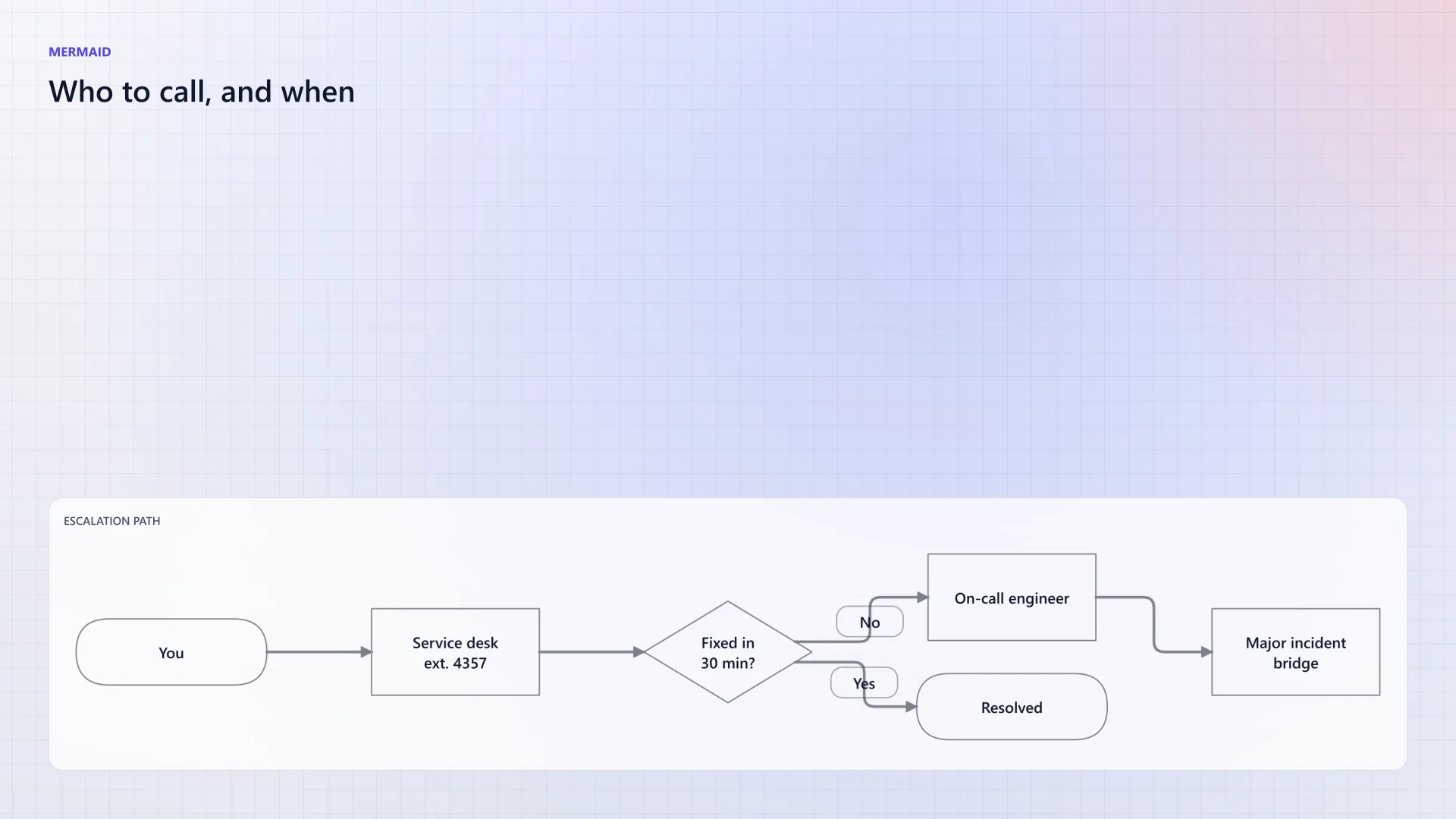
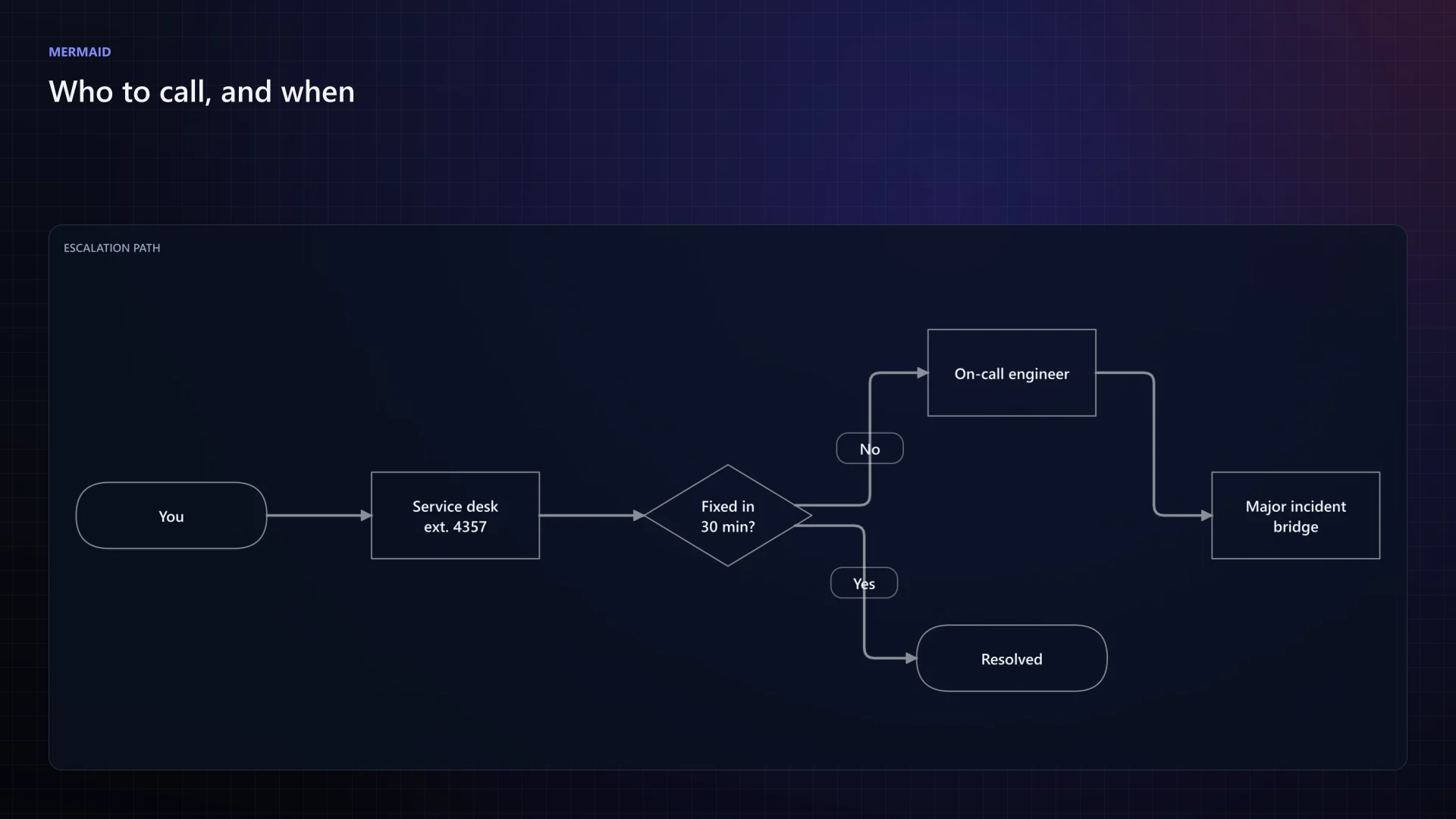
PowerShellFeature.Mermaid.ps1 New-BGInfoMermaid -Region Bottom -Title 'Escalation path' -Definition $diagram
What ChartForgeX draws
PowerBGInfo collects the values, lays out the wallpaper and applies it through Windows. Every pixel of the image comes from ChartForgeX; there is no System.Drawing or browser underneath. A theme preset resolves into the same ChartForgeX light or dark mode for every part, so a wallpaper reads as one design instead of a stack of overlays.
Charts
New-BGInfoChartThirteen chart kinds, from sparklines and gauges to progress bars and pictorial rows. Thresholds colour each bar, row or gauge by its value.
Visual blocks
New-BGInfoMetricMetric cards, tables and lists from ChartForgeX visual blocks, for exact facts that do not belong in a chart.
Calendar, timeline, treemap
New-BGInfoTimelineThe calendar heatmap, Gantt lane and treemap chart families, sized to the panel they sit on.
Mermaid
New-BGInfoMermaidMermaid text rendered by ChartForgeX.Mermaid and re-themed for its panel.
Topology
New-BGInfoTopologyGroups, nodes and links with status and replication lag, drawn by the same TopologyChart that renders service maps in .NET.
Canvas, backdrop and QR
New-BGInfoBackgroundInfo tiles from VisualCanvas, and gradients, glows, patterns and QR modules painted with ImageComposition.